Connect a WhatsApp number
You connect a WhatsApp number to Wavely by scanning a QR code or entering a link code, and your phone keeps the number.
Before you start
- You must be an owner or admin. Agents cannot add or change numbers.
- Have the phone that holds the WhatsApp number at hand. You will scan a code from that phone.
- The free plan allows one WhatsApp number. If you need more than one, the Add number button is replaced by a link to our sales team.
- If the numbers page says WhatsApp is switched off, turn on Receive WhatsApp chats under Channels first.
Steps
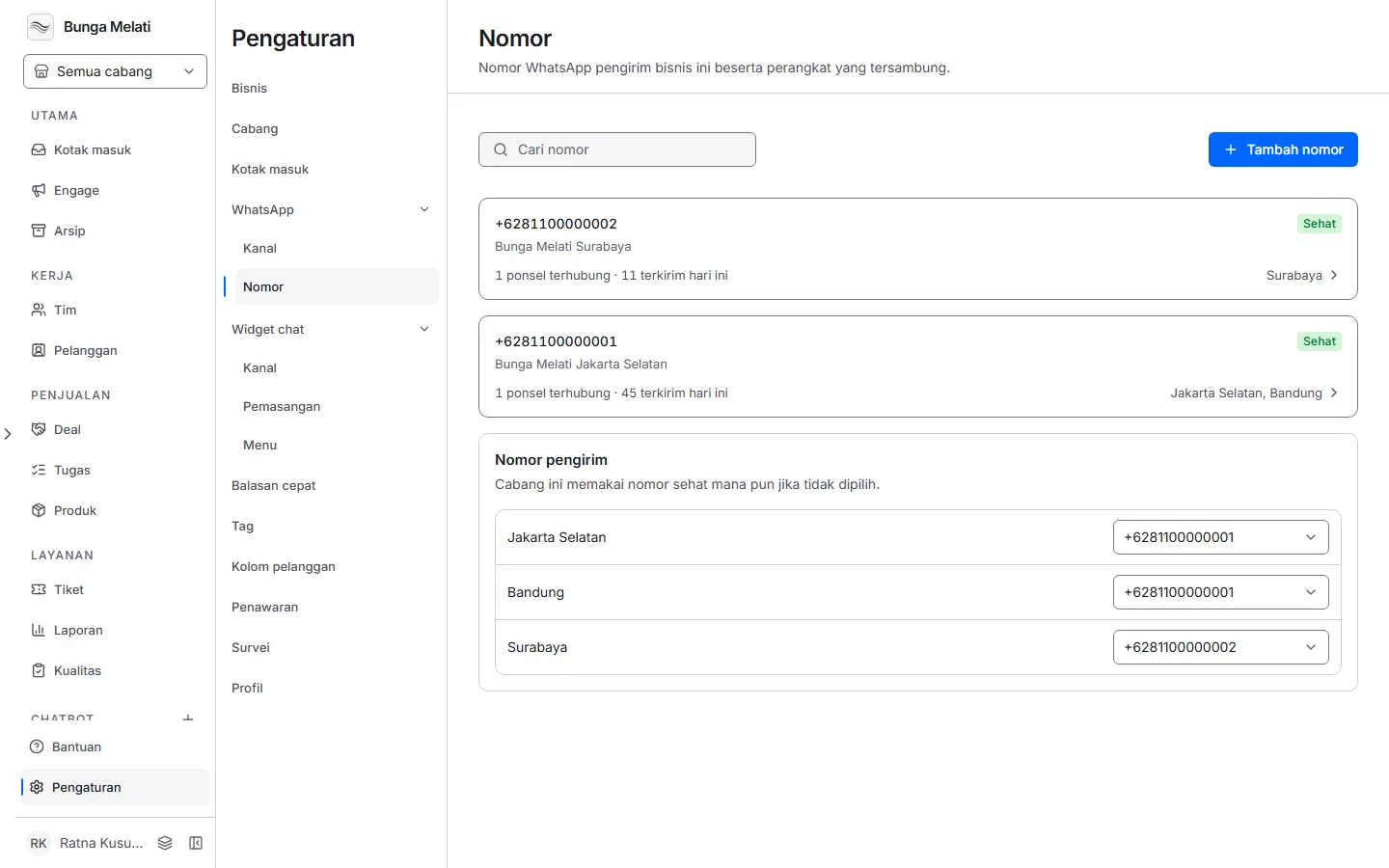
- Open Settings > WhatsApp > Numbers. Each number shows as a card with its status, how many phones are linked, and the branches that use it.
- Click Add number. A panel opens on the right. Fill in Phone number, and add a Label if you want a name that is easy to recognise. A number starting with 0 is saved as +62.
- Under Sends for, tick the branches that will send from this number. The daily sending limit applies per branch, not per number.
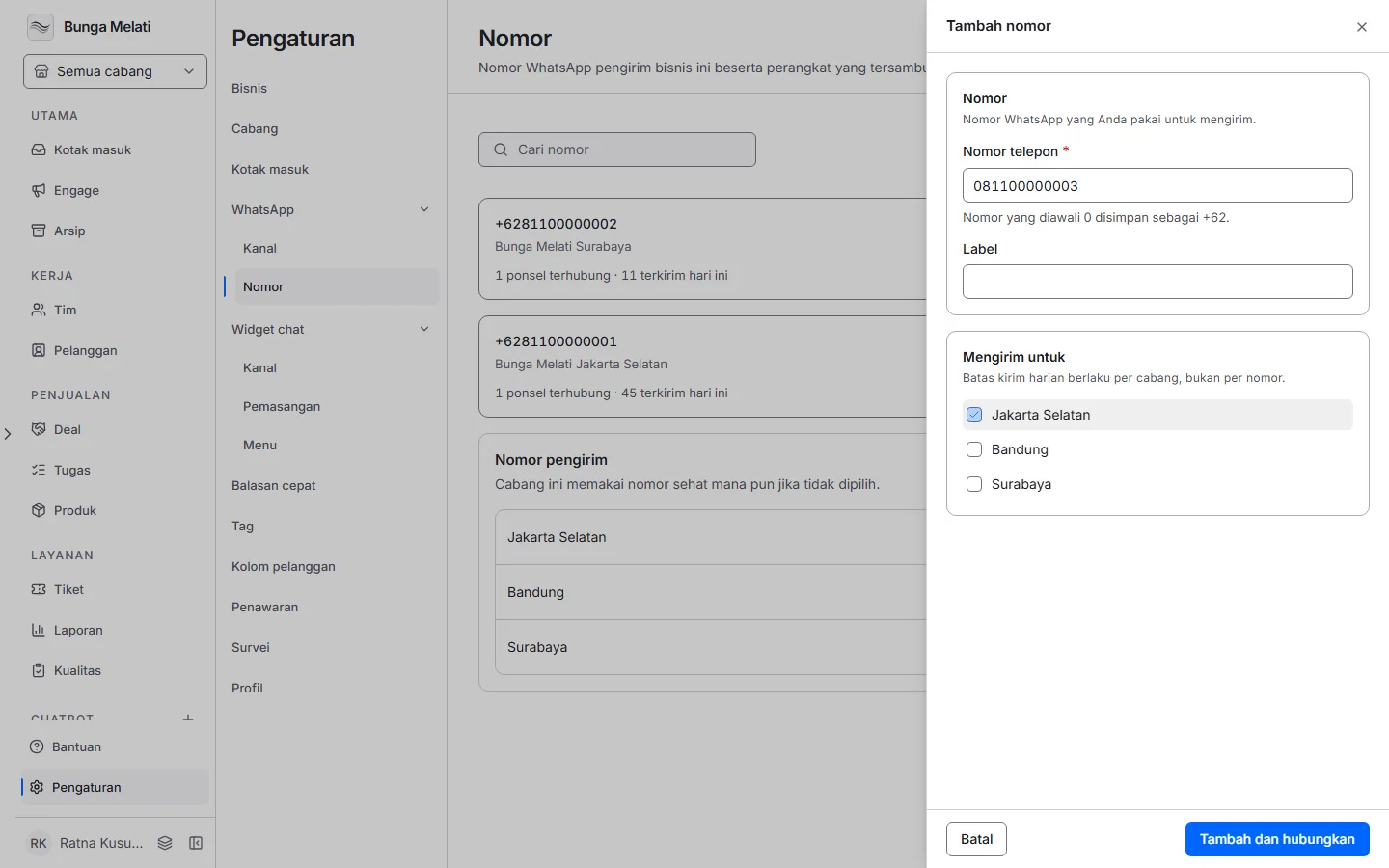
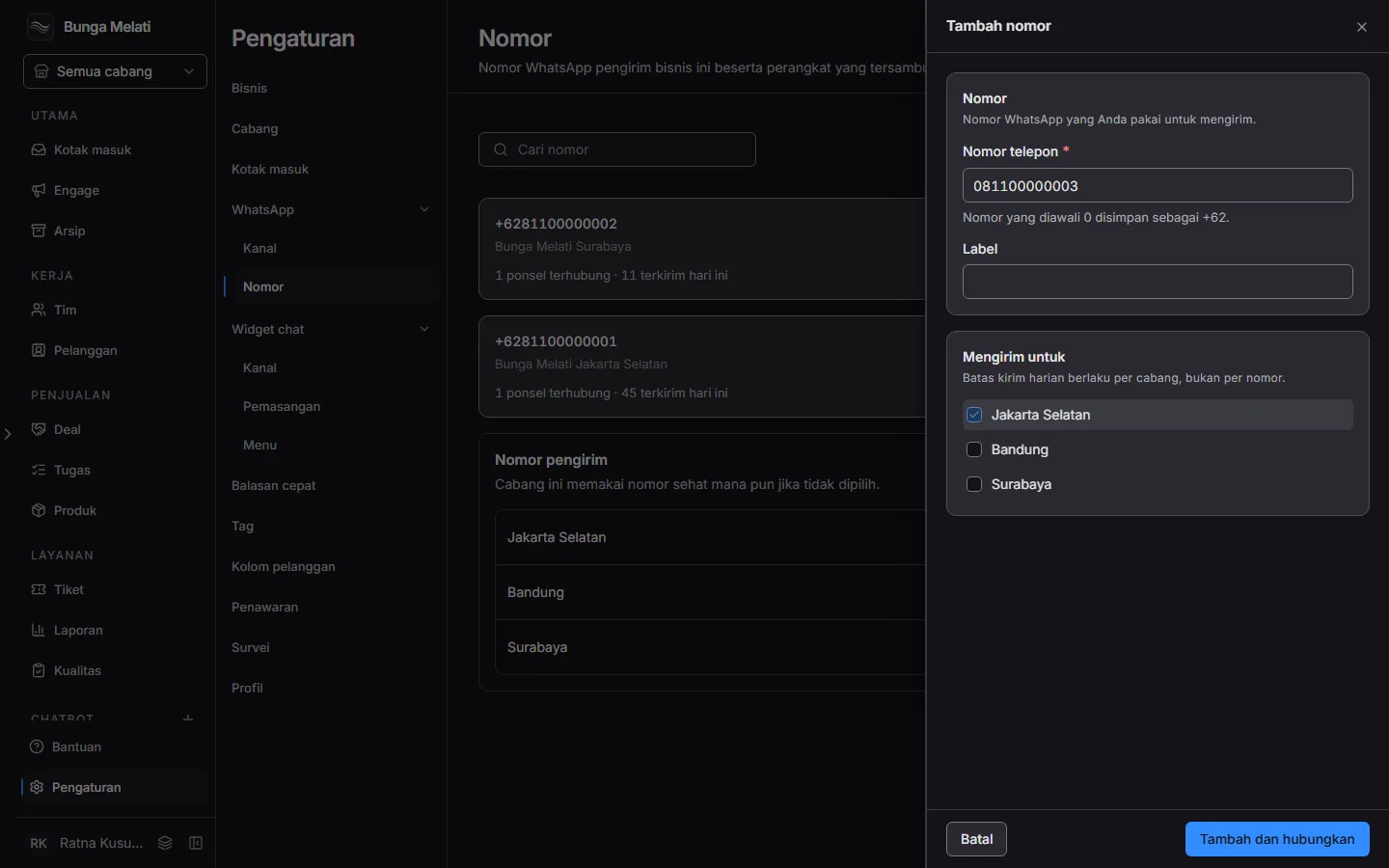
- Click Add and link. The number is created, then the Link a device panel shows a QR code under Scan with the phone.
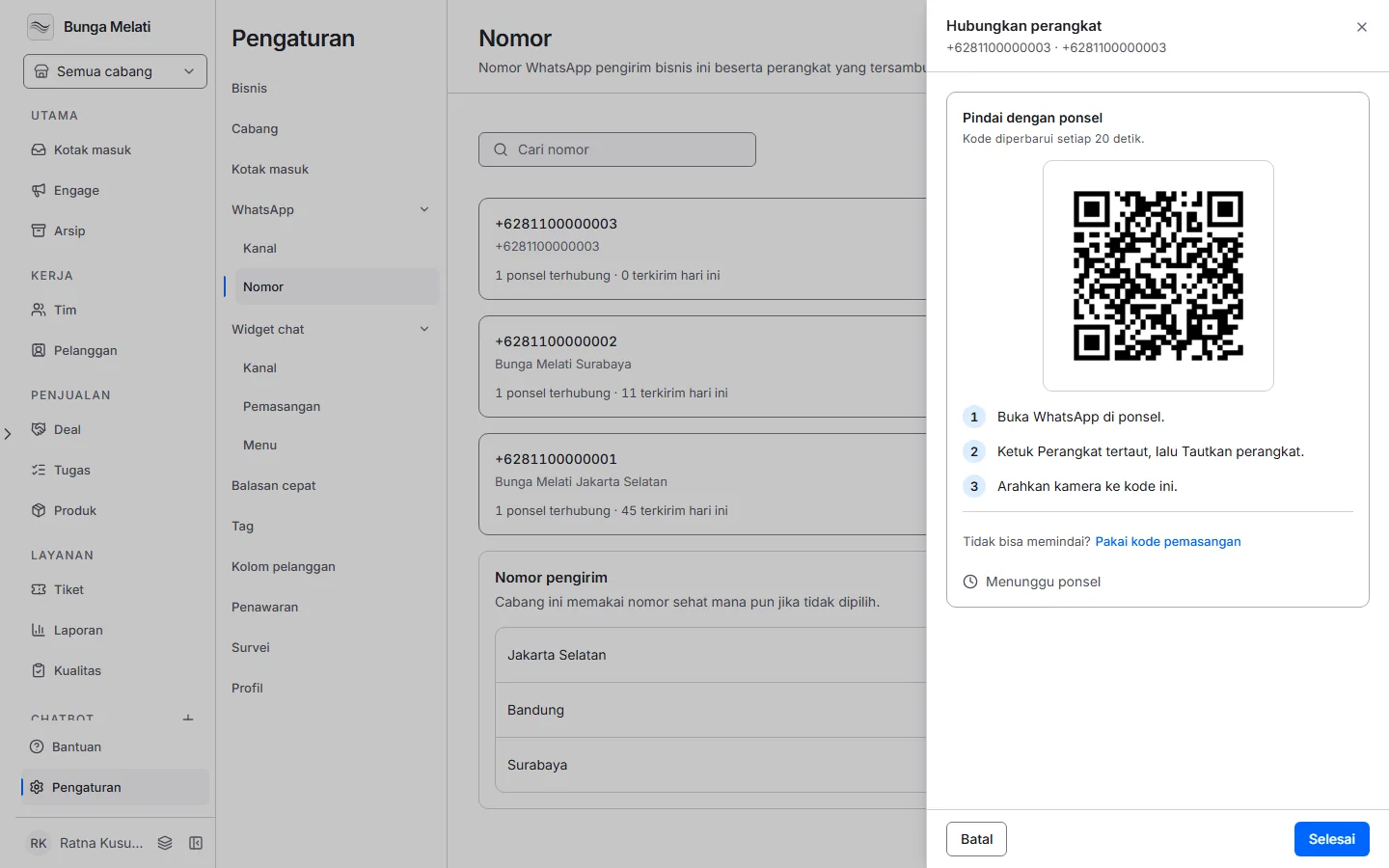
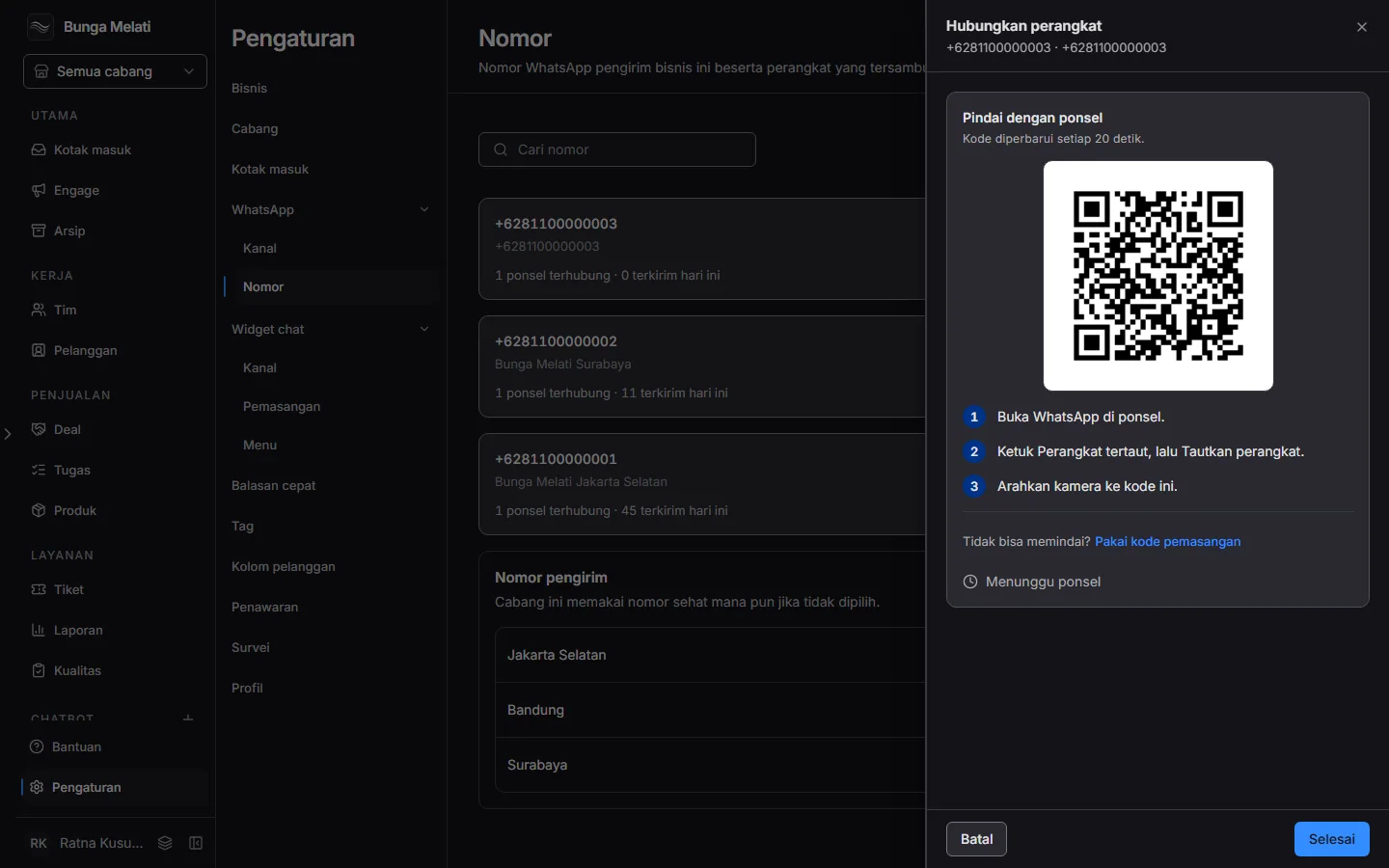
- On the phone, open WhatsApp, then Linked devices, then Link a device.
- Point the camera at the code on the screen. When it connects, the panel shows Device connected. Choose Done.
The new number now shows as a card on the Numbers page.
Note: If you cannot scan, choose Can't scan? and then Use a pairing code instead. On the phone, choose Link with phone number, then type the code shown on the screen. The QR code refreshes itself every 20 seconds while the panel is open.
Change a number that exists
Click a number's card to open its panel. There you can change the Label, change the branches under Sends for, see the Devices with their status, choose Show code, Unlink or Link device, and choose Remove number. Remove number signs every linked device out and cancels queued messages. Past chats stay.
In the Sender number section of the same page, each branch has a number to pick. If you pick none, the branch uses any healthy number.
If a number disconnects
Number and device status show on the Numbers page. If a device fails to connect, Wavely tries to recover it by itself. If that does not work, the device asks you to scan again: open the number's panel, choose Show code and repeat steps 5 and 6. Read If a number disconnects for what each status means.