Sales
Products and quotations
In Wavely, the product catalog becomes a PDF quotation sent in the chat, and a total above the limit waits for the owner.
The product catalog
Open Products in the Sales section. The Catalog tab holds what you sell, priced once and reused in quotations. Each row has Product, SKU, Category and Price with its unit.
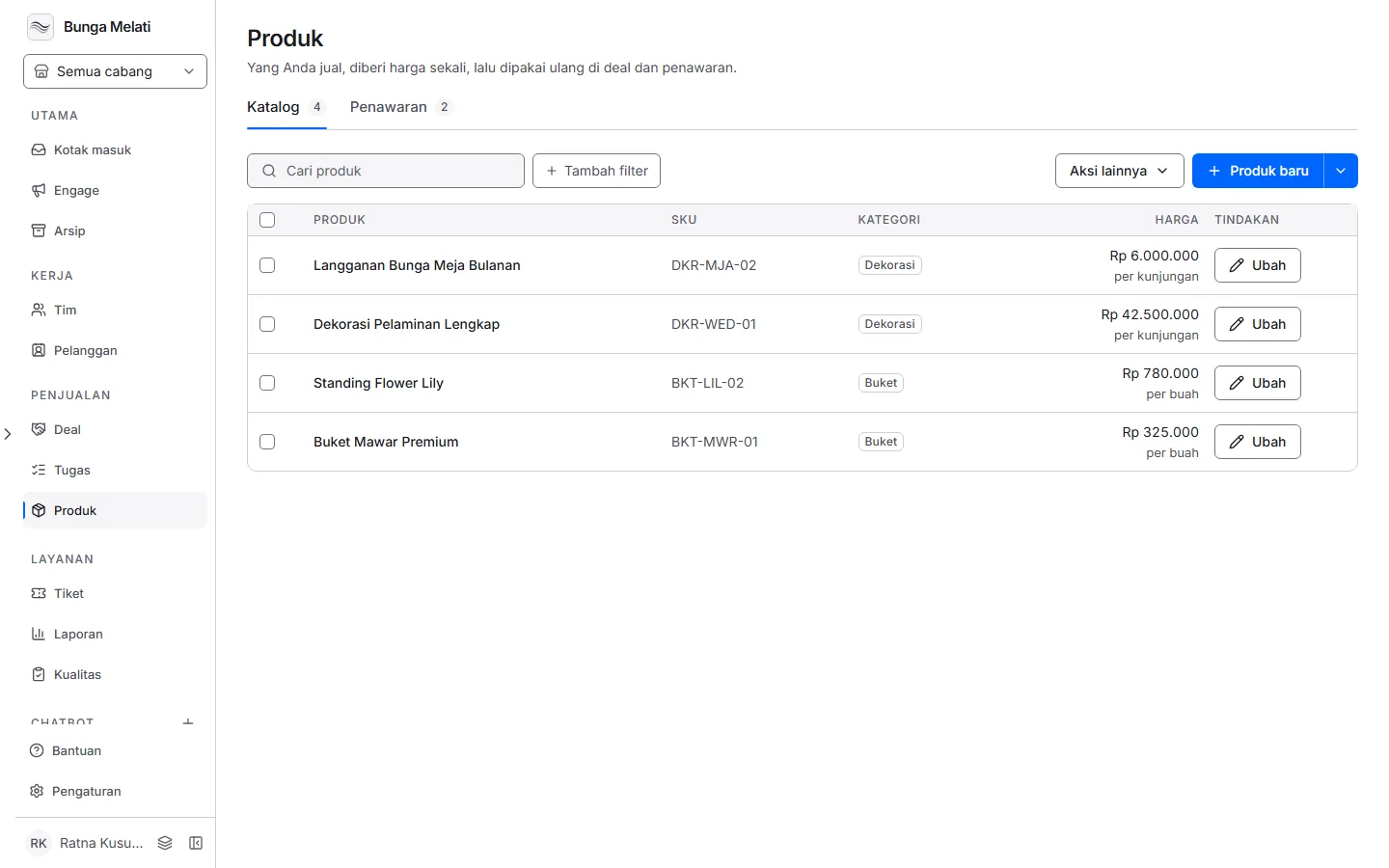
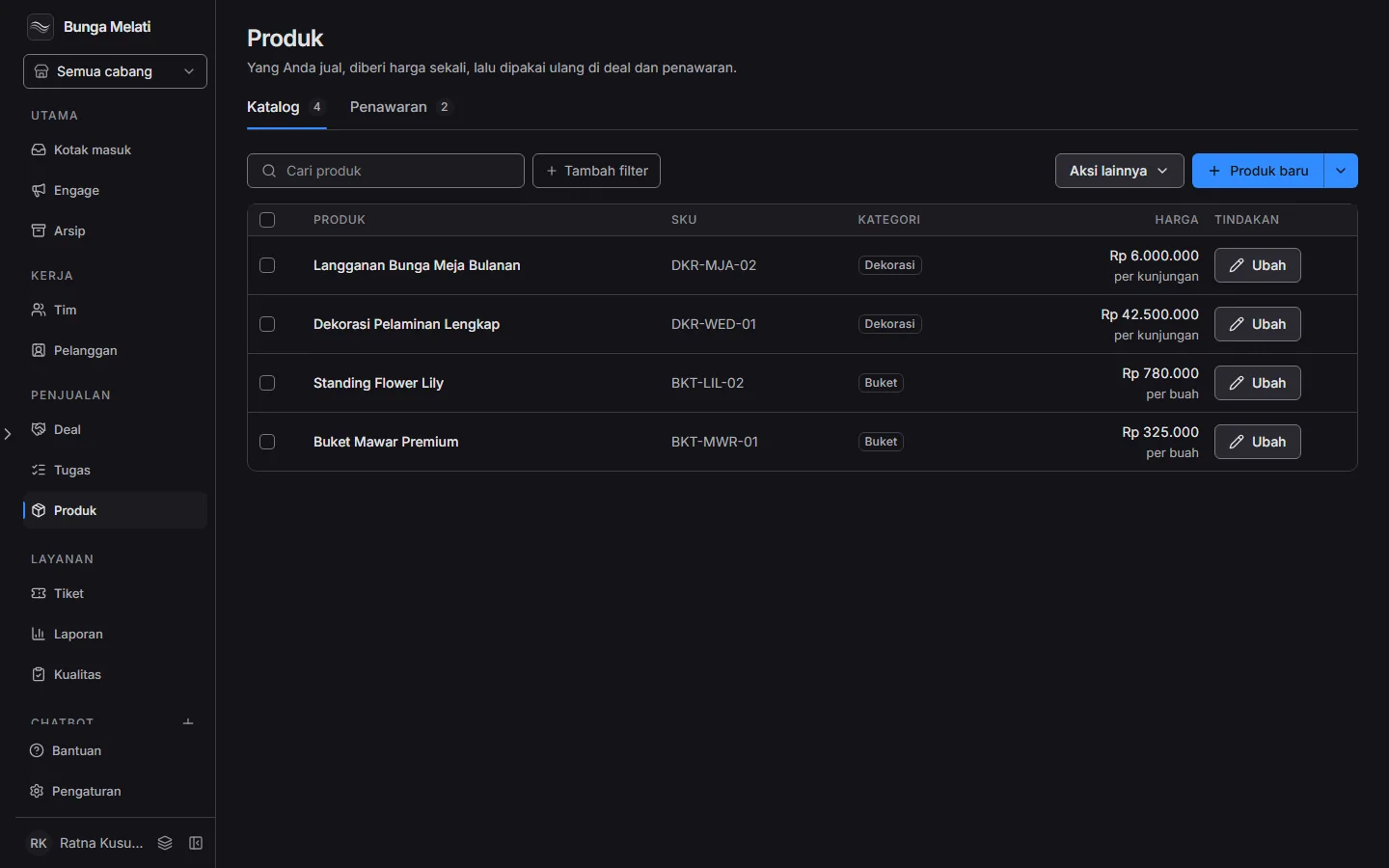
Owners and admins can add, edit and remove products. Agents can view the catalog, search it and filter by Category, without the edit buttons.
Add a product
- Click New product, or the arrow beside it and then Add one product.
- Fill in Name, SKU and Category. A SKU cannot match another product's.
- Fill in Price (Rp), which is required, and Unit: per kg, per piece or per visit.
- Tick Add VAT 11% on quotations if the product carries VAT. The percent follows the quotation settings.
- Click Add product.
To add many products at once, choose Import from a file, download the template, fill it in and upload it. The format is .csv or .xlsx, up to 2 MB and 5,000 rows. A SKU that is already saved updates that product instead of adding a second one.
More actions, Manage categories adds, renames and removes categories. Removing a category does not remove its products. A removed product leaves the catalog, but quotations already drafted keep its name and price.
Create a quotation
A quotation is made on the Quotations tab with New quotation, and every role can do it. In the Inbox, Create quotation in the Create card of the customer panel opens one for that customer. On the Deals board, the three-dot menu on a card has the same choice and links the quotation to the deal.
- Pick the Customer. Once saved, the customer cannot change.
- Pick a Deal if this quotation is for one of that customer's open deals.
- Under Items, pick a product, then click Add item. Set the quantity, from 1 to 100,000. Each product has one line, and adding it again raises the quantity.
- Check the Subtotal, VAT and Total.
- Click Preview PDF to see the result, Save as draft, or Send in chat.
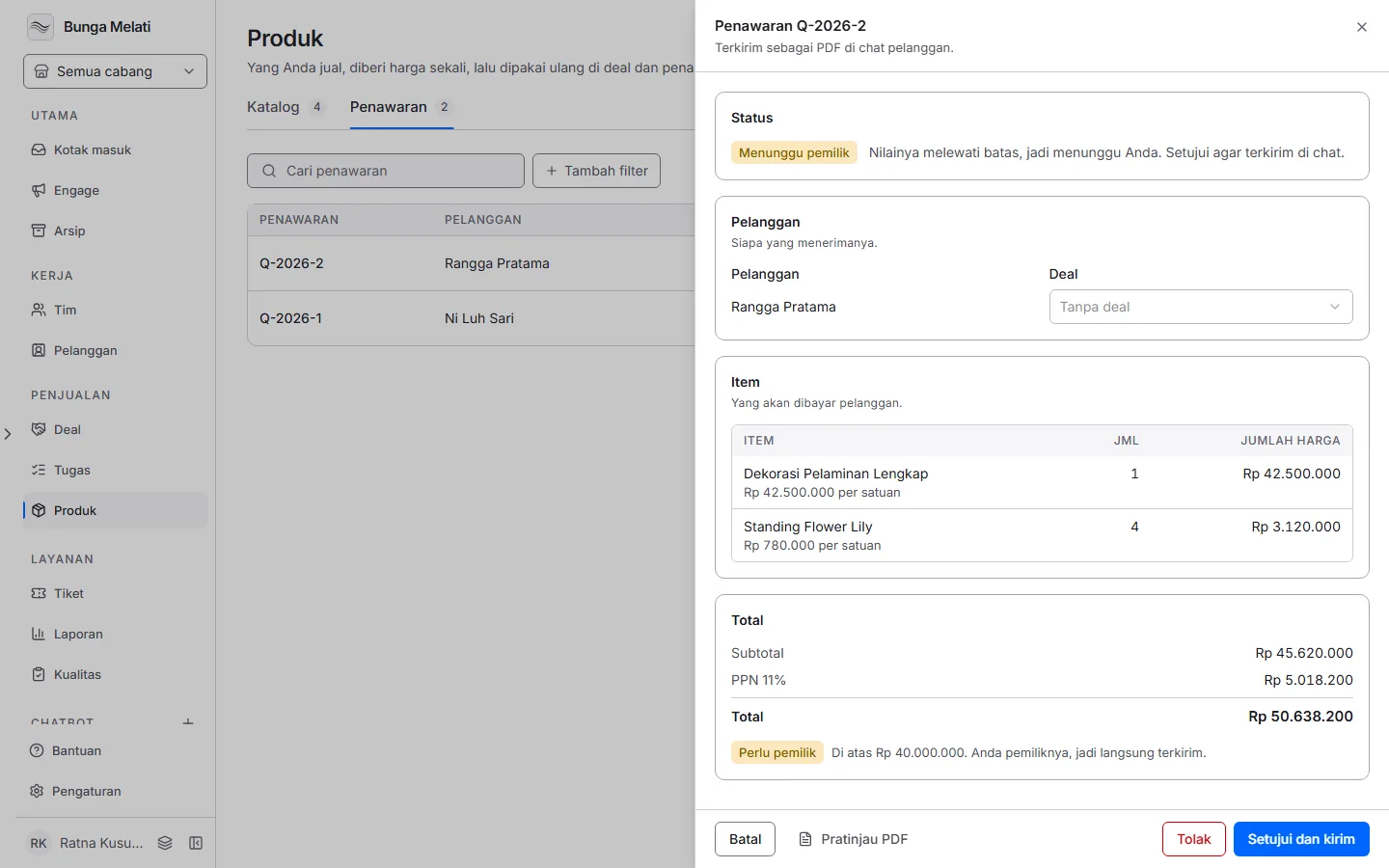
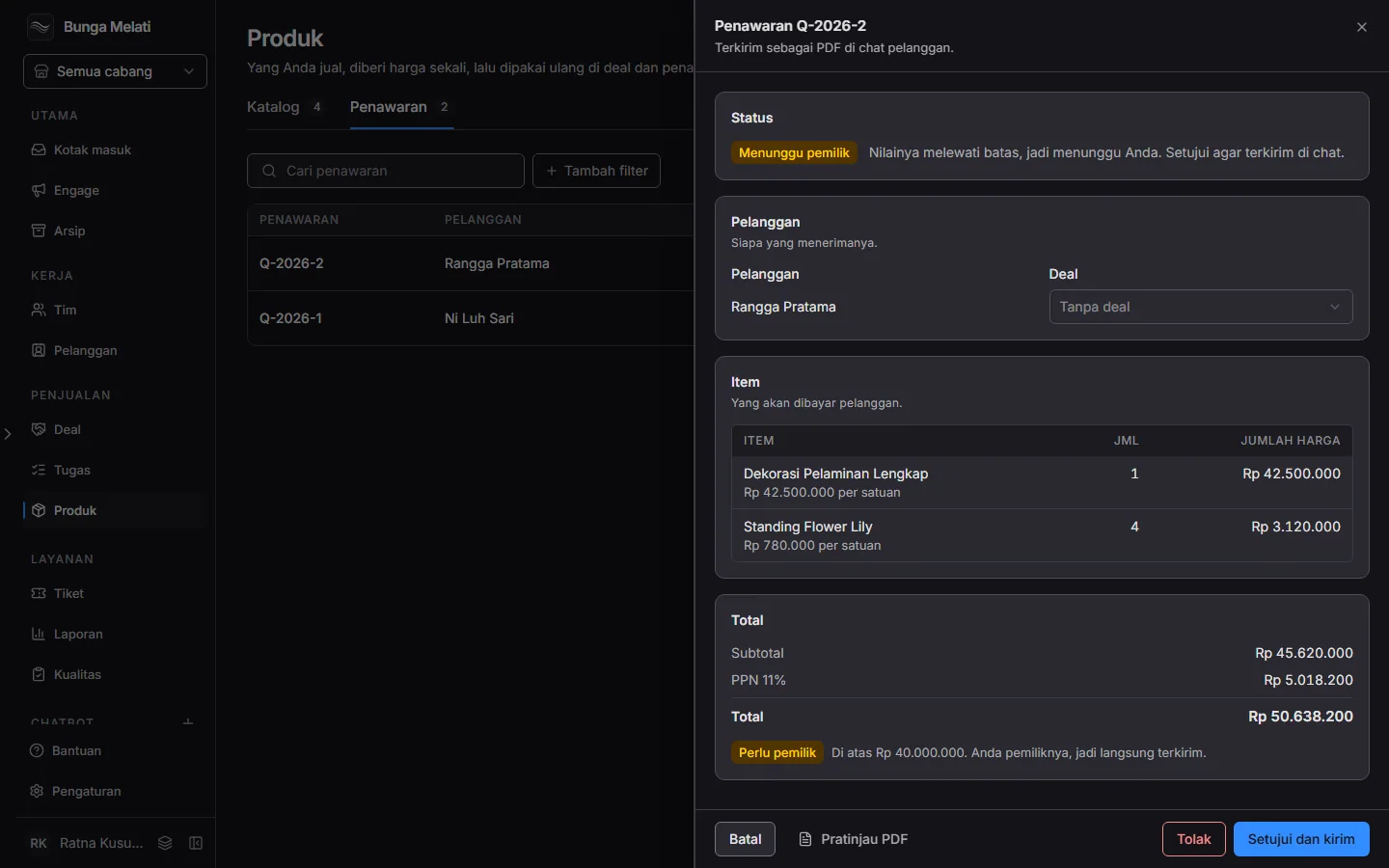
The quotation goes out as a PDF in the customer's open chat, as a message headed Penawaran with its number, in the name of the agent who sent it. The customer must have an open chat, and only the agent who holds that chat can send in it. Otherwise Wavely tells you, and the quotation stays saved as a draft.
The statuses are Draft, Waiting for the owner, Sent, Accepted and Declined. A sent quotation has Mark as accepted and Decline. An accepted or declined quotation can no longer be edited. The names and prices on a quotation's lines do not change if the product is edited later.
Owner approval
A quotation whose total is above the limit waits for the owner before it goes out. The total is compared with the limit with VAT included, and it must be larger, not equal.
- Agents and admins see the button Ask the owner. The quotation becomes Waiting for the owner and nothing is sent yet.
- The owner opens the quotation and chooses Approve and send or Decline. Once approved, the PDF goes out in the chat in the name of the agent who asked.
- An owner who sends a quotation above the limit waits for nobody, and it goes out at once.
In the demo business, the limit is Rp 40,000,000. The quotation above is worth Rp 50,638,200, so it waits for the owner. The limit is a setting, not a fixed number.
Quotation settings
Open Settings, Quotations. Owners and admins can open it.
- Owner approves above (Rp) sets the approval limit. It starts at Rp 40,000,000.
- VAT (%) is the percent added to products that carry VAT. It starts at 11.
- Text is the wording on the PDF. You can use
{{customer.name}},{{items}},{{total}}and{{agent.name}}.{{items}}marks where the table of items goes, and without it the table follows your text. Use the default text brings back the original wording.
Note: Only the owner can change the limit and the VAT. An admin can change the text only, and the screen says so.
Export
Owners and admins can export the products to a file. Open More actions, then Export all products, pick the format and the columns, and start the export. It runs in the background, so you can leave the page. The finished file is under More actions, Export history, and stays for 30 days.