Sales
Deals and approvals
In Wavely, deals move across a pipeline board, and a stage can ask the owner to approve before a deal moves.
The pipeline board
Open Deals in the Sales section. Each column is one stage, and each card is one deal. A new business starts with five stages: Qualified, Proposal sent, Negotiation, Won and Lost. Owners and admins can change them under More actions, Pipeline settings.
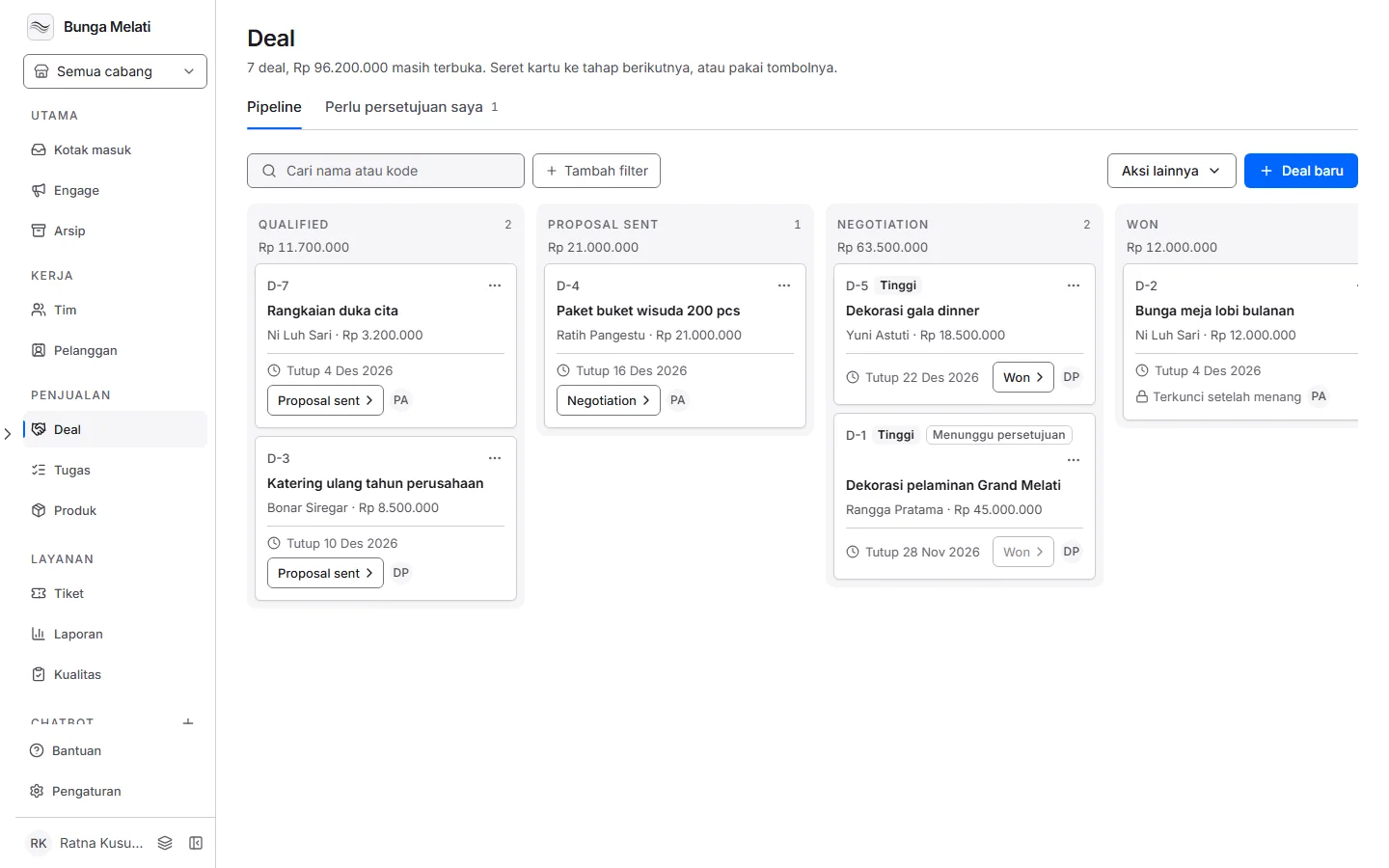
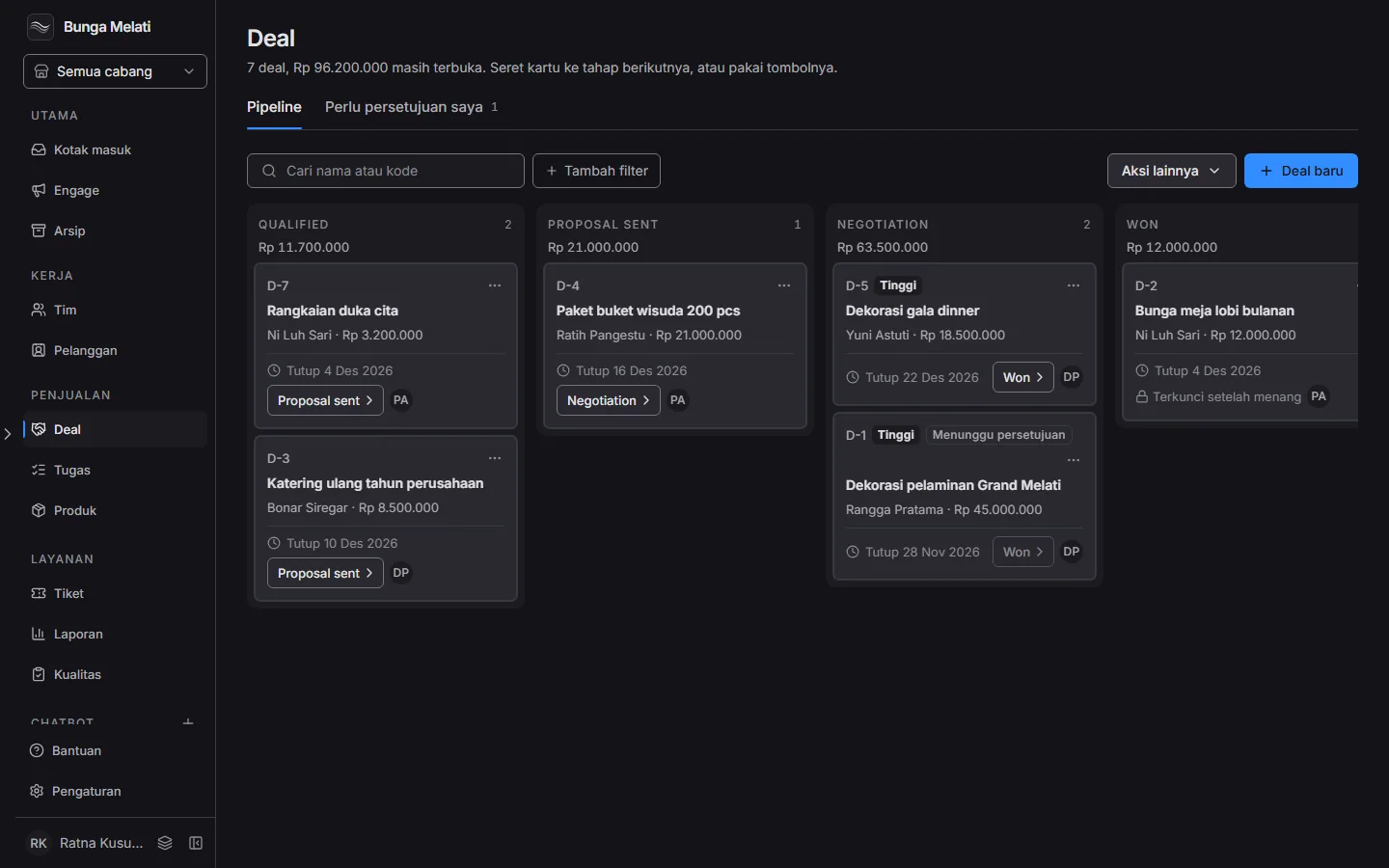
A column heading shows the number of deals and their total value. A card shows its number, such as D-5, the deal name, the customer, the value, the close date and the owner's initials. A High label appears on high-priority deals.
To search, type a name or a D-number in the search box. Add filter narrows by Owner and Priority.
Move a card
There are two ways.
- Drag the card to another column.
- Click Move to on the card. The button moves the deal to the next stage.
Wavely shows a message once the deal has moved. If someone else changed the deal first, the board refreshes and you repeat the move. Every role can move cards.
The deal panel
Click New deal, or click a card, to open the panel.
- Fill in Deal name, which is required, Value (Rp) in whole rupiah, Expected close and Priority.
- Under Stage, pick the Pipeline and Start at. A new deal cannot start in Won or Lost. When you edit, Current stage is read only, because moving happens on the board.
- Under People, pick the Customer, which is required, and the Owner. The owner starts as you.
- Click Add deal, or Save changes when editing.
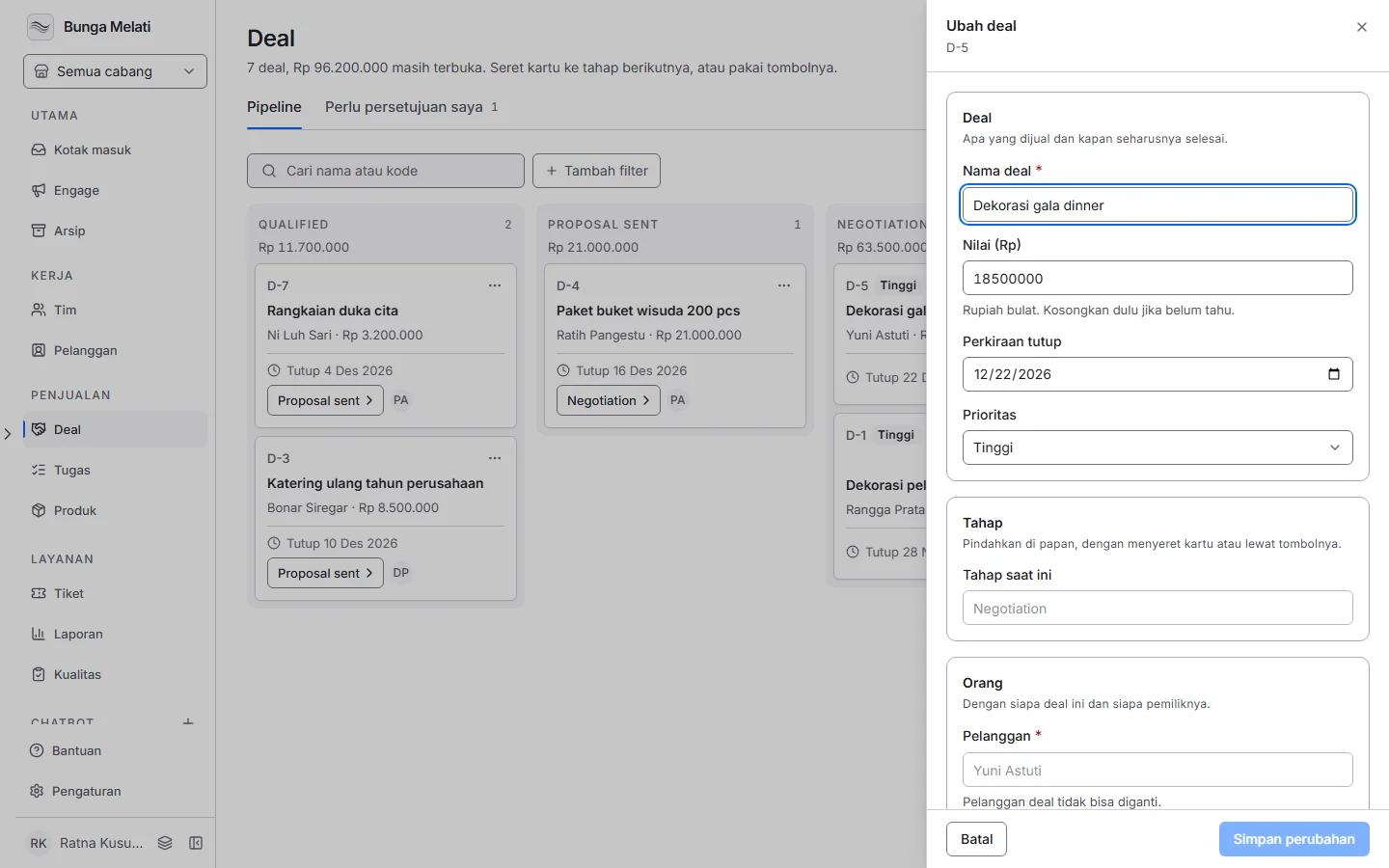
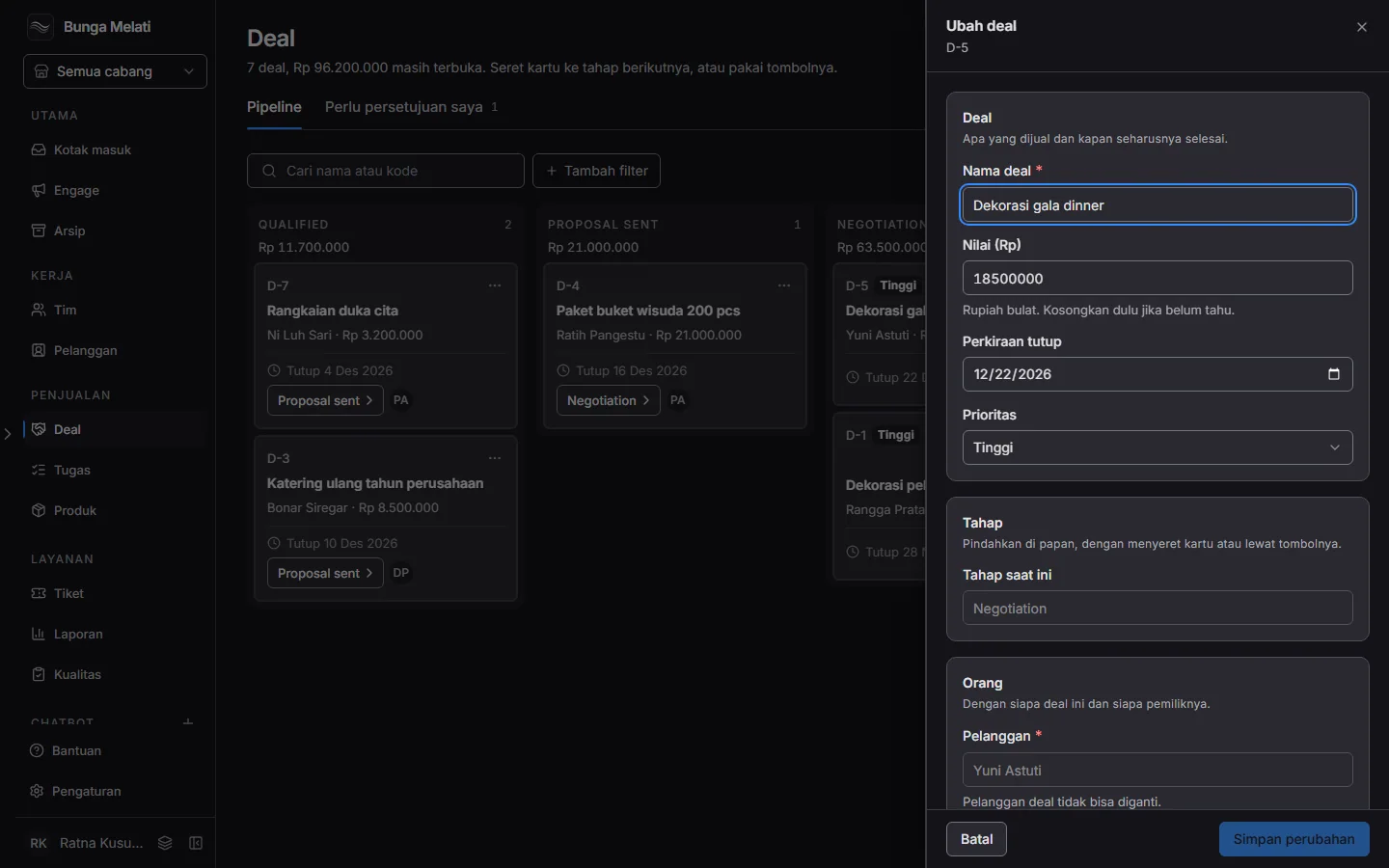
A deal keeps its customer for good. You can also create a deal from a chat with Create deal in the Inbox customer panel, and the chat is then linked to the deal. The three-dot menu on a card holds Create quotation (see the page on products and quotations).
Approval rules
An approval rule makes a deal stop before it enters a stage. Owners and admins set them under More actions, Approval rules. Each stage has one rule:
- Click Require approval on that stage.
- Fill in From a value of (Rp). Deals worth less than this move freely, and zero means every deal.
- Pick Approvers decide: In order or Together.
- Add one to five Approvers, each a teammate or a role, such as Any Owner.
In the demo business, the rule sits on the Won stage: a deal worth Rp 30,000,000 or more needs the Owner's approval. On the board above, D-5 at Rp 18,500,000 moves to Won freely, while D-1 at Rp 45,000,000 stops with the label Waiting for approval.
A waiting card cannot be dragged and its button is off. Editing a rule does not change a request that was already made.
Needs my approval
The tab Needs my approval, on the Deals page and on the Tasks page, lists the requests waiting on you, with their number on the tab. Each row shows the request title, who asked, the target stage and the step.
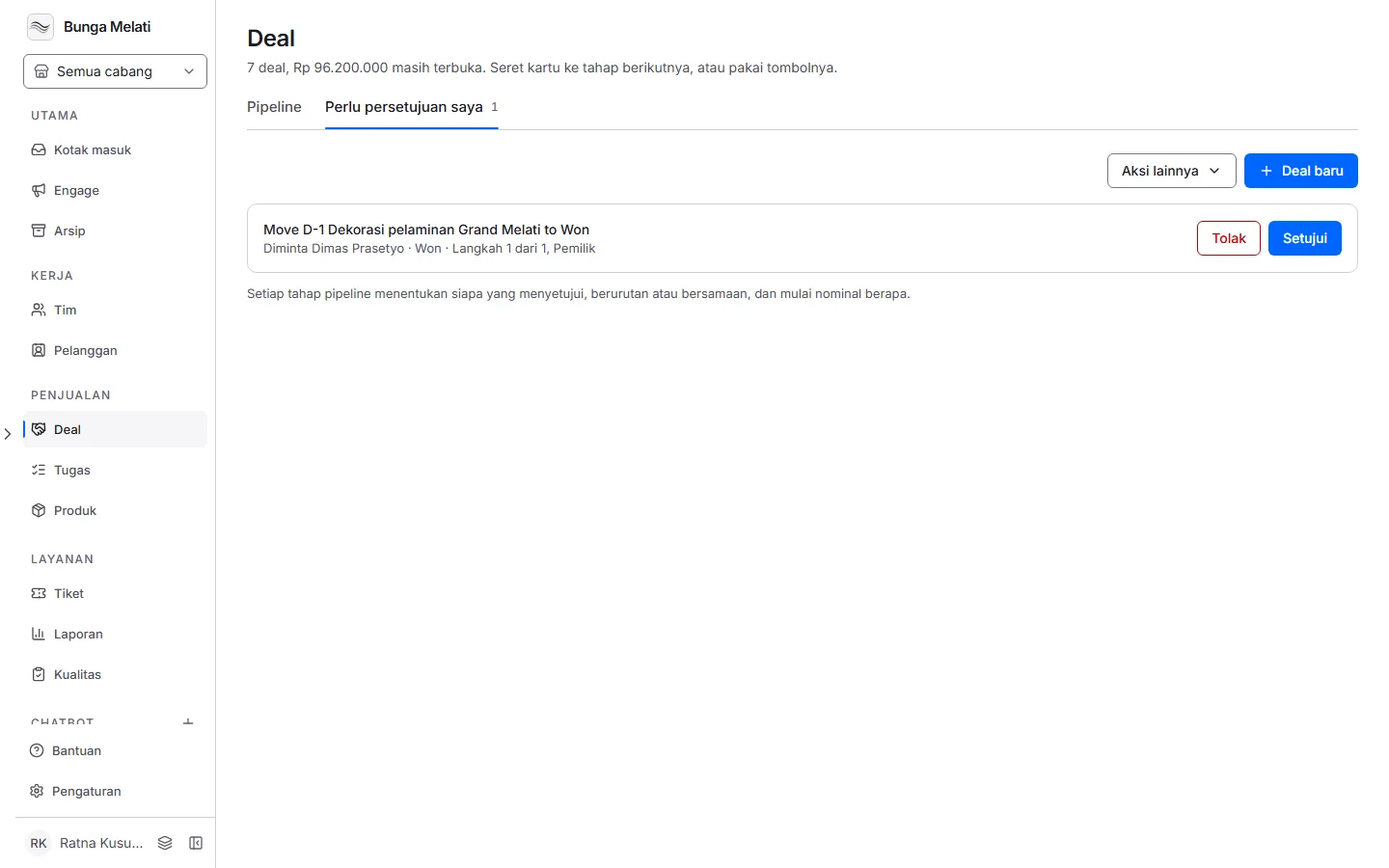
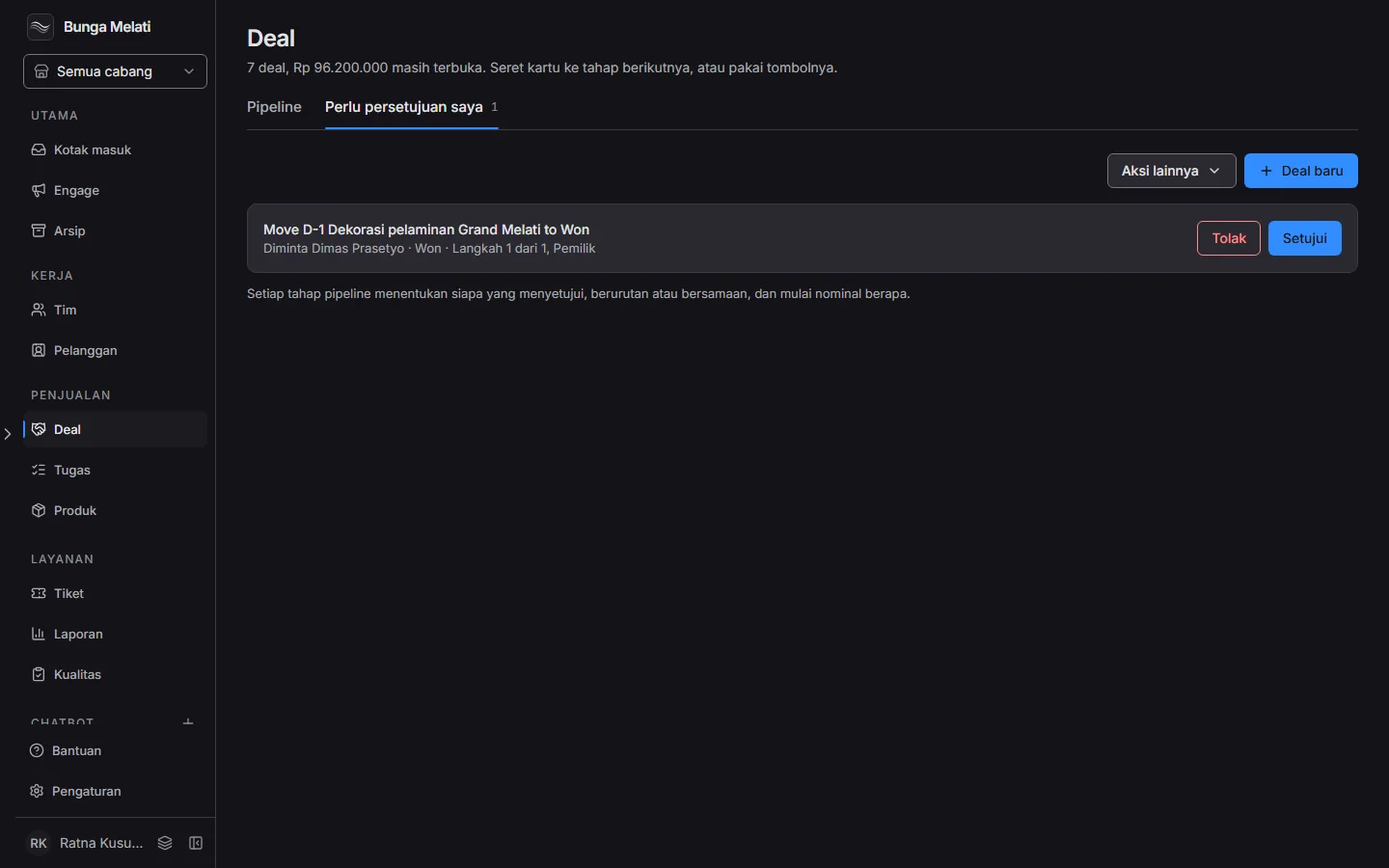
Click Approve and the deal moves to the target stage on its own. Click Reject and the deal stays where it is. Only the next approver can decide. With In order, the steps run one at a time, and with Together, every approver decides in any order. One rejection closes the request.
Note: The rule applies to owners too. When an owner moves a deal into a stage with a rule, the request is still made, and the owner approves it in this tab.
Won and lost deals
A deal in Won or Lost is locked. Its card shows Locked once won or Locked once lost in place of the move button, it cannot be dragged, and it cannot be edited. Moving it or saving its panel is refused with a message that a won or lost deal is locked. Check the value and the owner before you move a deal there.
Export
Owners and admins can export the deals to a file. Open More actions, then Export all deals, pick the format and the columns, and start the export. It runs in the background, so you can leave the page. The finished file is under More actions, Export history, and stays for 30 days.