Inbox
Manage chats and the queue
In Wavely, a new chat waits in the queue until someone claims it. You can also assign a chat to a teammate and close it.
The chat list
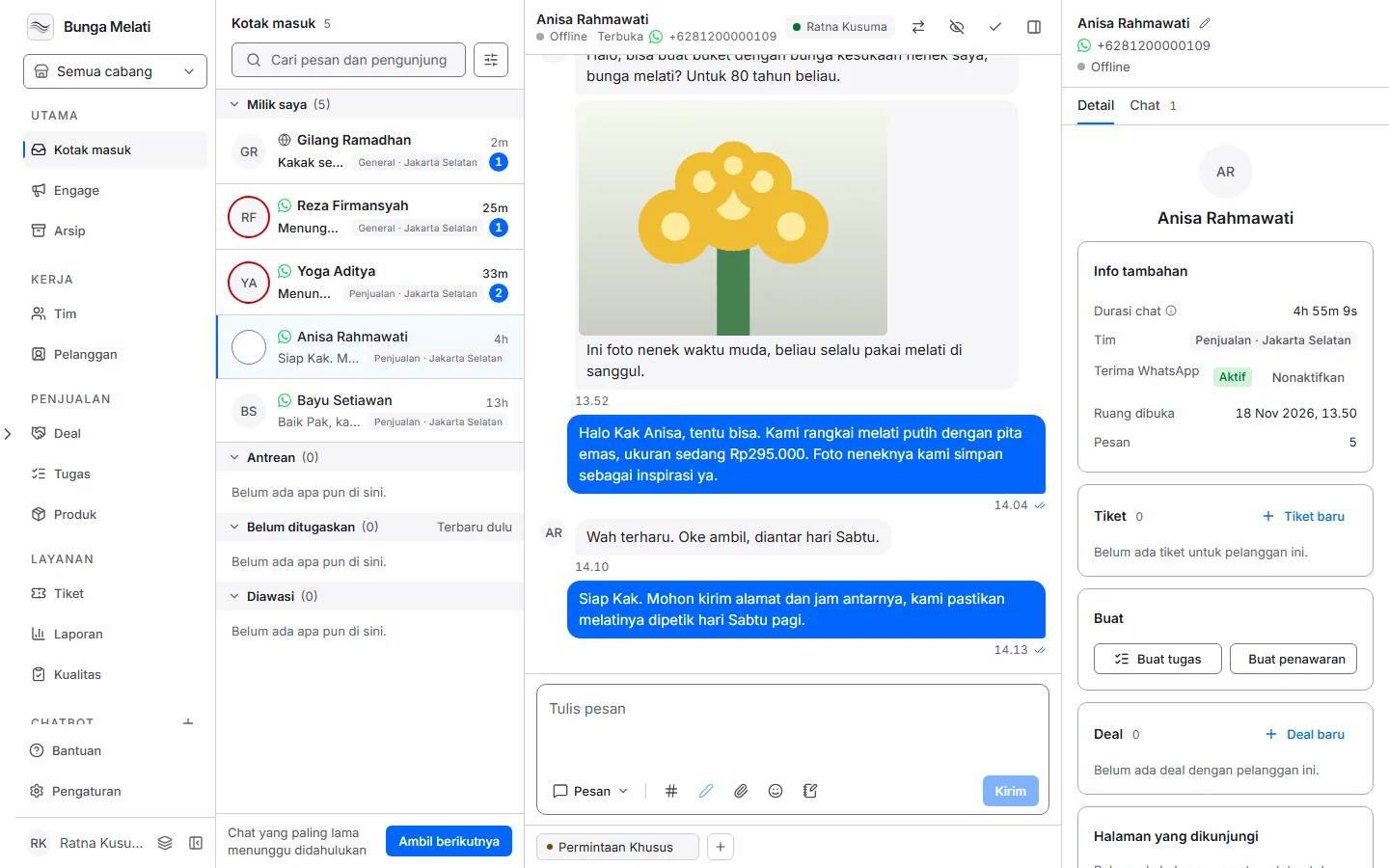
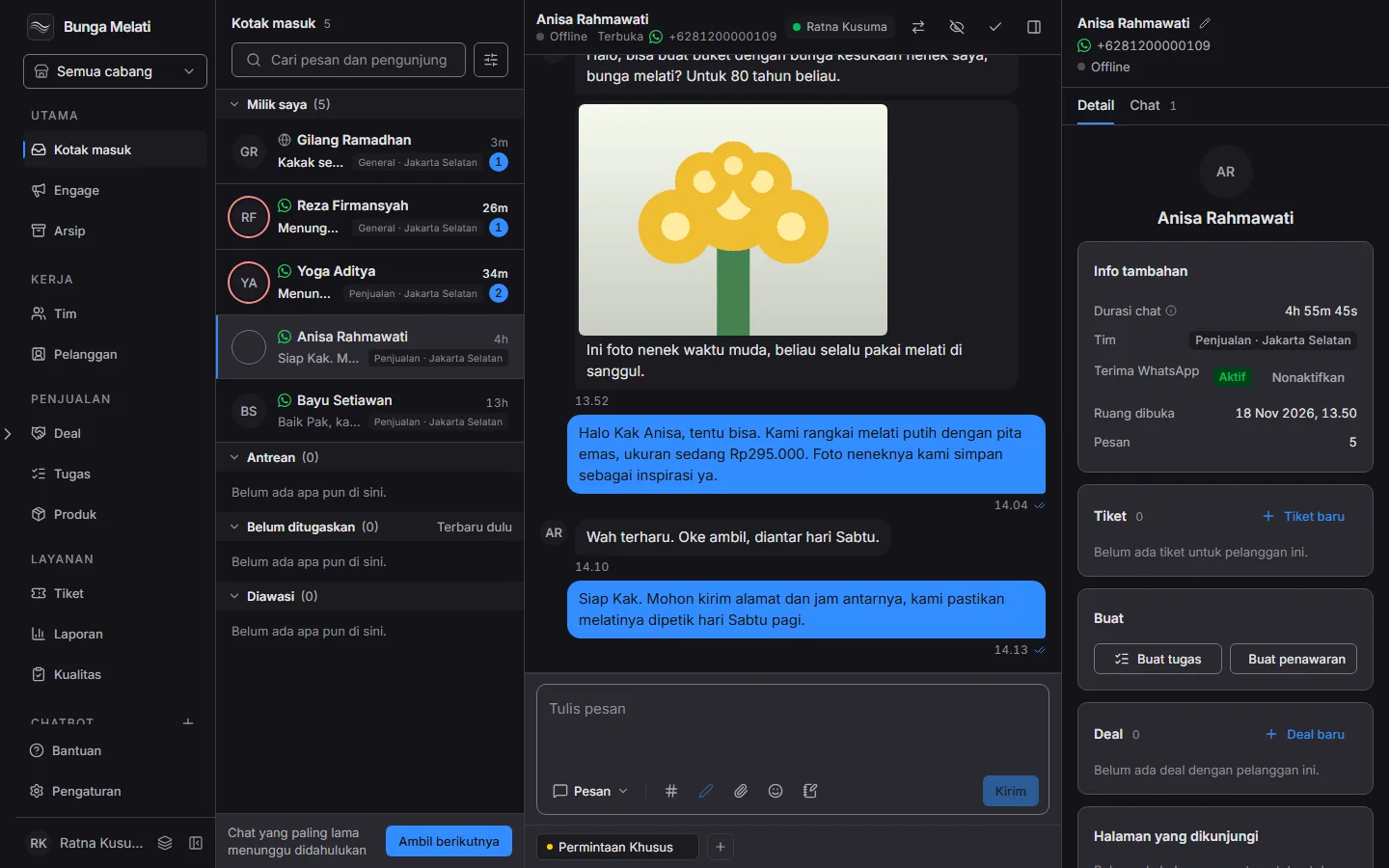
Open Inbox. Chats are grouped by who holds them:
- My chats: chats assigned to you.
- Unassigned: chats nobody holds yet.
- Queued: chats waiting for a person. New visitors wait here once the number of open chats reaches the chat limit.
- Supervised: chats you watch without handling them.
- All: every chat that is not closed.
To search, type in Search messages and visitors. The filter button beside it narrows by Channel, SLA (At risk) and Order, as well as Assigned to and tags.
Claim and assign
Select a chat from Queued or Unassigned, then choose Assign to me. If someone else took it first, Wavely tells you and the chat stays with them.
To hand a chat to a teammate, open the Assign to menu in the conversation header and pick the person. Only the person holding a chat can reply to it. To take it over, assign the chat to yourself from the same menu. If you only want to follow along, choose Supervise this conversation.
Take next and select many chats
Two buttons sit above the list. Take next gives you the chat that has waited longest, without picking one by one. Wavely takes it from the unassigned chats that are open or pending and in your sight. Two agents who press it at the same moment get two different chats. When nothing is waiting, Wavely says Nothing is waiting right now.
Select opens select mode, and the button turns into Done. Tick several chats, then choose Assign or Close in the bar that appears. One action can cover up to 200 chats. Each chat is handled on its own. If some fail, Wavely says how many worked, and the failed chats stay ticked. Clear empties the selection. Neither button is in Archive.
First reply timer
Owners and admins can set a first reply target in Settings, Inbox, in the field First reply target (minutes). A value of 0 turns it off. The target counts from when the chat was created. The first reply is the first message the business sends the customer, from an agent, the assistant, an app or the linked phone on WhatsApp. Internal notes do not count.
While a chat is open or pending and unanswered, its row shows a timer. In the last quarter of the target, a clock icon and the time left appear in a warning colour, such as 8m. Once the time has passed, the text turns red and reads 6m late. While there is plenty of time left, the row shows nothing.
On the Details tab of the panel on the right, the SLA card shows First reply due with the date and time, and a label: On track, Due soon or Late. The SLA filter, At risk, lists only chats that are unanswered and nearly or already late.
Auto-resolve and idle reassign
Beside the first reply target, Settings, Inbox, Chat timing holds two more rules for owners and admins. Enter 0 to turn a rule off.
- Auto-resolve after (hours) closes a chat when the customer has written nothing for that long.
- Reassign idle chats after (minutes) moves a chat a person holds to another teammate who is online in the same division, has room and is within working hours, when nobody has replied for that long. Wavely tries at most three times per chat. If nobody is free, the chat stays where it is and the try still counts.
Send files
Click the paperclip in the reply box, drag files onto it, or paste an image you copied, including a file copied in File Explorer. You can attach up to 10 files at once, images and documents mixed.
The text you type goes along as the caption inside the first file's bubble, as on WhatsApp. Images next to each other go as one album, and each document goes as its own message, in the order you attached them. Word, Excel and PowerPoint files reach the customer's WhatsApp as their own type.
Internal notes
An internal note is a message for your team that never reaches the customer.
- Click the note icon in the tool row of the reply box (Write an internal note).
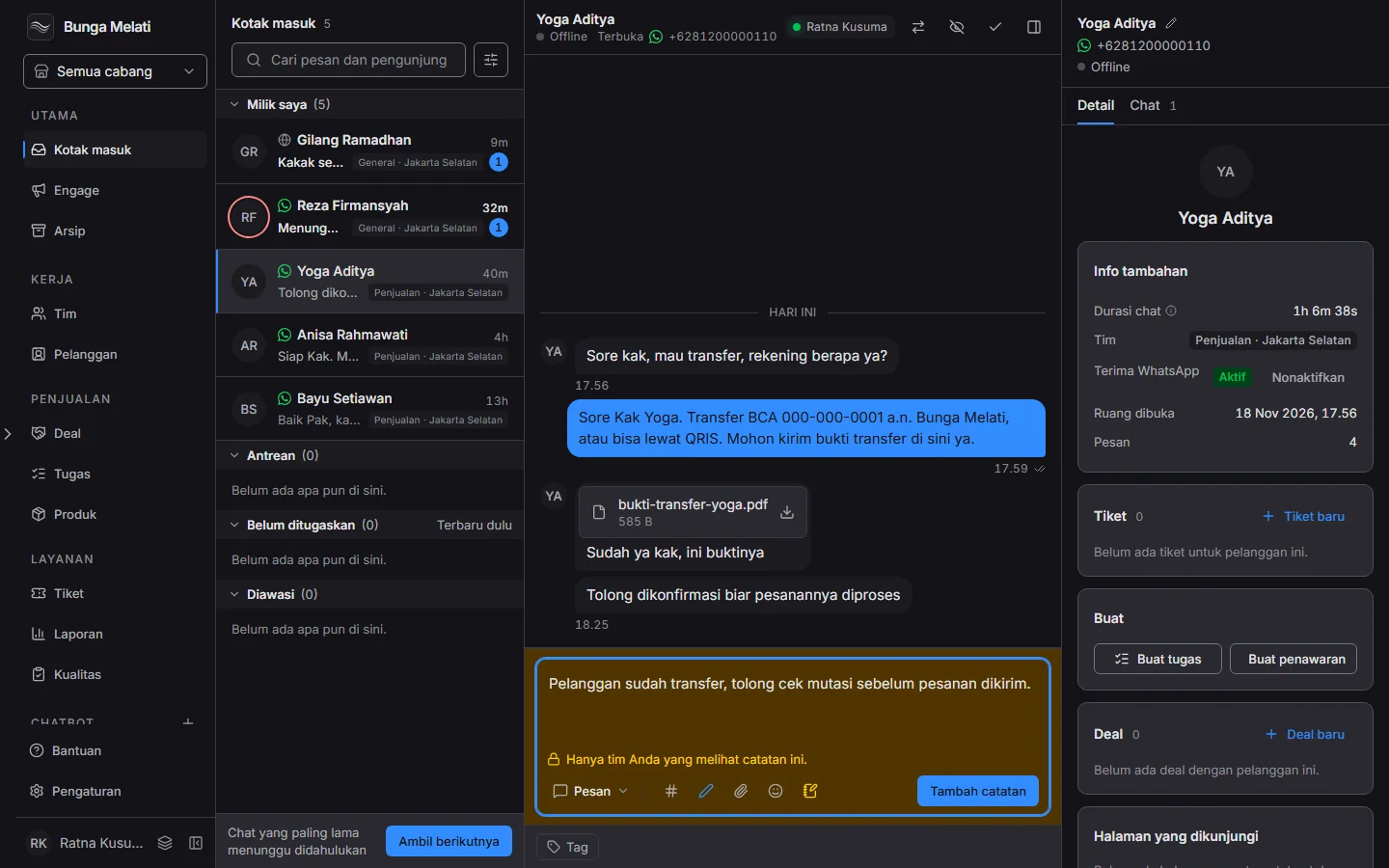
- The reply box turns yellow and reads Only your team sees this note.
- Write the note, then click Add note. Note mode then switches off by itself.
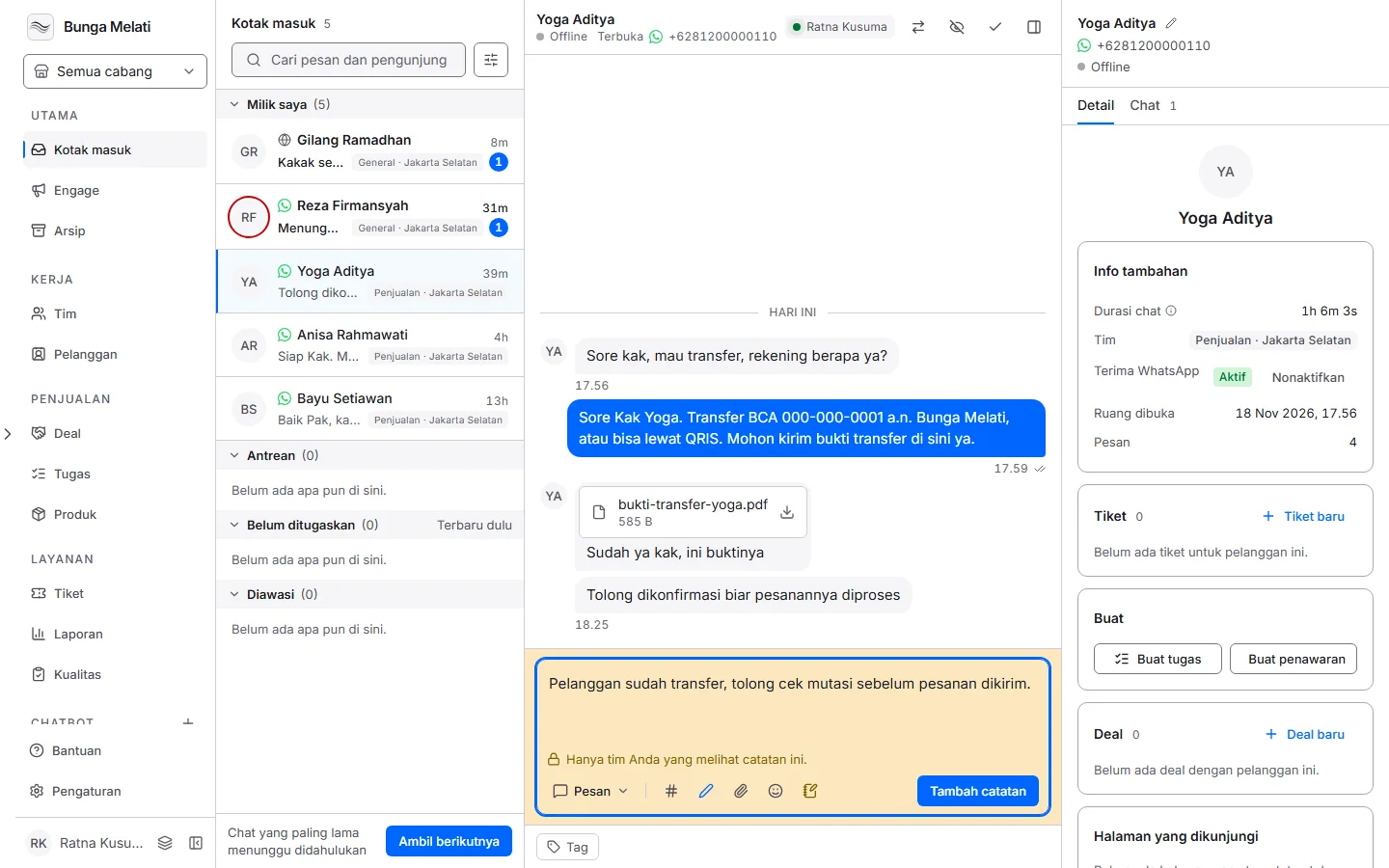
In the conversation, a note shows as a full-width block labelled Internal note with the author's name, not as a bubble. A note is not sent to WhatsApp, does not show in the widget and is not read by the assistant. It holds text only, cannot be edited or deleted, and does not change the message preview in the list or the unread count. Any agent who can see the chat may add one, even if they do not hold it, and even on a closed chat.
AI in the reply box
Two helpers sit in the reply box. Both appear only on the dashboard, and only when AI is on and set up for this business. If the business has used its free AI budget for the month, they return next month.
Nothing is sent until you send it. Both helpers only change the draft.
- Reply suggestion is a strip above the reply box. When the customer's message is the last one in the chat, Wavely drafts one reply from your knowledge base and past chats. Click it to add it to your draft. Next suggestion shows another when there is more than one, and Hide suggestions closes the strip for that chat. Each customer message costs one AI request, and clicking costs nothing more.
- Enhance your draft is the pencil in the reply box toolbar. It stays disabled until you have written a draft. Choose Improve writing, Make shorter, Make friendlier or Translate. Translation covers English, Indonesian, Mandarin, Japanese, Korean and Arabic. The result replaces your draft, and Undo brings the old text back.
The helpers read the last 12 messages the customer can see. Internal notes are left out.
Set the column widths
On a computer, drag the line between the chat list and the conversation, or between the conversation and the details panel, to change its width. Drag the top edge of the reply box to make it taller. Double-click a line to go back to the default size. Wavely remembers the sizes you choose.
Close and reopen
When the matter is settled, choose Close conversation. A closed chat moves to Archive. A chat with no activity for a long time is archived on its own too.
To reply to a closed chat, choose Reopen. If that customer already has a live chat, Wavely does not reopen the old one and offers the live chat instead.