WhatsApp broadcasts and their risk
Wavely sends WhatsApp broadcasts through WhatsApp Web, so a number can be limited. It only sends to customers who agreed.
About broadcasts
A broadcast sends one WhatsApp message to a list of customers from one of your business's WhatsApp numbers, on a schedule. Open Engage, then Broadcasts. Only owners and admins see this tab, and WhatsApp must be switched on for your business.
Note: Broadcasts go out through WhatsApp Web (WAHA), not the official WhatsApp Business API. WhatsApp can restrict or block a number, especially a new one or one that customers report. Wavely only sends to customers who agreed, spaces messages with random gaps and stops at a daily limit, but it cannot remove the risk. Send only what people asked for, and name your business and the customer.
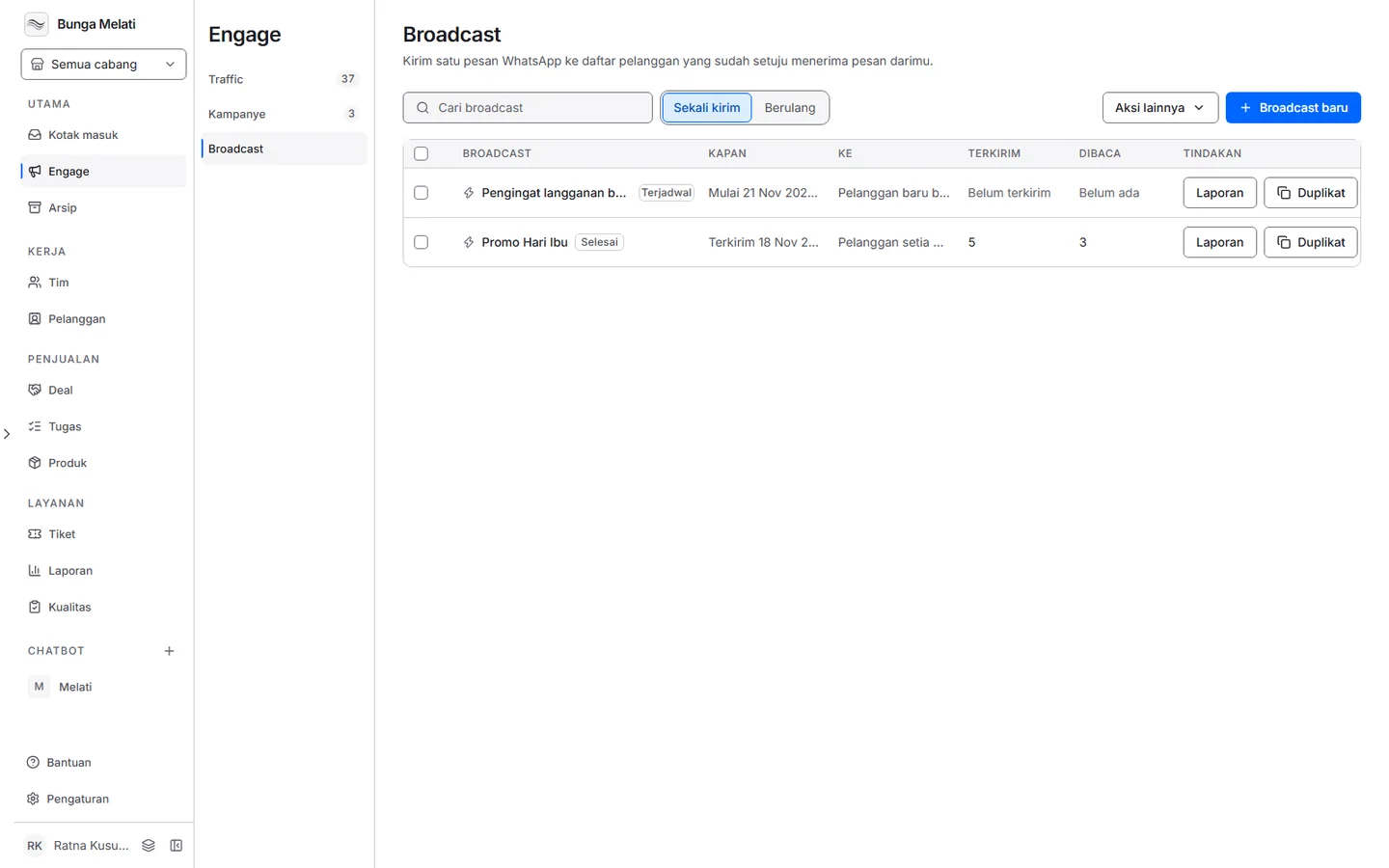
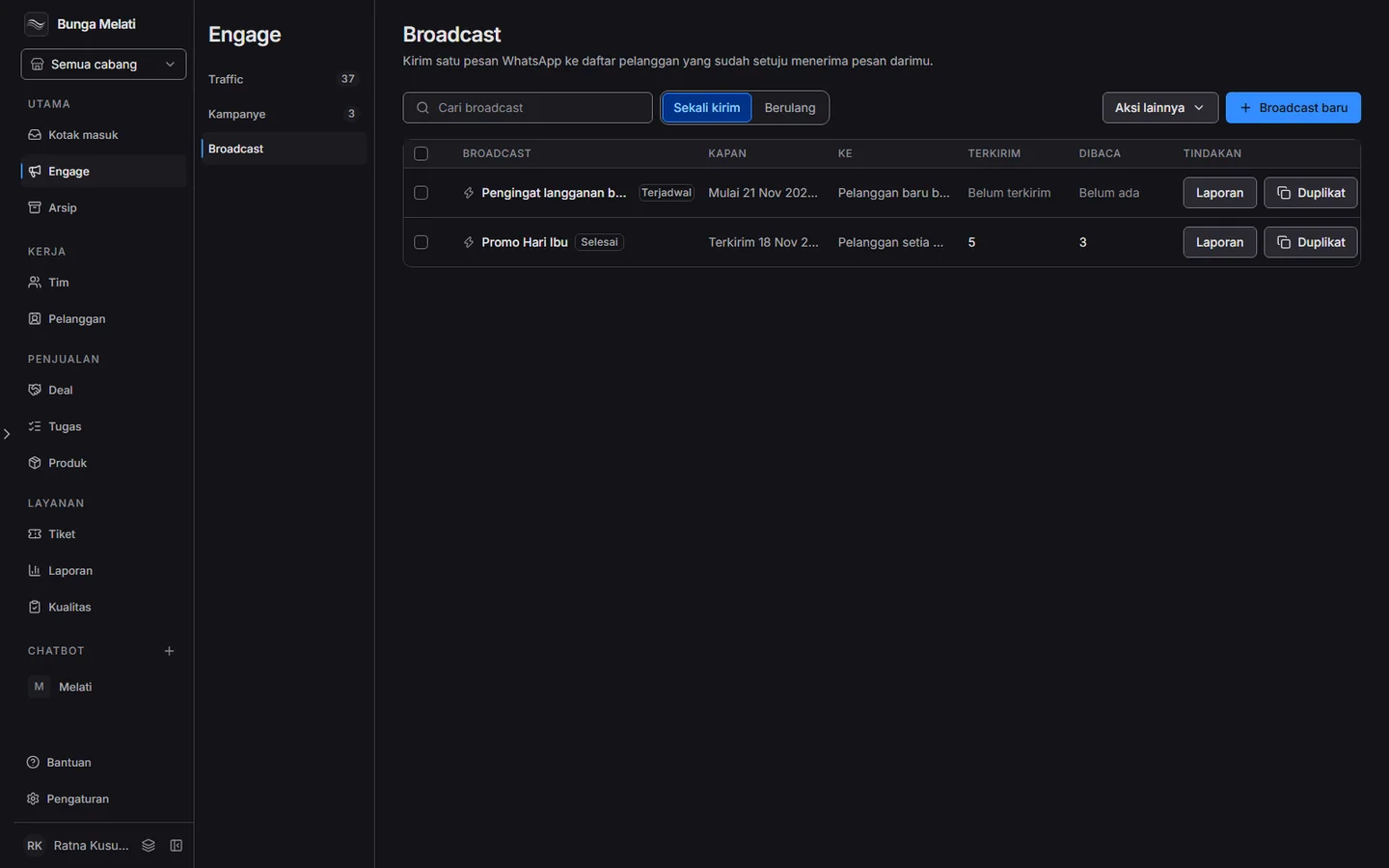
The list has One-time and Repeating tabs. Its columns are Broadcast, When, To, Sent and Read. A broadcast is Draft, Scheduled, Sending, Done or Stopped. Click a draft row to finish it, or any other row to open its report. Duplicate copies a broadcast into a new draft.
Recipient lists and consent
A broadcast goes to one recipient list. Open More actions > Recipient lists, then make a New list in one of two ways: Upload a file (.csv or .xlsx, up to 5,000 rows) or Pick customers you already have. A list does not change after you make it. Removing a list does not remove the customers, and a list used by a broadcast that is sending cannot be removed.
Wavely only sends to customers who are recorded as agreeing to messages and who have a phone number. A customer is recorded as agreeing when they write to your number first, or when a team member marks them as agreed in the customer panel. People from an uploaded file are added to Customers without consent, so they receive nothing until they agree. Everyone else is skipped and shows up in the report with the reason.
Message templates
More actions > Message templates keeps messages you reuse, with their quick replies. WhatsApp does not need to approve them, because these are not official WhatsApp Business API templates. A broadcast keeps its own copy, so editing a template does not change old broadcasts.
Creating a broadcast
Click New broadcast. The panel has three steps, and a step stays locked until the one before it is complete.
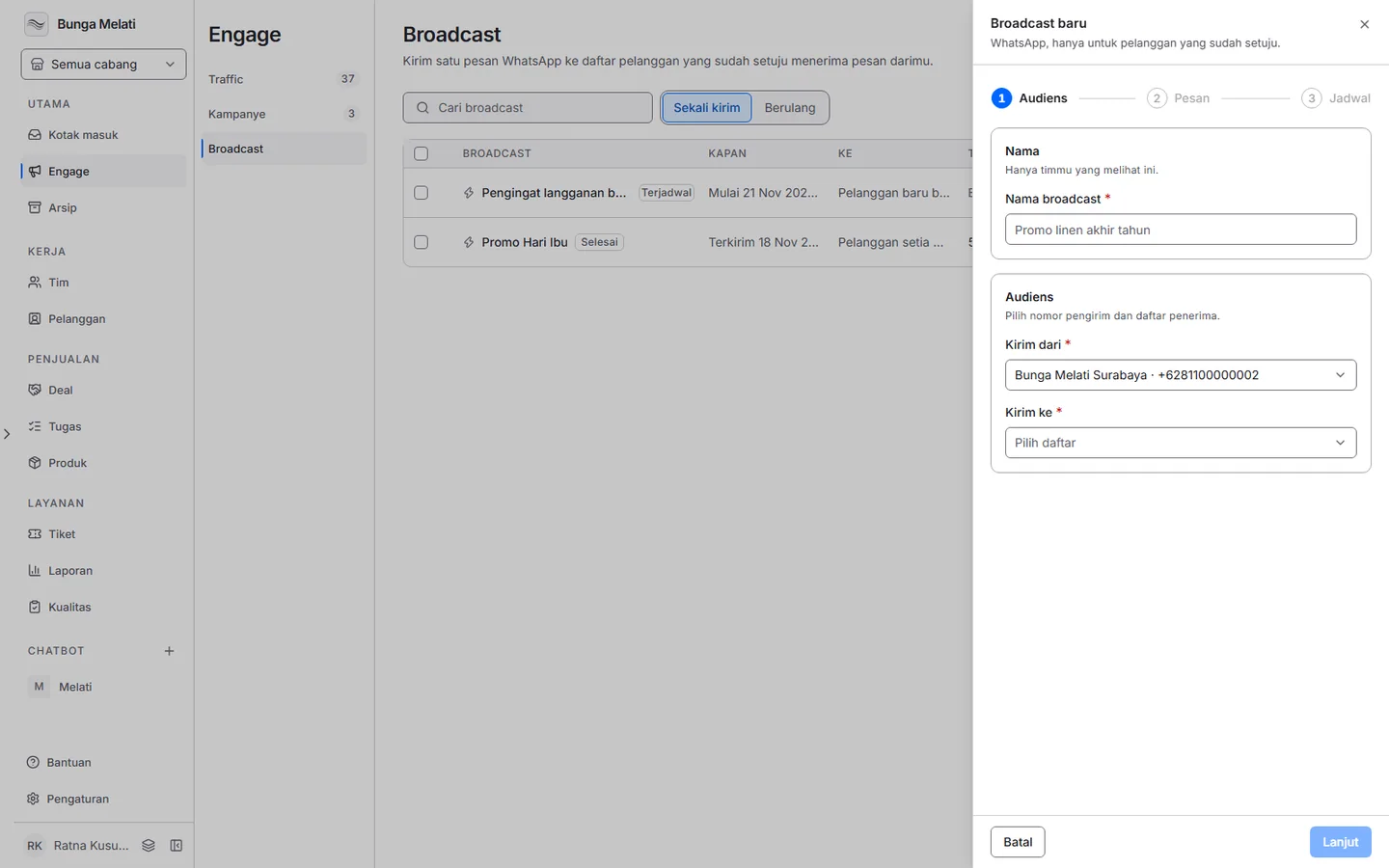
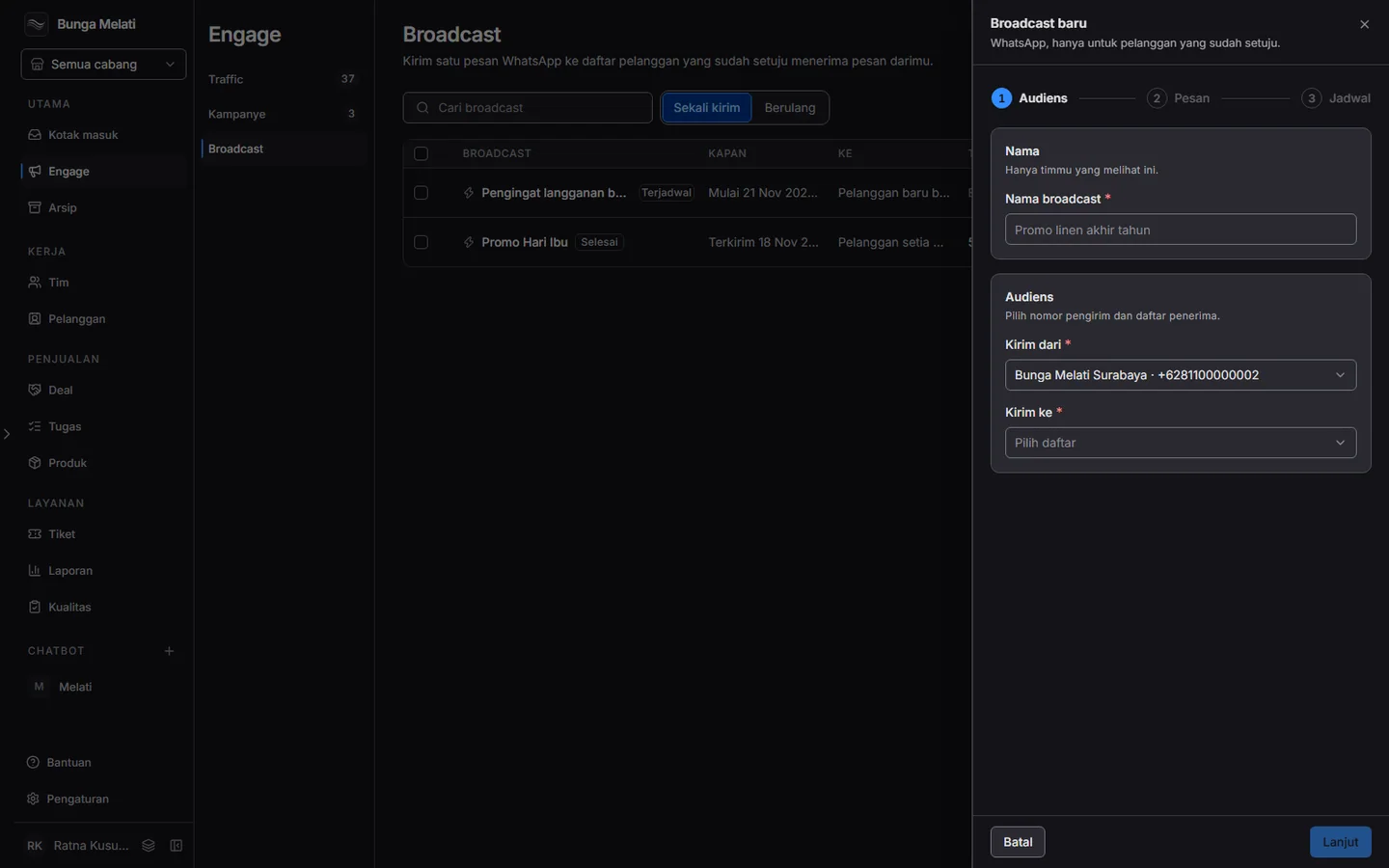
- Audience: fill in Broadcast name, pick a number under Send from and a list under Send to.
- Message: pick a Template or Write my own, then write the message (up to 4,096 characters). Insert customer name adds each recipient's name. You can add up to three Quick replies. The preview uses a sample customer, not a real one.
- Schedule: choose Now, Later or Repeat. This is also where you pick the team under Send replies to.
The last button follows your choice: Send broadcast, Schedule broadcast or Start repeating.
Every message carries a closing line, "Balas STOP untuk berhenti menerima pesan.", unless your message already mentions STOP. A customer who replies stop, berhenti, unsubscribe or batal langganan stops receiving broadcasts automatically. Quick replies go out as numbered lines such as 1. Ya, because WhatsApp Web does not carry buttons, and the customer answers with the number.
One-time or repeating
- Now: starts within seconds and goes out slowly.
- Later: pick a Date and Time.
- Repeat: pick Every day, Every week or Every month, then the day or date and the time. Stops on is optional. When it is empty, the broadcast repeats until you stop it. In shorter months it goes on the last day of the month.
If the system is down at the send time, the broadcast runs once, late, and the next run is counted from then. Missed runs do not pile up.
Pace and daily limits
Keep the risk in mind: the limits below lower the chance of a number being restricted, but they do not guarantee anything. Broadcasts use WhatsApp Web, not the official WhatsApp Business API, so WhatsApp can still restrict or block a number, especially a new one or one that customers report. Send only what people asked for, and use their name.
Wavely applies these rules to every broadcast:
- Pace. Messages leave with random gaps, not all at once. At the default settings one number sends about 5 messages a minute.
- Daily limit. At most 1,000 broadcast messages per number per day, by the UTC day. After that the broadcast waits until the next day.
- New numbers. A number younger than 7 days sends at most 200 messages a day.
- Quiet hours. Messages are not sent during the branch's quiet hours, by default 21:00 to 07:00. A broadcast that runs overnight is held and goes out by itself once quiet hours end.
- Troubled numbers. If the number is paused, quarantined, disconnected or blocked, the broadcast is held. See If a number disconnects.
Recipients who have not agreed, have opted out or have no phone number are skipped. The same rules for messages outside the reply window are on the Sending rules page.
Replies from customers
On the Schedule step, Send replies to sets the team that receives answers to this broadcast. A customer who replies within 72 hours of getting a broadcast goes to the team of the latest broadcast that reached them. This only applies when the reply opens a new chat that has no team yet. A chat that already has a team stays with it.
Reading the report
Click Report on a row. The numbers update while the broadcast is sending.
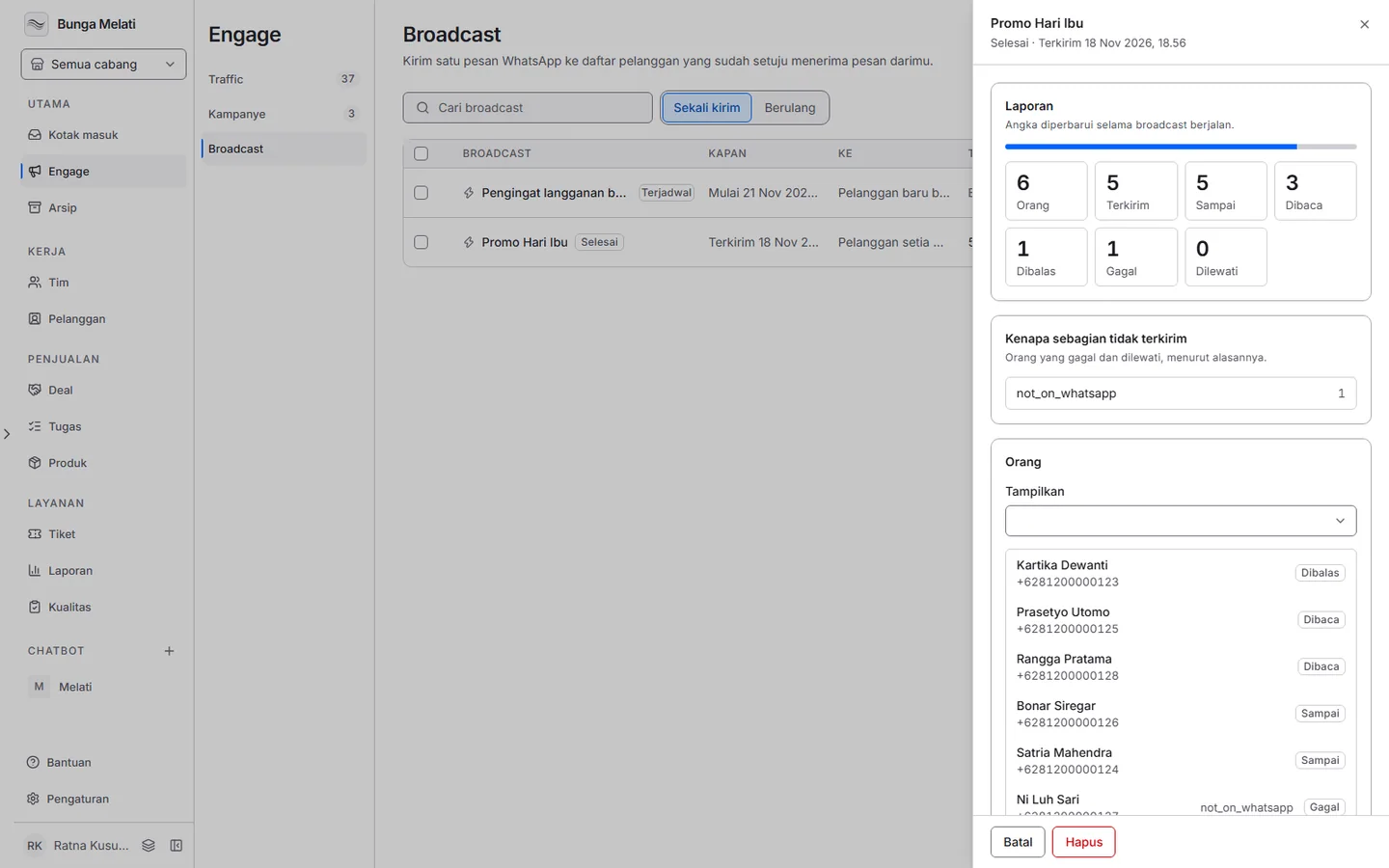
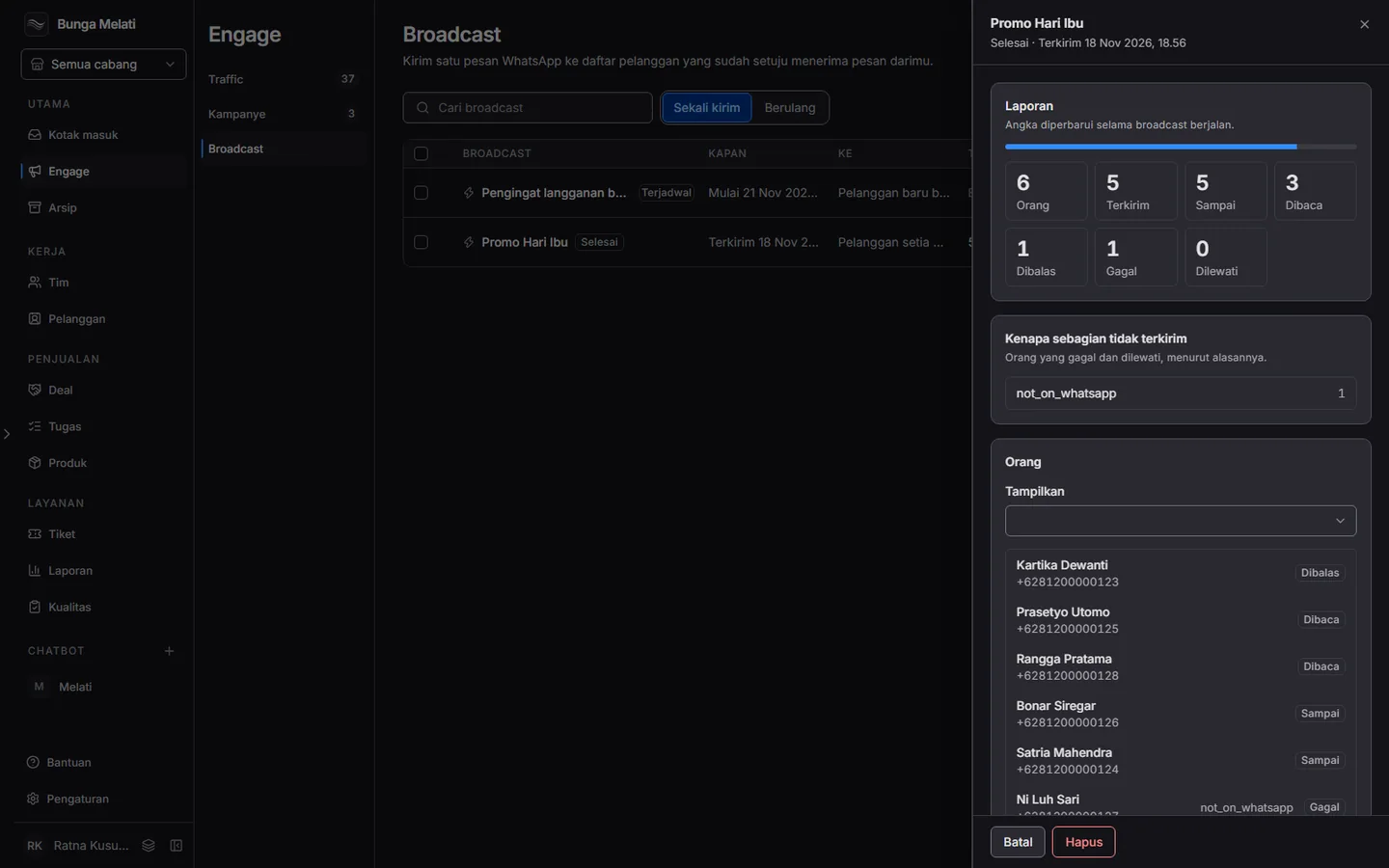
The panel shows People, Sent, Delivered, Read, Replied, Failed and Skipped. A customer counts as Replied when they write back within 72 hours of the message. Why some did not go out sums up the reasons for failed and skipped recipients, and the People list below it can be filtered with Show. For a scheduled or running broadcast, Stop sending cancels the messages that have not gone out, while messages already sent stay sent. For the others there is Remove. Export all broadcasts under More actions downloads the sent, read and replied counts of each broadcast.