Team
Members and roles
You invite teammates to Wavely with a role, a branch and a team, and the role decides what each person can do.
Three roles
Every member has one role in a business.
- Owner: can do everything. Only an owner can change members' roles, give the Owner role and change business settings. A business always keeps at least one owner, so the last owner cannot be demoted or removed.
- Admin: manages members and teams, WhatsApp numbers, branches, campaigns, canned replies and widget settings. An admin sees every team.
- Agent: replies to chats. An agent can open their own panel to set their working hours, but cannot manage members, numbers or branches.
Nobody can change their own role.
The member list
Open Team in the sidebar, in the Work group. The page has five tabs: Members, Invitations, Chatbots, Teams and Suspended. The Members tab shows each person with their role, team, branch, availability, chat load and working hours. Search with the Search members box.
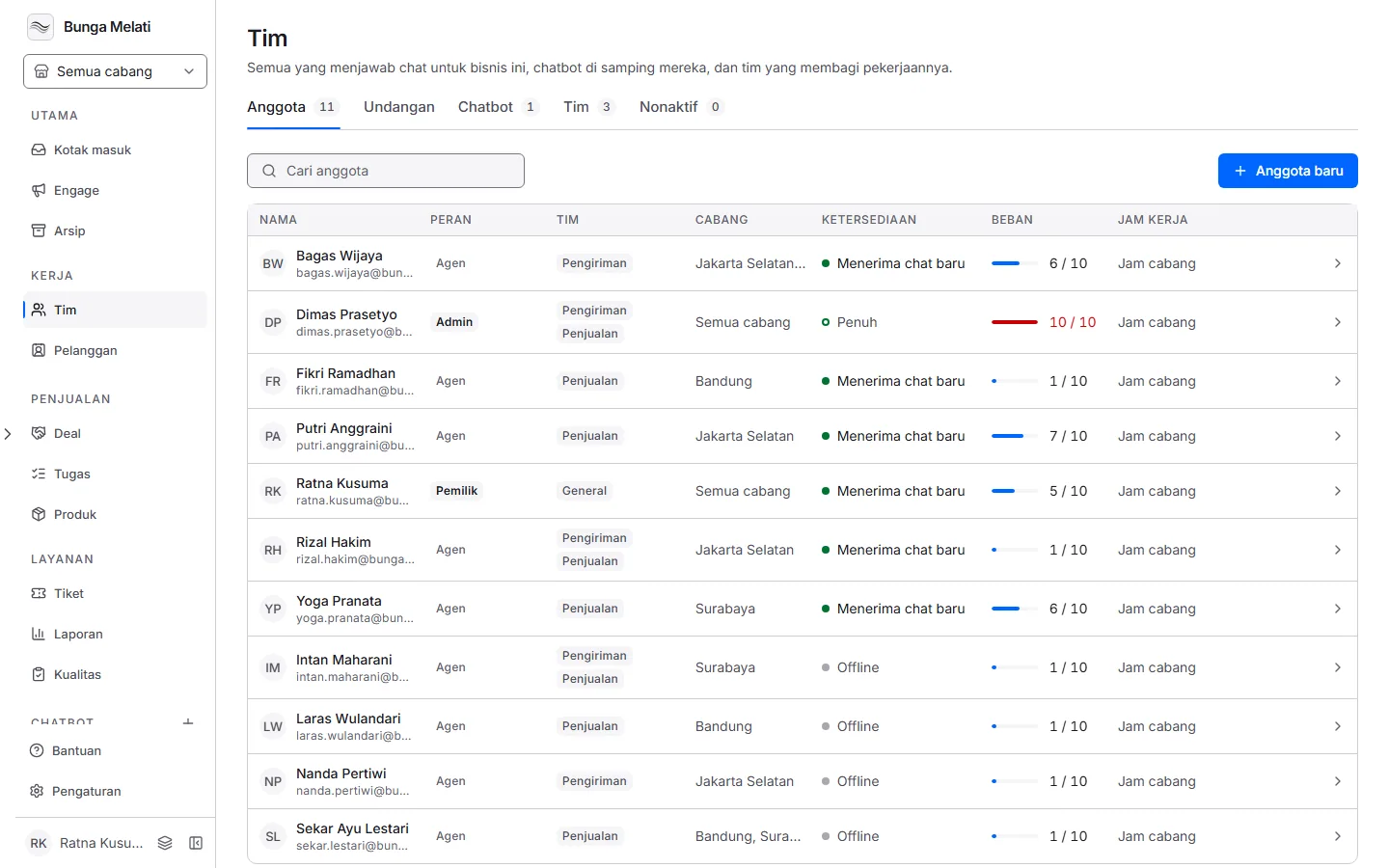
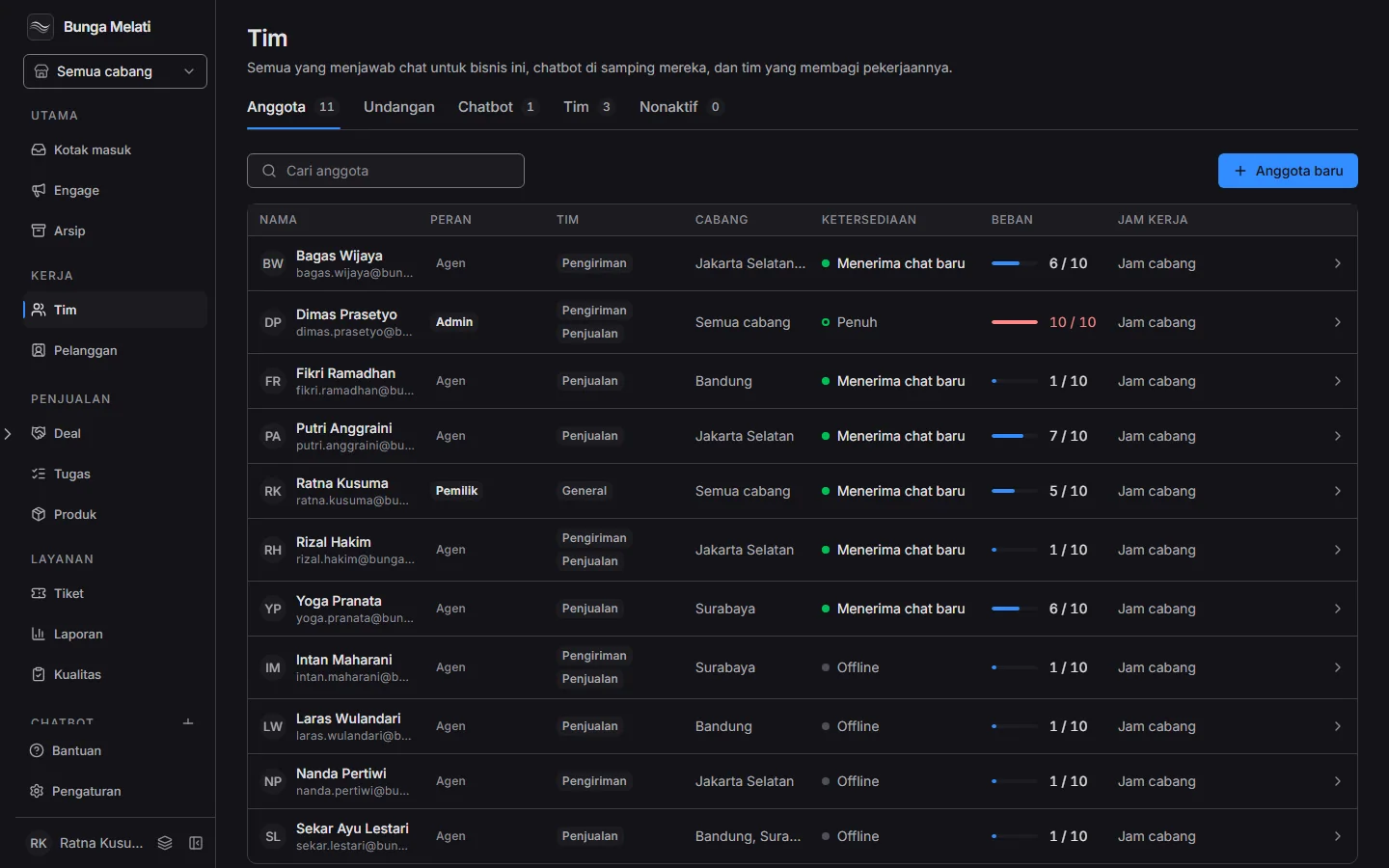
There is no Manage menu. Click a row and the member panel opens on the right.
Change a member in the panel
The top of the panel shows the name, role and when the member was last seen. Its sections:
- Chats: the Take new chats switch. Turn it off to pause, and chats they already hold stay with them. Chat limit picks Limit to a number of chats at once, or No limit. Past the limit, new visitors wait in line.
- Access: Role (only an owner sees this choice), Team, and the Only their teams switch. When it is on, an agent sees only chats from their own teams. Owners and admins always see every team, so the switch does not show for them.
- Working hours: pick Branch hours so they get new chats while their branch is open, or Custom to choose days and hours. Outside those hours they get no new chats.
- Account: Suspend or Remove from business.
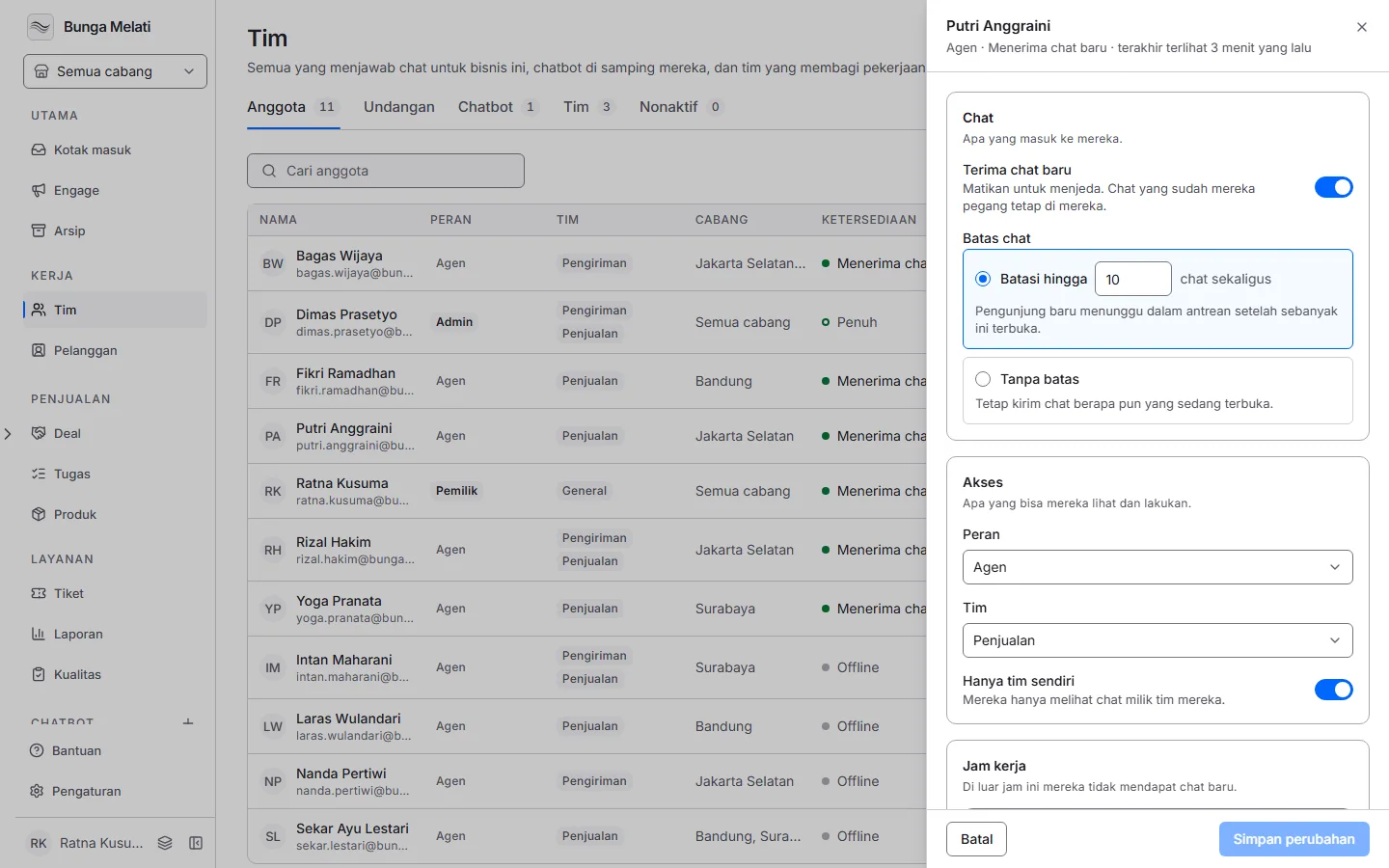
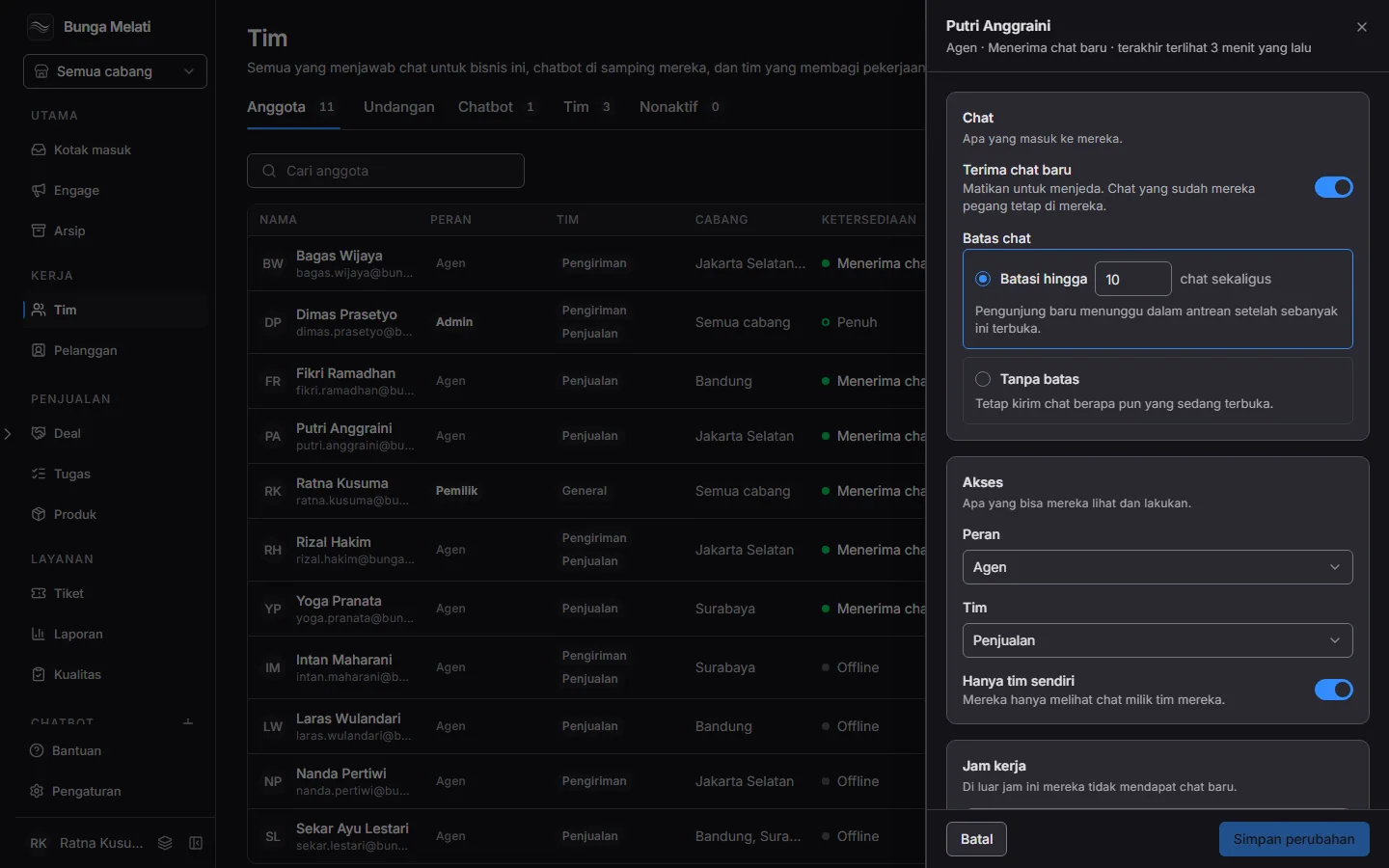
Changes are saved only when you choose Save changes. Cancel closes the panel without saving.
Suspend ends the member's session and returns their open chats to the queue. They move to the Suspended tab. There, click their row and choose Reinstate. Remove from business takes their access away entirely. Both ask you to confirm.
Note: Suspending or removing a member does not delete the messages they wrote. Their name stays on those messages.
Add members
New members join by email. The recipient chooses their own password, then signs in to Wavely with that Biwara account.
- On the Team page, click New member. The New member panel opens.
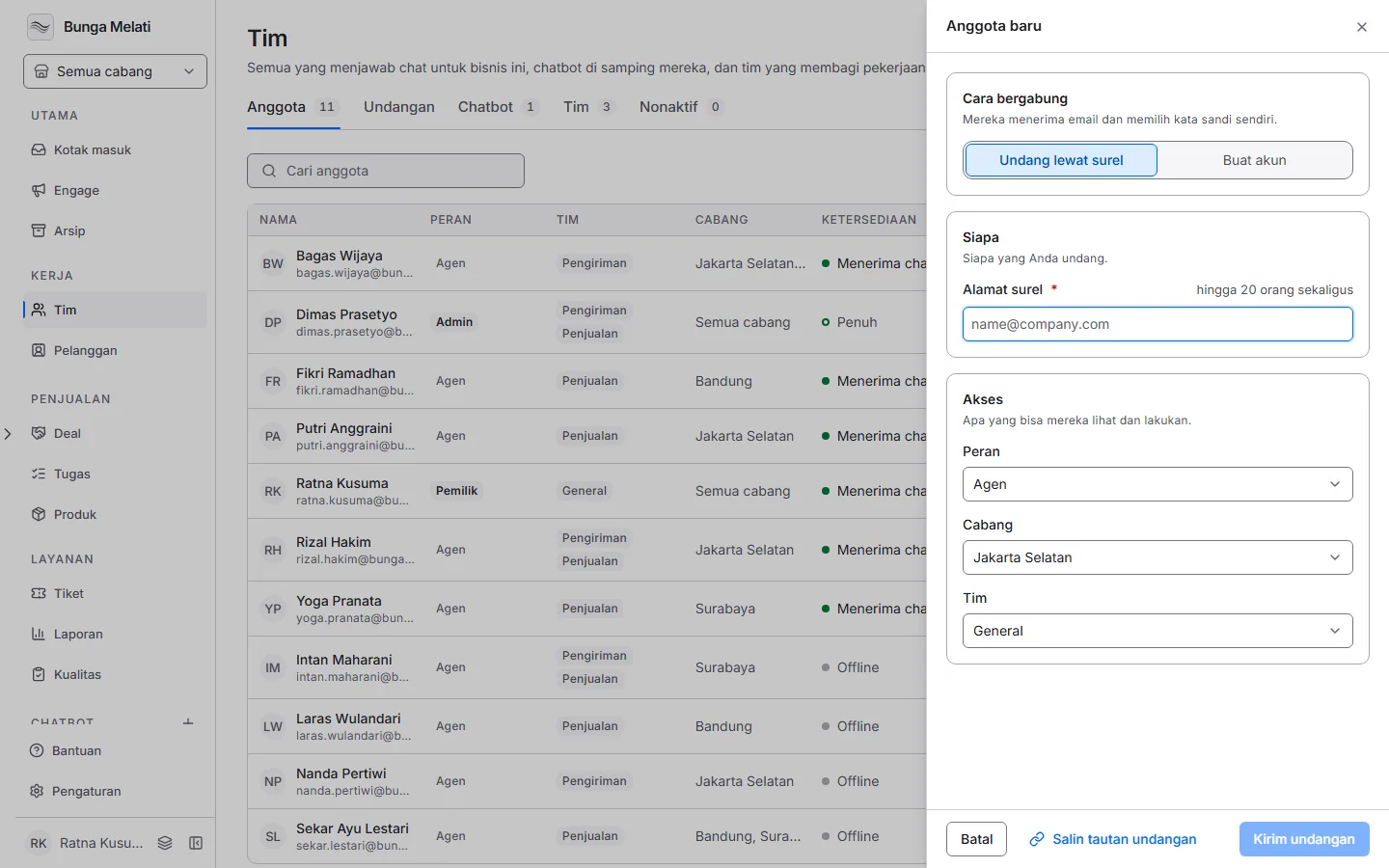
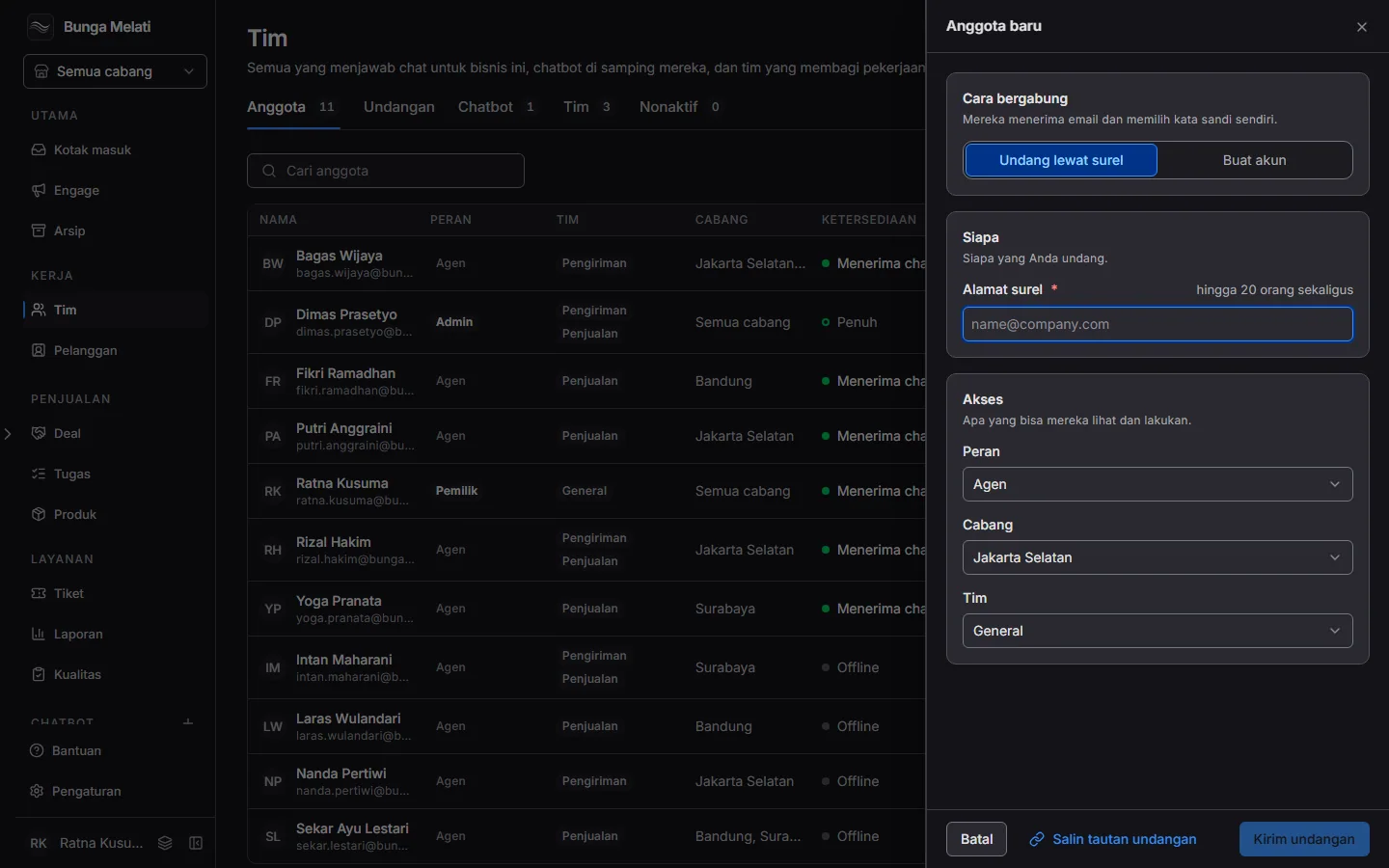
- Under How they join, pick Invite by email and fill in Email address, up to 20 people at once. Or pick Create account and fill in one person's Name and Email address. Biwara emails them.
- Under Access, pick a Role, Branches and Team. An admin works at every branch, so Branches and Team are not asked for one. Teams are Wavely's own; the other Biwara apps the business uses do not use them.
- Click Send invitation, Send 3 invitations for several addresses, or Create account. Create and add another saves, then clears the fields for the next person.
Want to share it in a group chat? Click Copy invite link. The link grants the role, branches and team you picked to whoever opens it.
Pending invitations
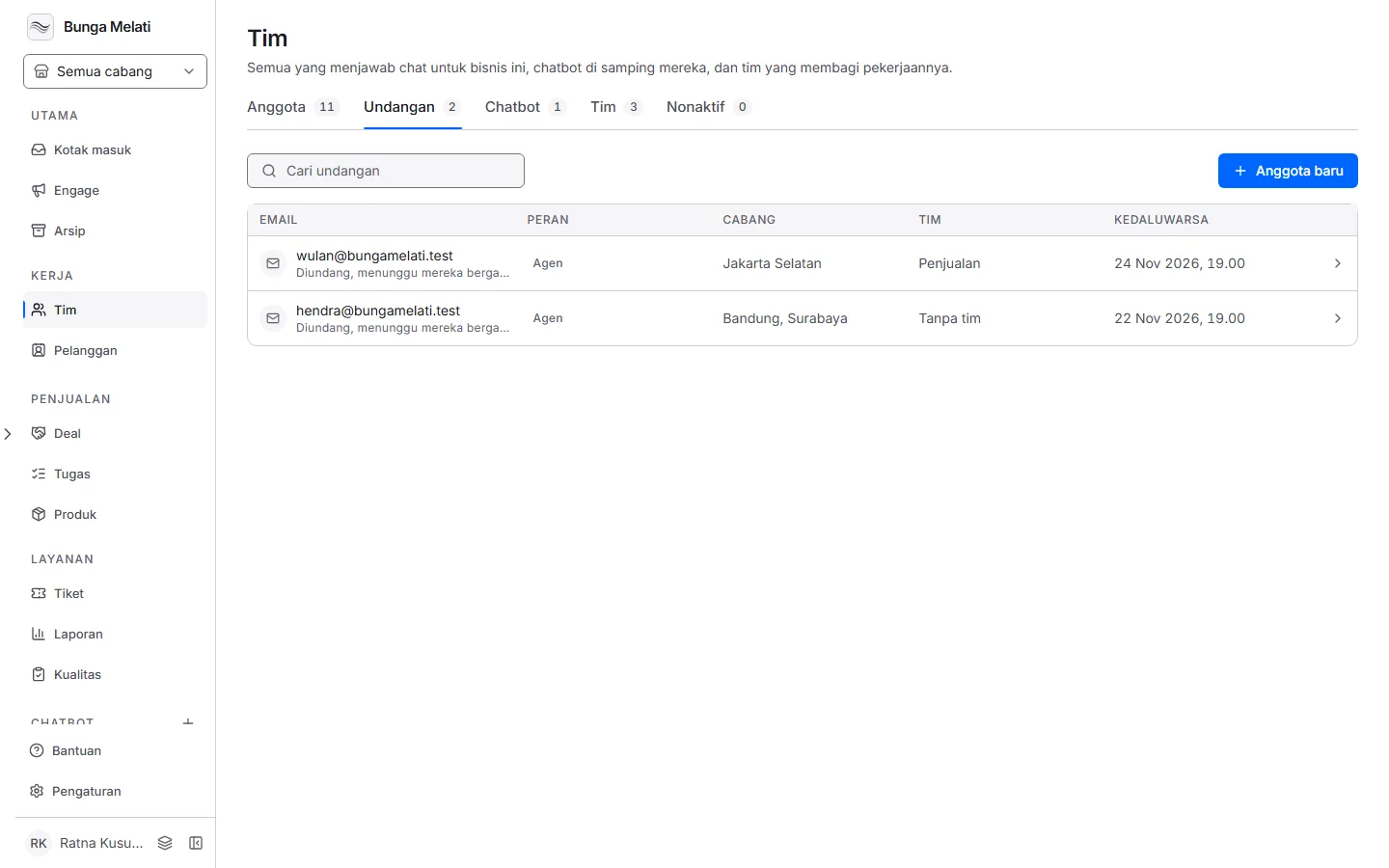
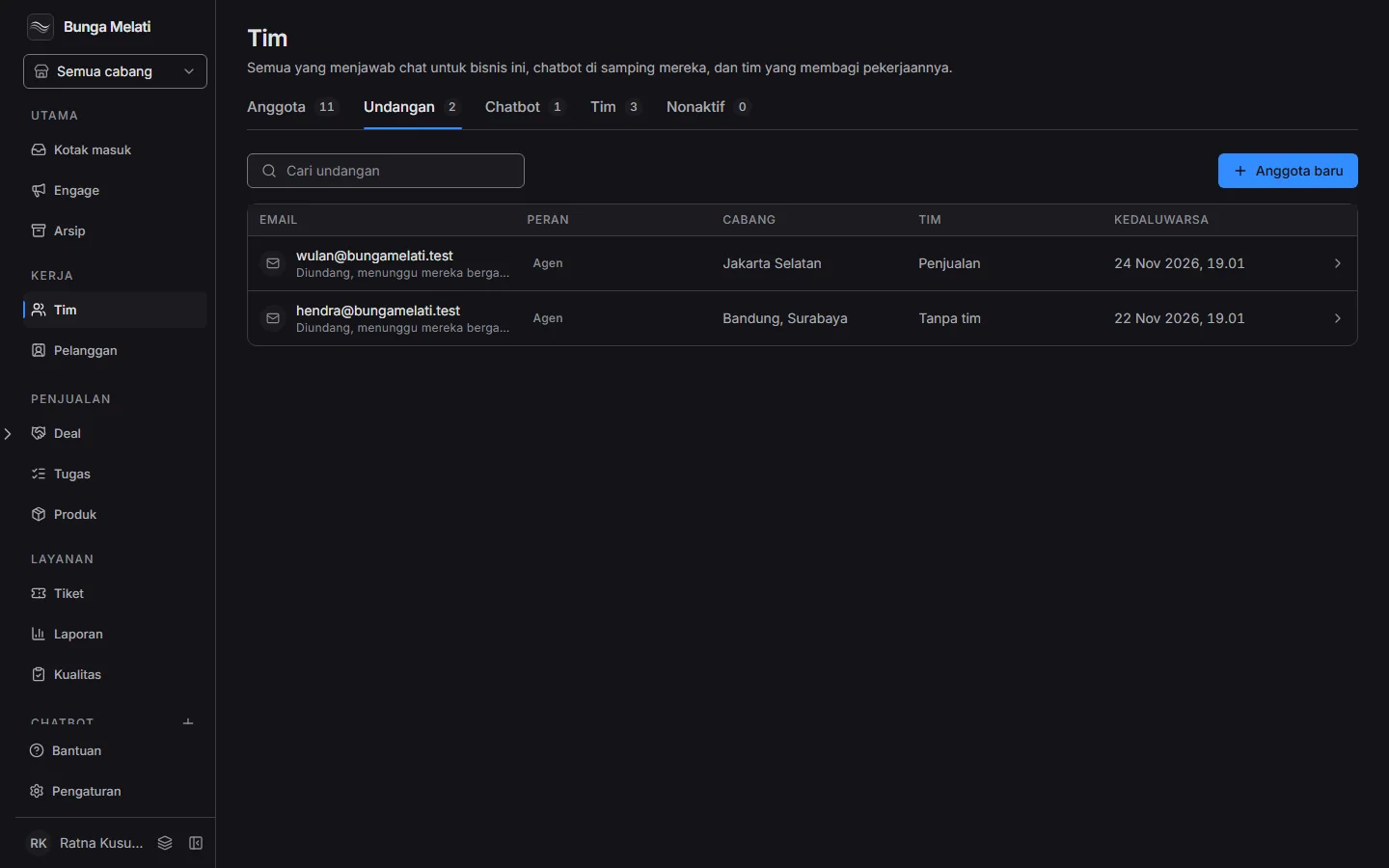
The Invitations tab lists invitations not yet accepted, with their role, branches, team and Expires. Click a row to open its panel. Copy link copies the invitation link, and Cancel invitation makes the link stop working right away. To send one again, cancel it and invite again.