More channels
Connect a mailbox
Wavely reads your mailbox over IMAP, threads mail into one chat by Message-ID, and replies over SMTP from the inbox.
Before you start
Only owners and admins can connect a mailbox. You need the sending address, the names of the incoming (IMAP) and outgoing (SMTP) servers, and a username and password for each. Ask your mail provider if you do not know them.
Note: The email channel is built and tested automatically against test mail servers. It has not been verified against a real provider such as Gmail or Outlook in the demo workspace. Some providers require an app password, or switch IMAP off by default. Before you connect, sign in to your provider's webmail and make sure IMAP is on, then create an app password if the account uses two-step verification. Wavely does not support OAuth sign-in yet, so an account that accepts only OAuth cannot be connected. Use the Test both button to check.
Connect a mailbox
- Open Settings > Social and email, then click Connect mailbox on the Email card. The Connect a mailbox panel opens.
- Under Mailbox, fill in Name (the connection's name in Wavely) and From address, the address customers see when you reply. From name can stay empty.
- Fill in the Incoming (IMAP) and Outgoing (SMTP) sections, then click Test both.
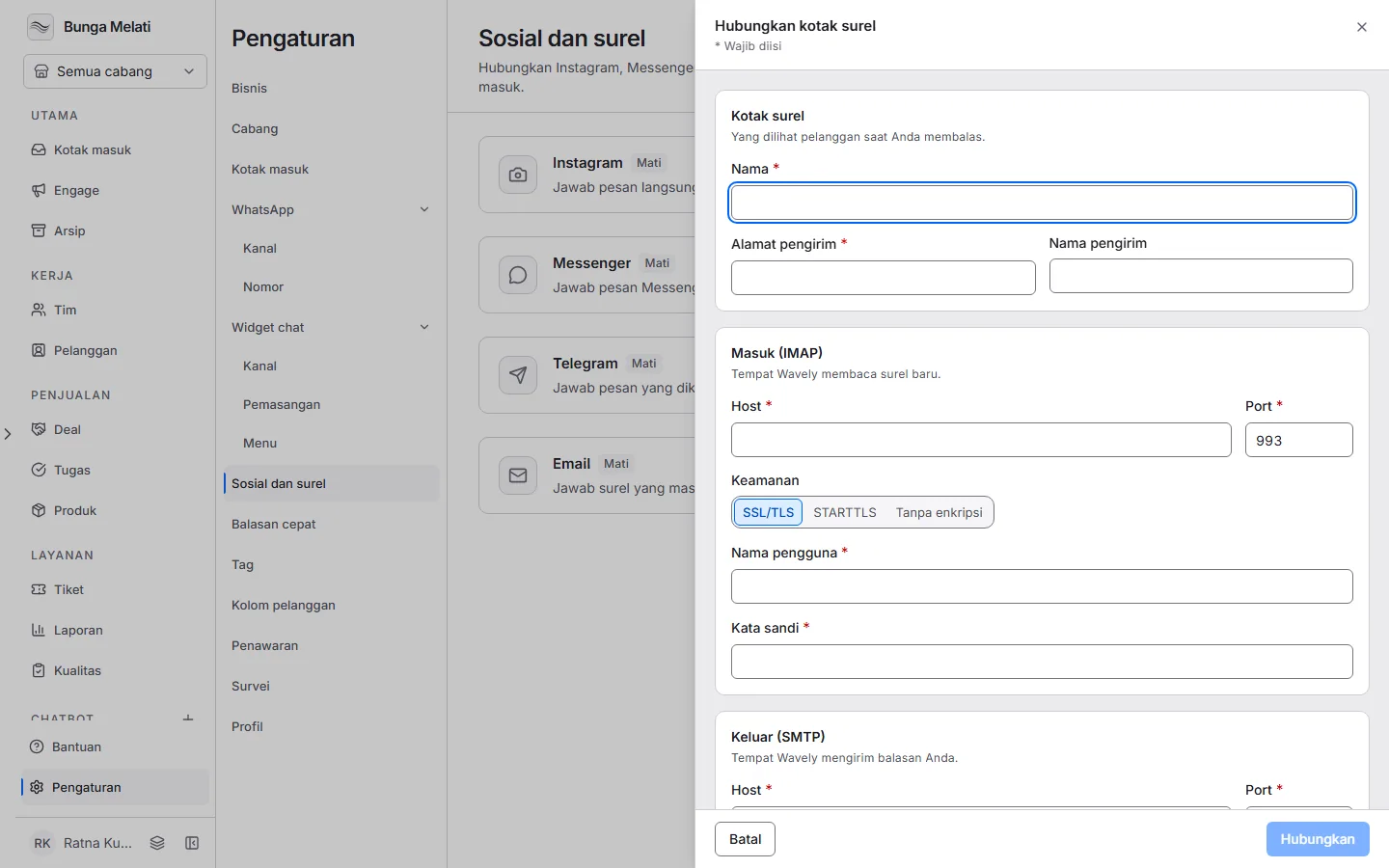
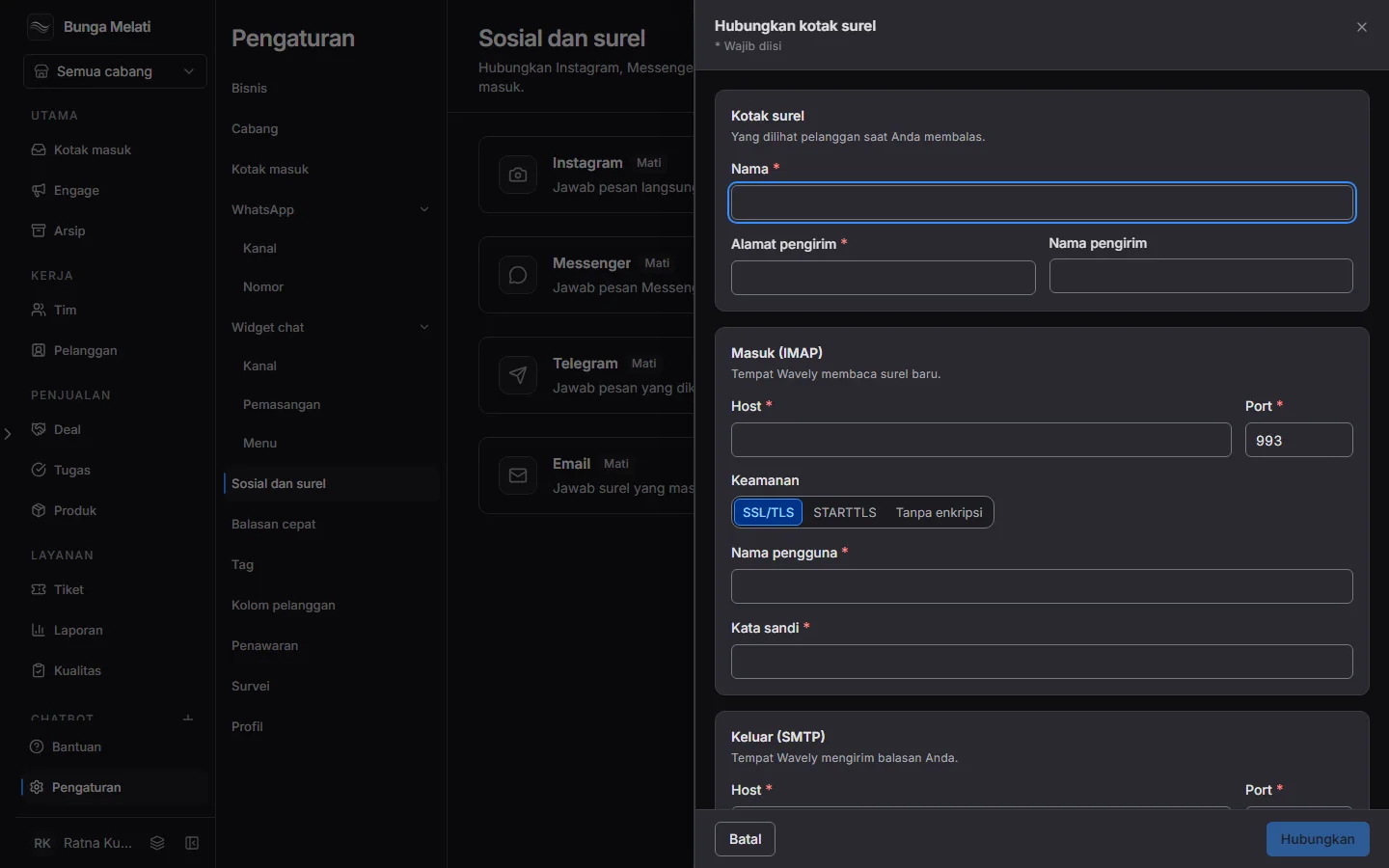
- Click Connect. Wavely tests both connections once more and refuses the mailbox if either fails.
IMAP and SMTP fields
Both sections have the same fields:
- Host: the server name with no
https://and no port. - Port: 993 for IMAP and 465 for SMTP by default.
- Security: SSL/TLS, STARTTLS or None. When you change it, the port moves to the usual one as long as you have not changed it yourself: 993, 143 for IMAP and 465, 587, 25 for SMTP. None is refused unless the server is
localhost. - Username and Password. The password is stored encrypted and never shown again. When you edit a mailbox, leave the field empty to keep the saved one.
A server with a private or local address is refused. One inbox (the same host and username) can be connected only once in a business.
Test both
Test both checks Incoming and Outgoing one by one. Each side shows Works, or the reason in plain words: Could not reach the server, Secure connection failed, Sign-in refused, Unexpected reply, Connection refused, Timed out or Message too large, with the server's answer. A test can take a minute. Before you connect, it uses what is on screen. On a saved mailbox it uses the saved settings, so save your changes first.
Once connected, the mailbox status shows when it was last checked. If a check fails, Wavely tries again with longer pauses, up to 15 minutes, and shows the last error.
How mail becomes a chat
Wavely reads the inbox on a schedule, every 30 seconds by default. Each new mail becomes a message from a contact in the Wavely inbox. The first line of the message reads Subject: followed by the mail's subject, and attachments become file messages.
Mail is grouped into one chat by Message-ID:
- If the mail replies to one already stored (the
In-Reply-ToorReferencesheader) from the same sender, it goes into that chat. A closed chat is reopened. - Otherwise it goes into that sender's latest chat, or opens a new chat in the queue.
Reply from the inbox
Agents reply in the chat as usual. The reply leaves by SMTP from your From address, with a Re: subject and the customer's mail quoted below it, so the customer's answer lands in the same chat. Attachments go along, up to 10 per reply.
If a reply fails, the message shows why. Temporary failures are retried automatically. A reply that finally fails is not resent, so send it again from the inbox.
Limits
- Wavely reads only the inbox folder (INBOX). Mail already there when you connect is not imported.
- Replies are plain text, with no HTML, signature, CC or BCC. A reply goes to the sender only.
- Automated mail, such as auto-replies, mailing lists and bulk mail, is skipped.
- Attachments are limited to 10 per mail. Executable files are refused, and an attachment that is too large is dropped while the mail's text still arrives.
- A reply can go out twice if the server stops at the exact moment of sending.
- Email chats have no edit or delete, and do not show in Traffic.