Team
Branches and divisions
In Wavely, a branch is one location with its own hours and WhatsApp number, and divisions decide who sees which chats.
Branches
A branch is one location or unit of your business. Each branch has its own address, opening hours and WhatsApp sender number. Owners and admins manage them in Settings > Branches. The table shows the name and address, Opening hours, WhatsApp number, the number of Teams, and Status (Open or Closed). The first branch carries the Default tag.
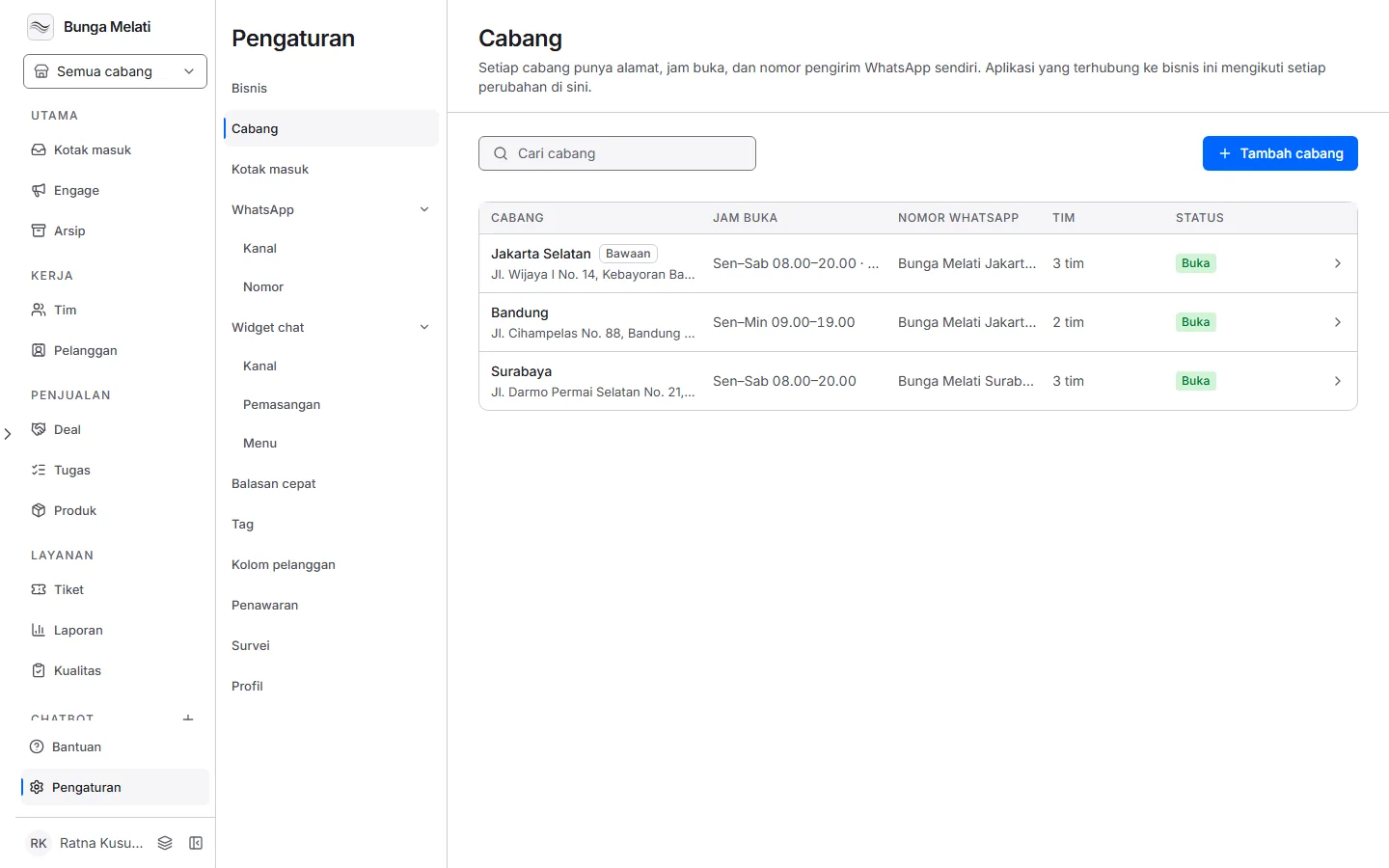
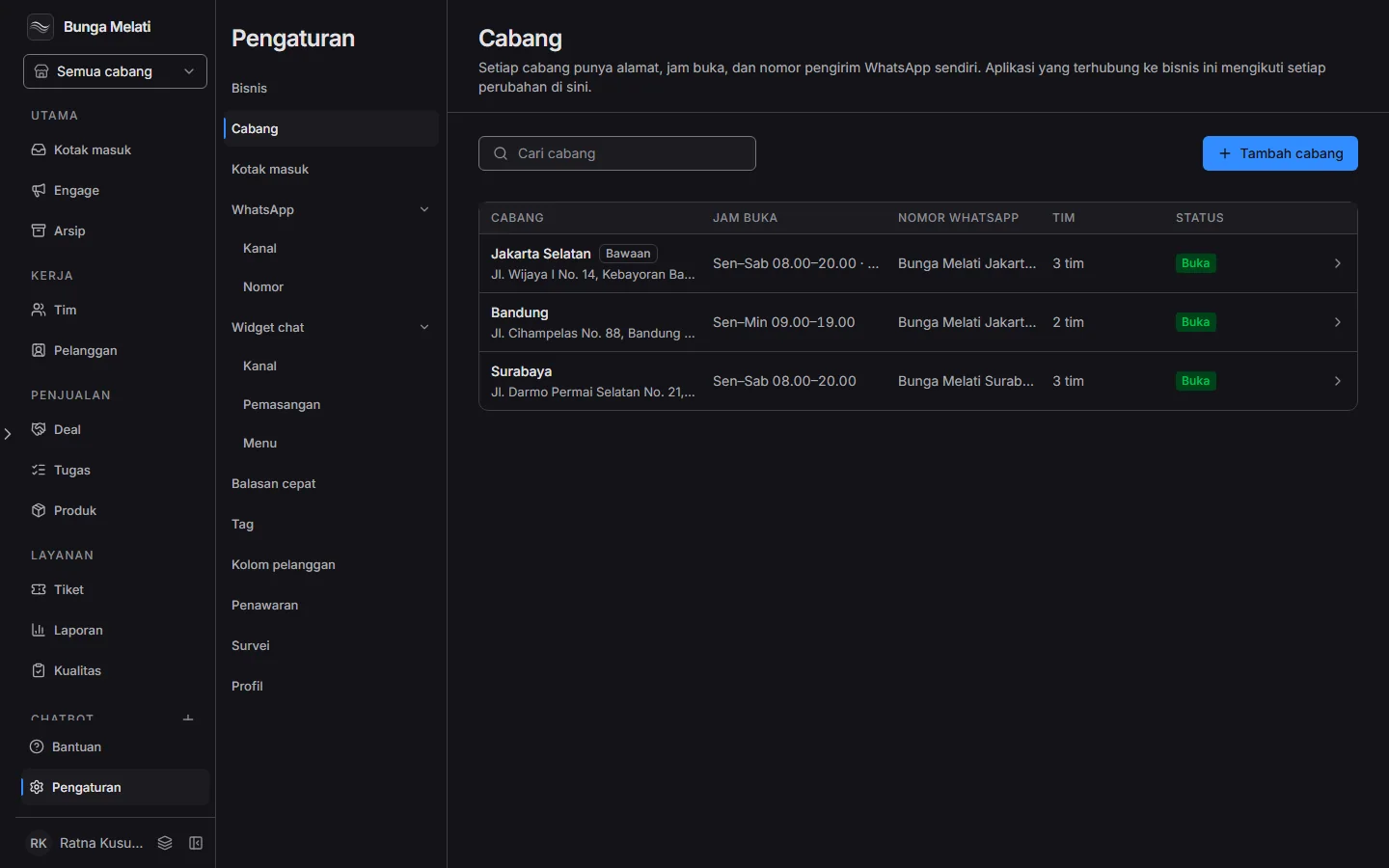
Click a row to open the branch panel on the right.
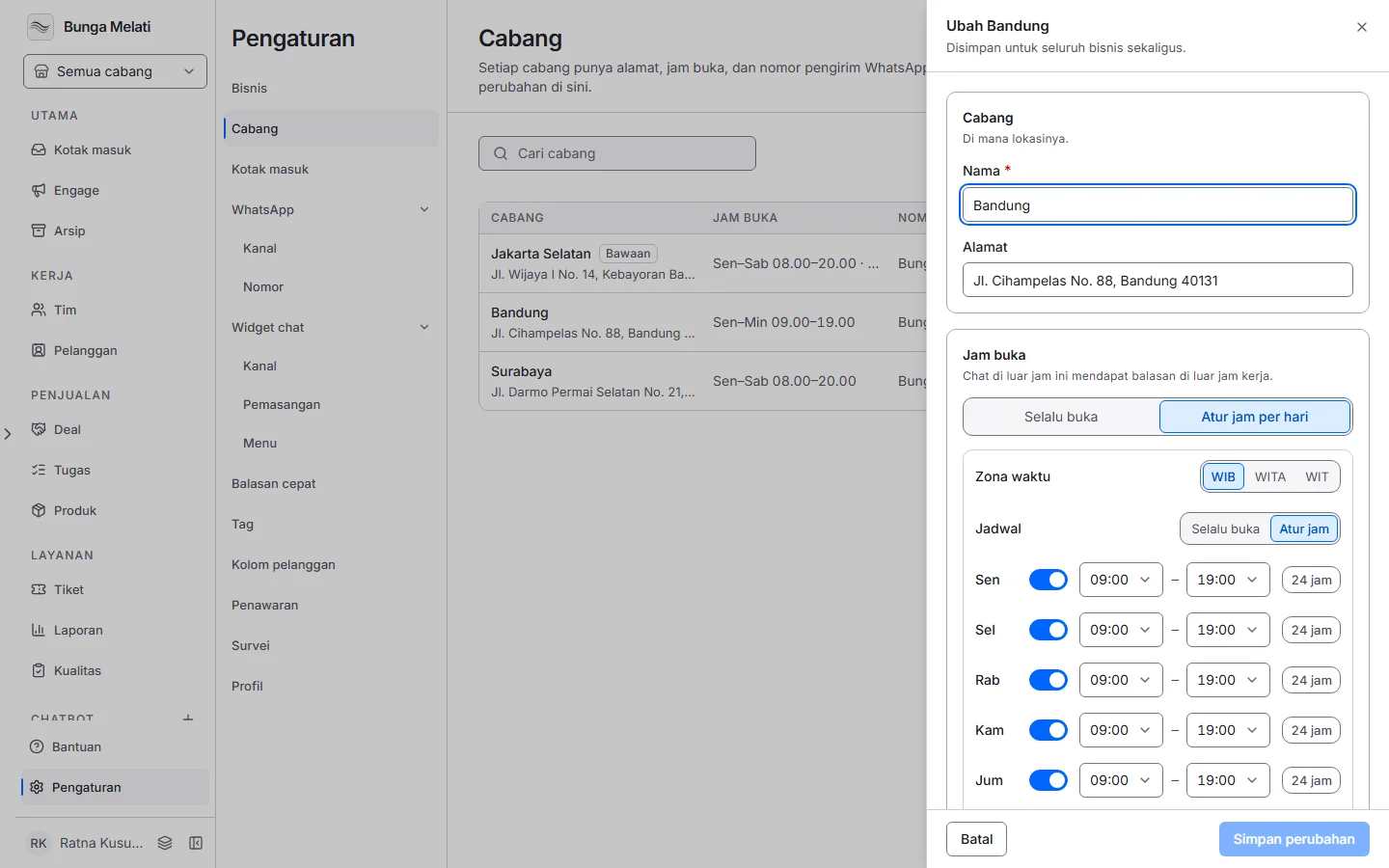
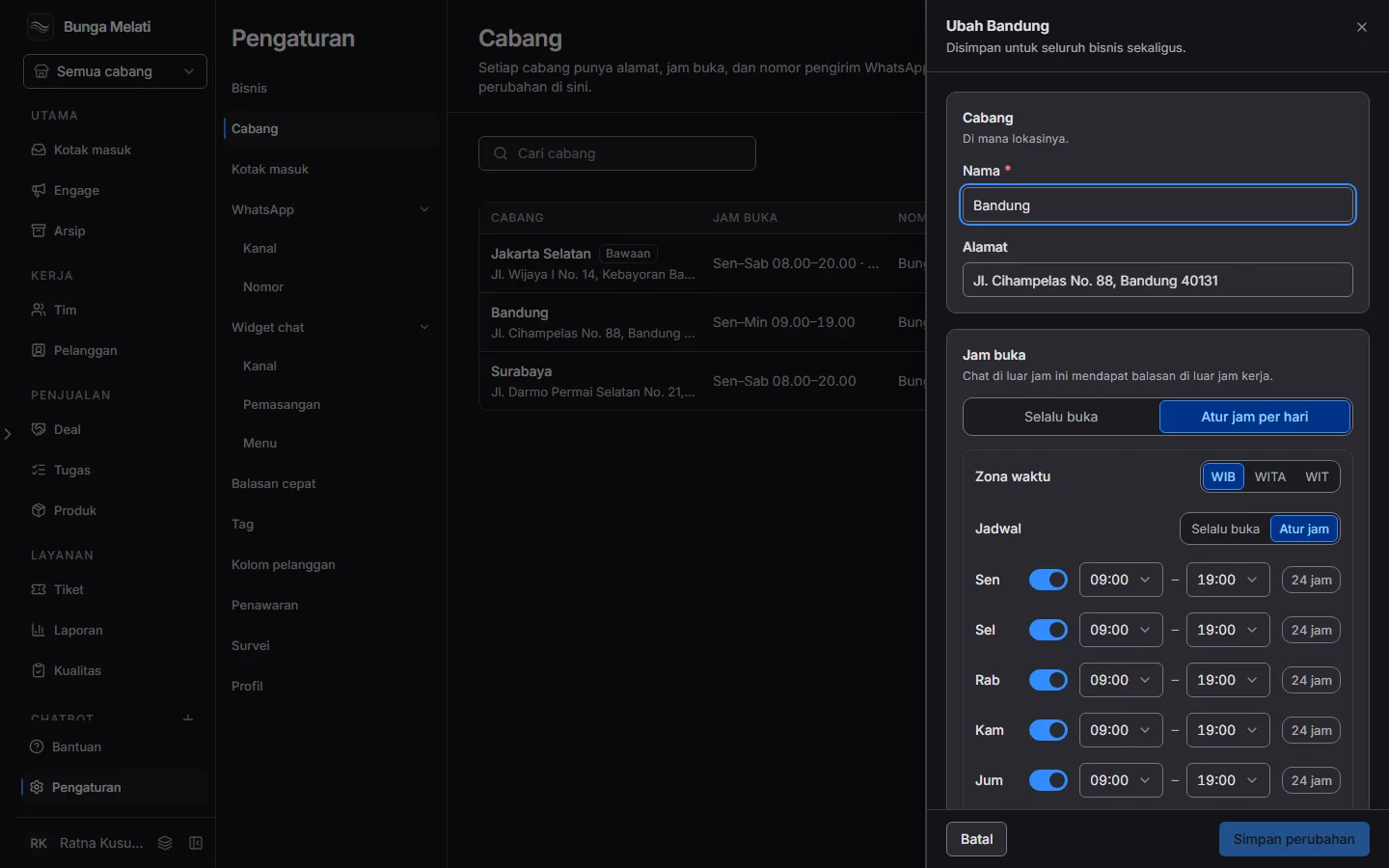
The panel has five sections:
- Branch: Name and Address.
- Opening hours: pick Always open or Set hours per day. For hours per day, pick a Time zone (WIB, WITA or WIT), then switch each day on and fill in its hours.
- WhatsApp sender: Sender number. Messages for this branch go out from that number, and you must pick one. If there is no WhatsApp number yet, the panel asks you to add one first. The Limit messages per day switch opens a field for the number of messages per day, a whole number of at least 1. With the switch off, messages go out with no daily limit.
- Status: the Branch closed switch. A closed branch keeps its chats and history.
- Remove branch: shown when you have more than one branch.
Changes are saved when you choose Save changes.
Add a branch
- Click Add branch. The same panel opens, empty.
- Fill in Name. Address can stay empty. The time zone follows your browser's zone if it is WIB, WITA or WIT, and WIB if not.
- Set the Opening hours and pick the Sender number.
- Click Add branch. Create and add another saves, then clears the panel for the next branch.
Your first branch becomes the Default branch.
Note: The free plan covers one business, one branch and one WhatsApp number. At the plan limit, the Add branch button is replaced by a link to our sales team.
Teams
In the app, a division is called a team. A team is where conversations land and who they are shared between. Every branch has one General team that cannot be deleted.
Teams are not set in the branch panel. The branch table only counts them. Open Team in the sidebar, then the Teams tab.
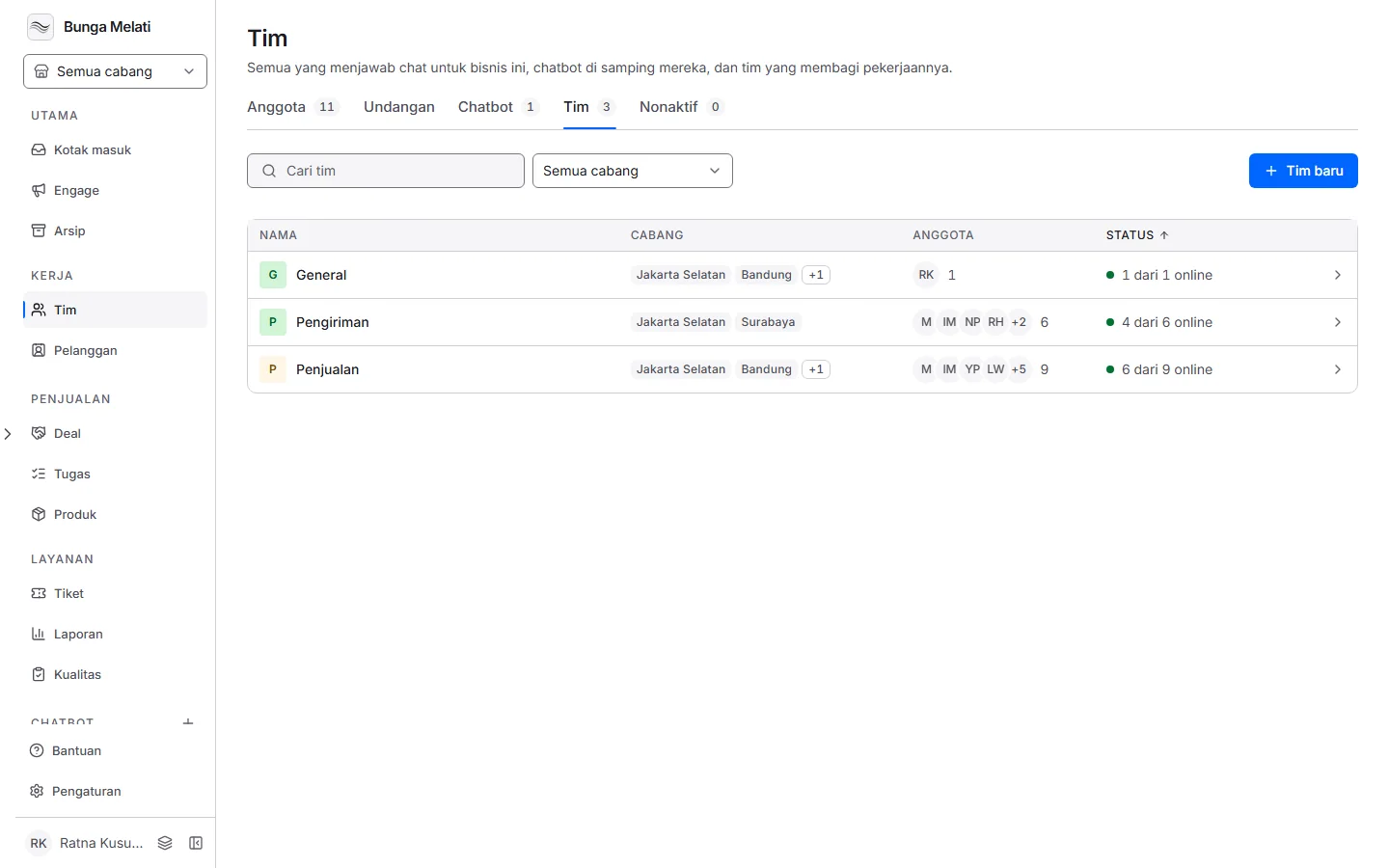
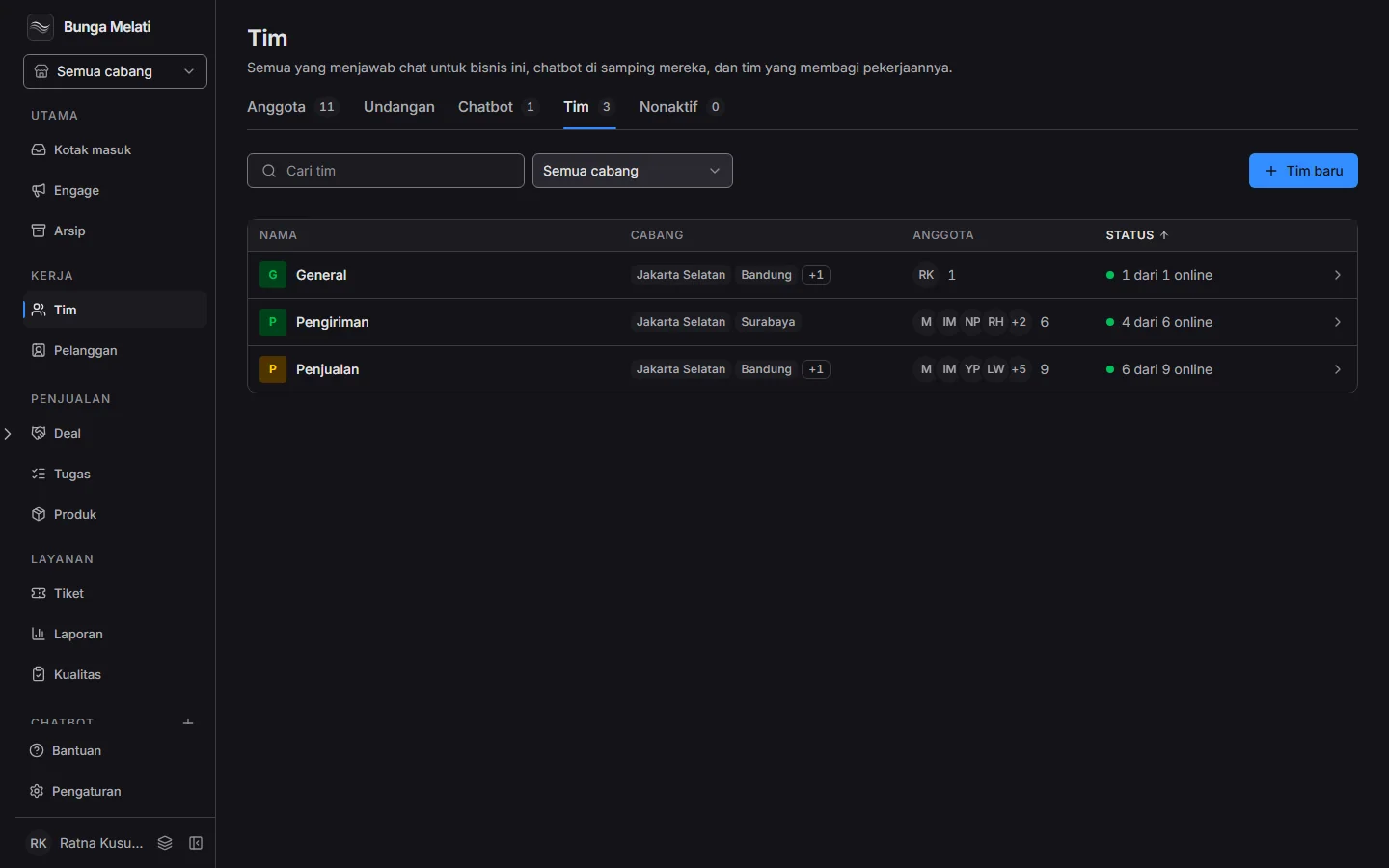
The table shows Name, Branches, Members and Status, for example 4 of 6 online. Pick a branch next to the search box to narrow it down. Click New team to create a team, or click a row to open the team panel. It holds the name, the members, an Embed key per branch for the widget, and Delete team (not for General). Only owners and admins can change it.
Team names apply to every branch. A new team is added to every branch, now and for each branch you open later.
A person's working hours are set in their panel on the Members tab: Branch hours or Custom. A member who follows branch hours gets new chats while their branch is open.
Who sees which chats
Owners and admins see every team. An agent can be limited with the Only their teams switch: they only see chats from teams they belong to, or chats assigned to them. With the switch off, that limit is lifted.
Deleting a branch deletes its teams. Their conversations and campaigns move to General in the default branch, and the sender number is released. If you delete the default branch, the oldest remaining branch becomes the default. This cannot be undone.
The branch picker
Wavely also handles several branches in one business, but the free plan limits you to one branch. More than one branch, more than one business, and more WhatsApp numbers are added through the sales team. Each branch keeps its own team, opening hours and WhatsApp number.
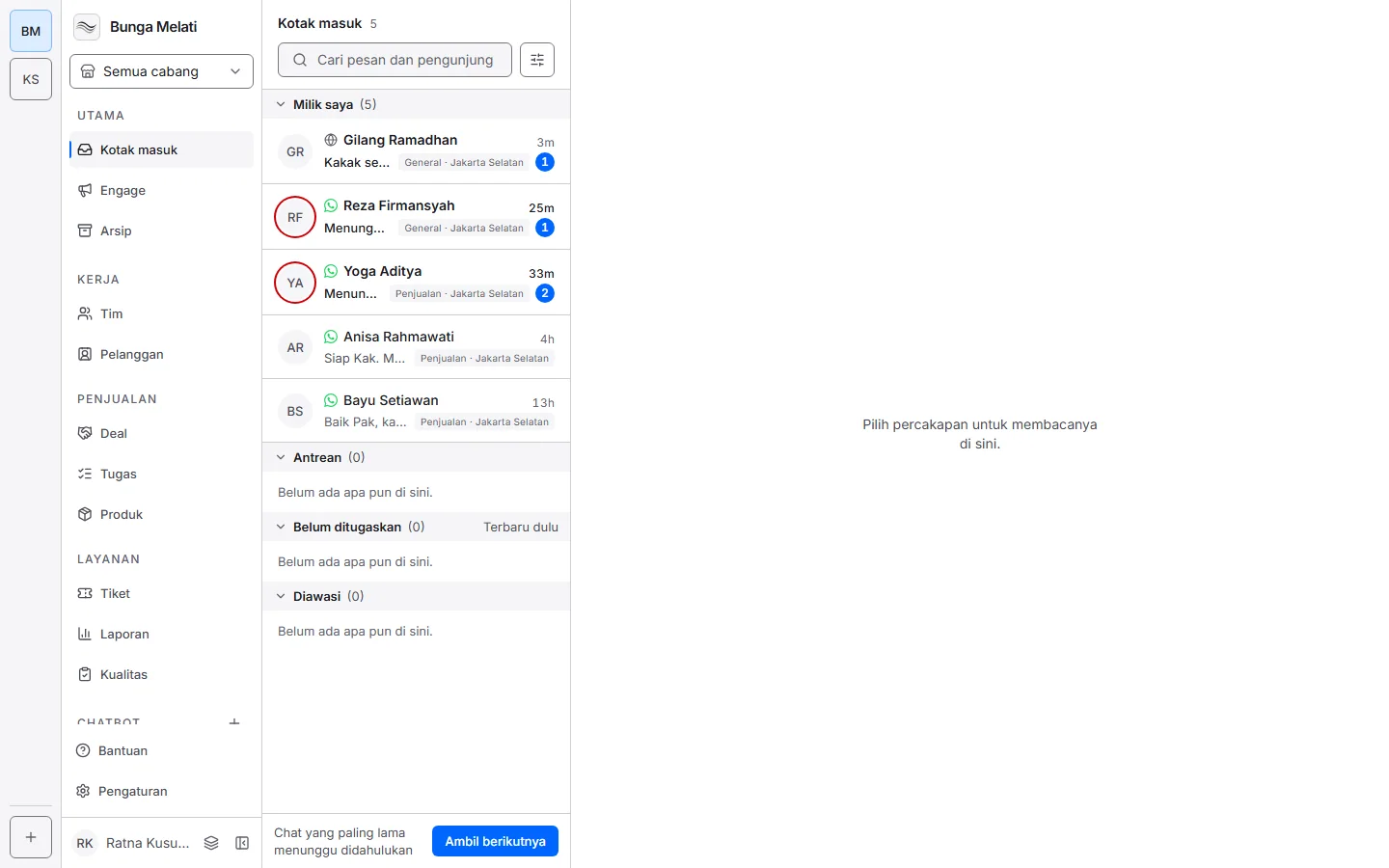
If you can reach two or more branches, the branch picker shows right under the business name in the sidebar. It reads Every branch until you pick one. The inbox, the archive and Traffic follow that choice.
Talk to sales and tell them how many branches you have and what you need.