More channels
Instagram, Messenger and Telegram
Wavely connects Instagram, Messenger and Telegram to your inbox with pasted tokens. Instagram and Messenger have a 24 hour reply window.
Before you start
Only owners and admins can connect social channels. You paste a token from the provider, so you need access to the Meta account or the Telegram bot you want to connect.
Note: The screens on this page and their signed webhooks are built and tested automatically. A real Instagram account, Facebook Page or Telegram bot has not been connected in the demo workspace, so this path is not proven live against Meta or Telegram. Instagram and Messenger need an app in Meta for Developers with the matching messaging permissions, and Meta usually asks for App Review before the app can serve the general public. Telegram needs a bot from BotFather. Wavely does not set up that provider side for you.
Connect one channel
- Open Settings > Social and email. The page has cards for Instagram, Messenger, Telegram and Email. A channel that is not connected is marked Off.
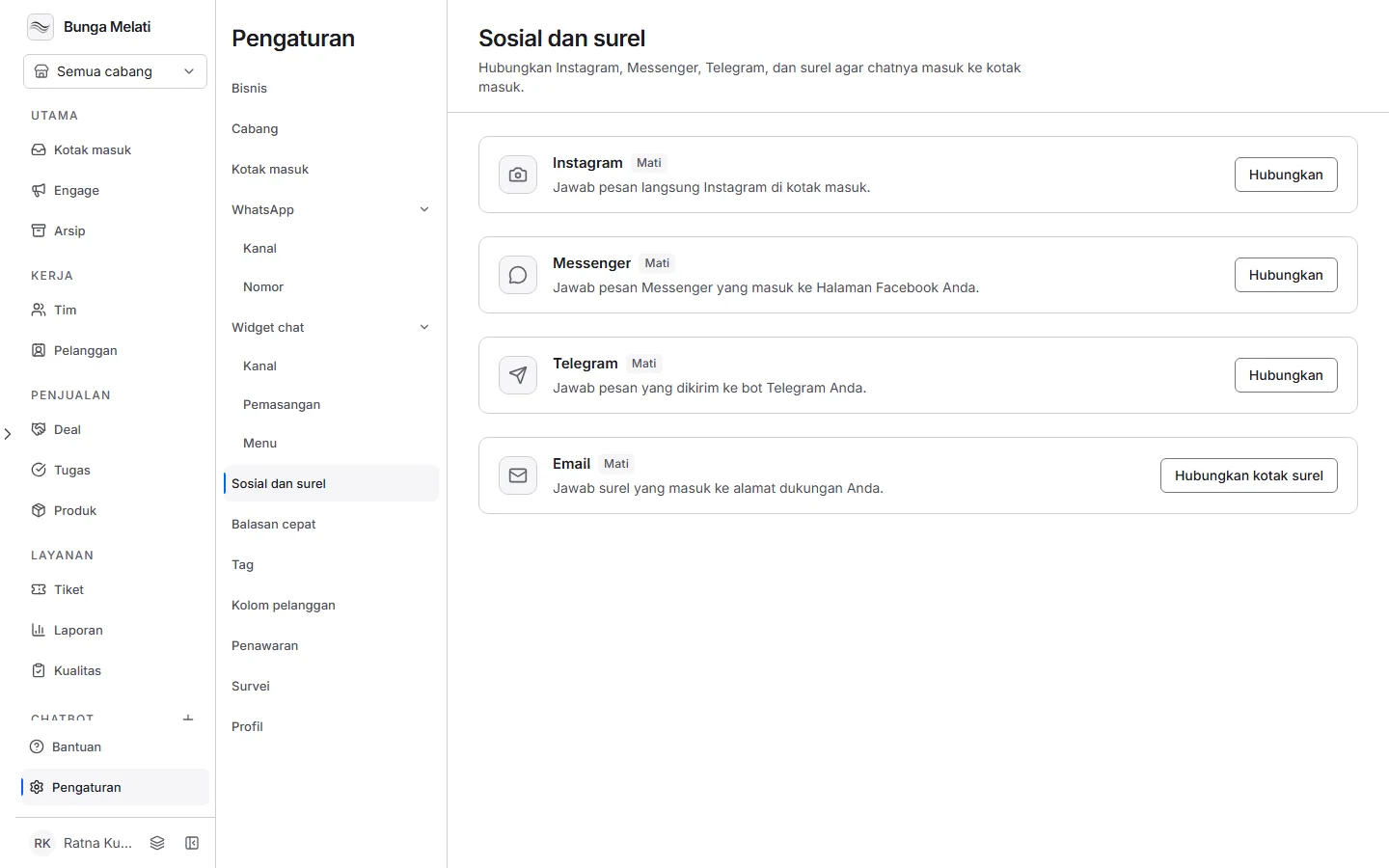
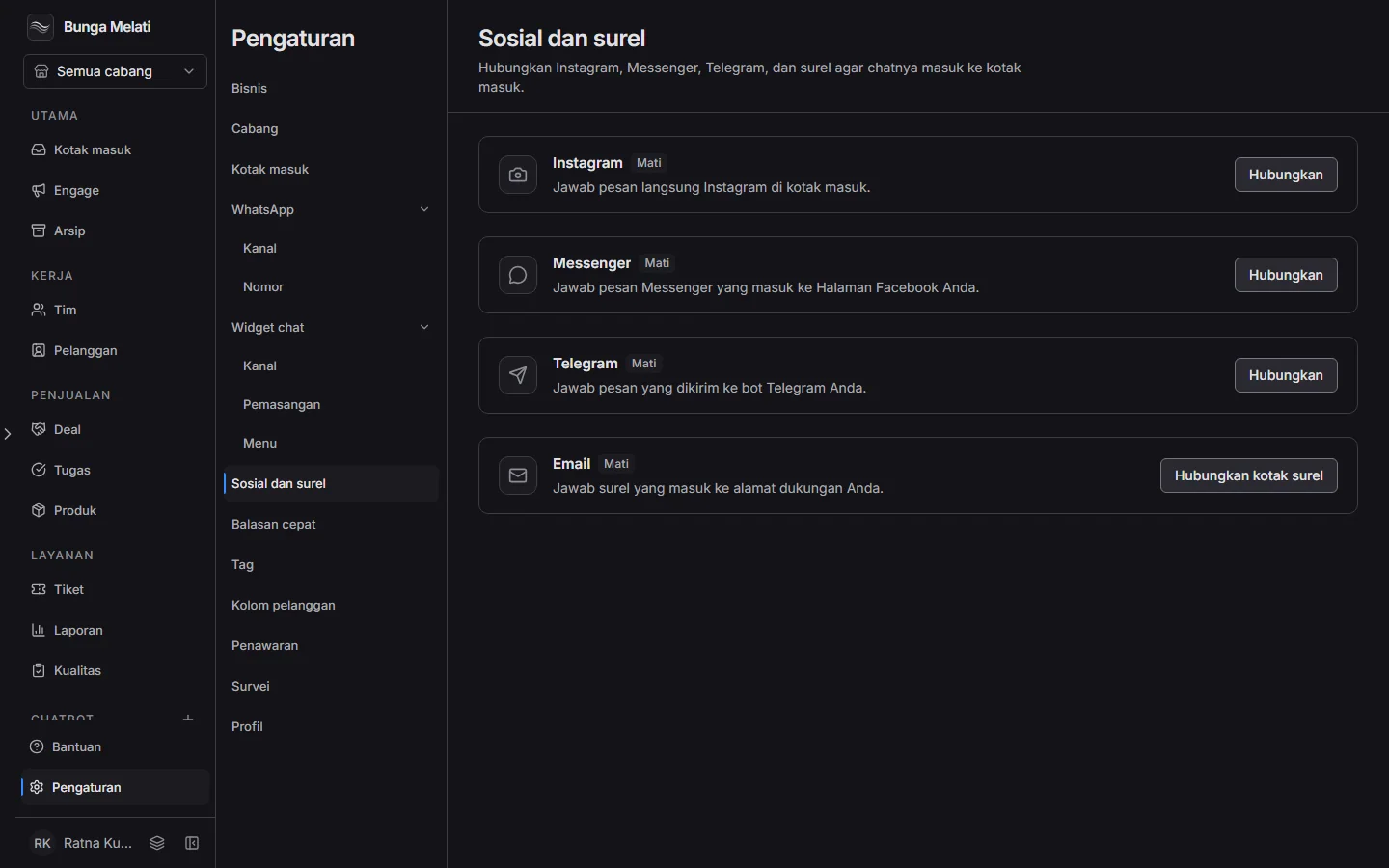
- On the card of the channel you want, click Connect. The Connect Instagram panel (or Messenger, Telegram) opens on the right.
- Fill in Name, which is the name of this connection in Wavely. Then fill in the fields under Access (table below).
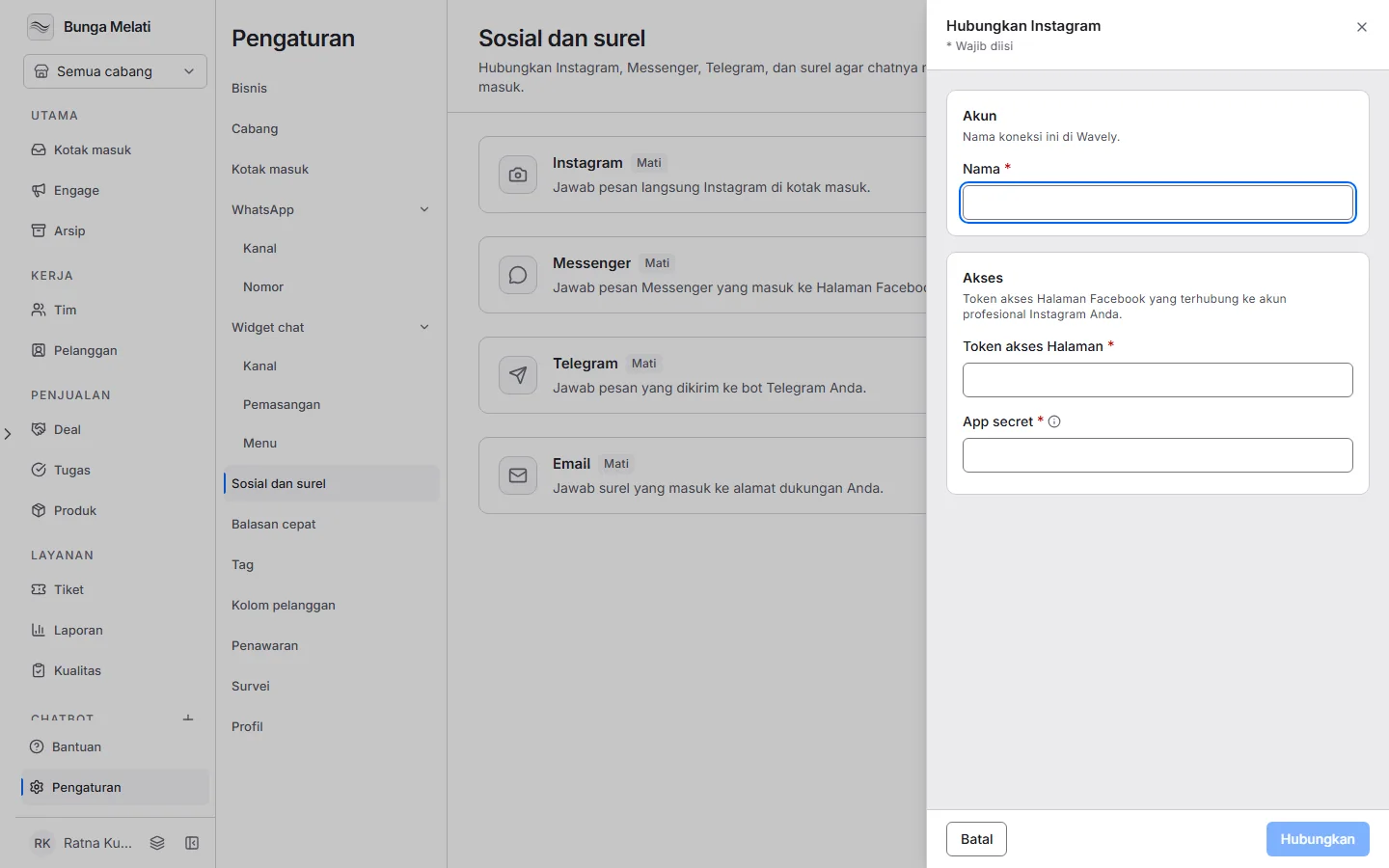
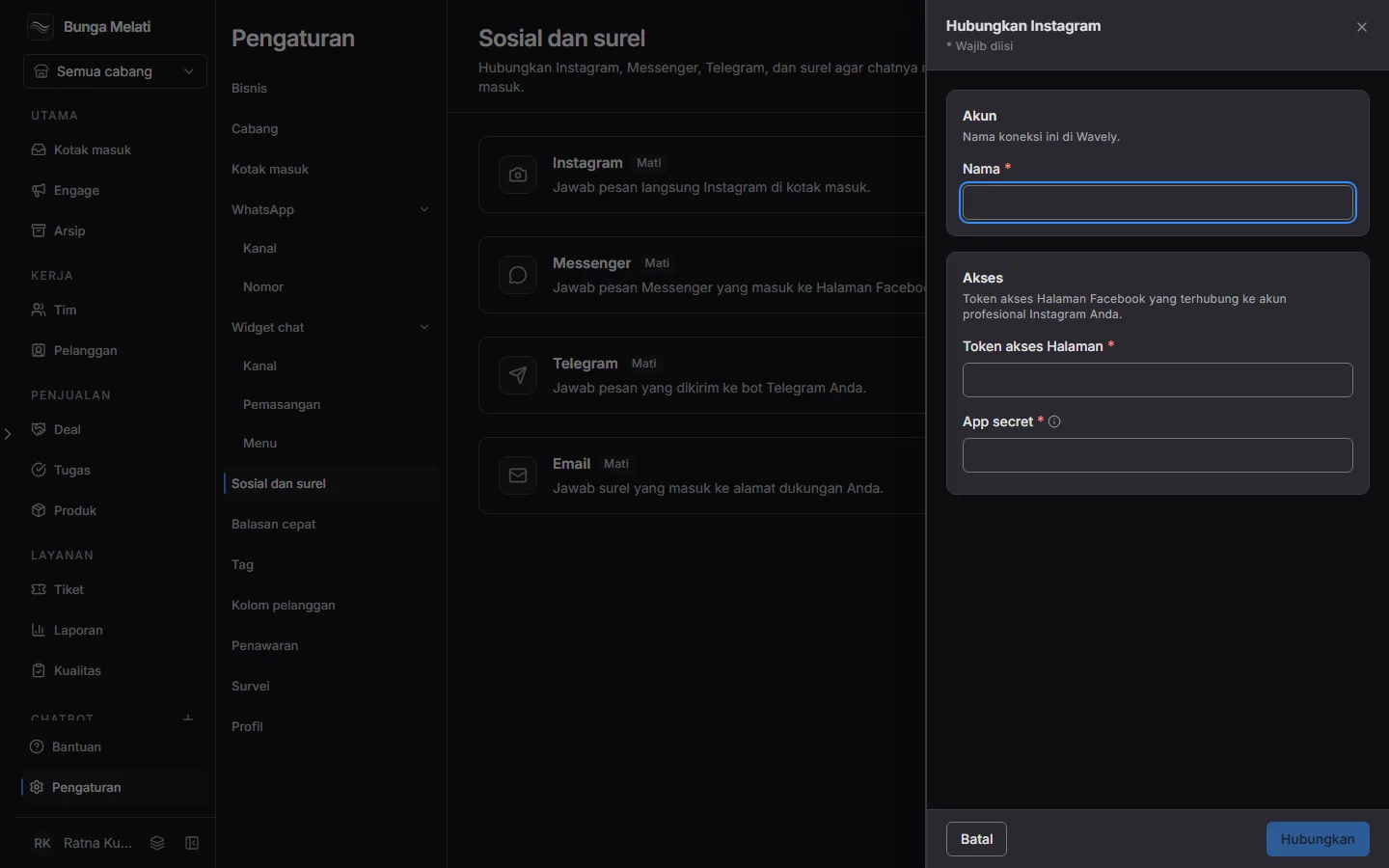
- Click Connect. Before it saves anything, Wavely asks the provider who owns the token. A wrong token is refused and nothing is stored.
The same panel then turns into the edit view, with the webhook values to copy.
Fields for each channel
| Channel | Fields | Where it comes from |
|---|---|---|
| Page access token, App secret | The token of the Facebook Page linked to the Instagram professional account, and the App secret in your Meta app under Settings, Basic | |
| Messenger | Page access token, App secret | The token of your Facebook Page, and the same App secret |
| Telegram | Bot token | The token @BotFather gave you |
There is no sign-in with an account: you paste the token. The token fields are password fields, and Wavely never shows a token again. In the edit panel the field is empty and says it is already saved; fill it in only to replace it. One Page or one bot can be connected only once in a business.
Finish on the provider side
After Connect, the Finish on Meta (or Finish on Telegram) section shows two values with a Copy button.
- Instagram and Messenger: in your Meta app, open Webhooks, paste the Callback URL and Verify token, then subscribe your Instagram account or Page to messages. One Meta app serves only one Wavely channel. For a second Page, use a second Meta app.
- Telegram: call
setWebhookfor your bot with the Webhook URL, and pass the Secret token assecret_token. Then send your bot a message to see it arrive.
The provider calls that URL from the internet, so your Wavely address must be reachable from outside. Wavely checks the signature of every incoming message and refuses any that do not match.
Test the connection
In the Connection section, click Test connection. Wavely asks the provider whether the saved token still works. The result is Connected as the account name, or a message such as "The provider refused the token. Paste a new one." The channel shows Connected, Check failed or Not tested yet, with the time of the last check. The test checks the token only. Messages actually arrive once the webhook steps above are done.
The 24 hour window
On Instagram and Messenger, an agent can reply only within 24 hours of the customer's last message. After that the reply box is replaced by a note: "The 24 hour reply window has closed. Answer from the Instagram or Messenger app." If a reply is still refused by the server, Wavely shows the same error and saves nothing. A new message from the customer opens the window again. Telegram has no such limit.
What an agent can send
Agents reply from the inbox as usual, with text and one file per reply. On these three channels there is no edit or delete, no typing indicator, and the AI assistant does not answer automatically. Wavely keeps incoming text, images and files. Reactions, stickers, stories and groups are not carried.
If a reply fails, the message shows why: reconnect the channel in Settings, the 24 hour window had closed, the customer cannot receive messages (for example they blocked the bot), the message is too large, or try again. Wavely does not resend a failed reply. Send it again from the inbox.
To replace a token or disconnect, open the card and click the connection. Disconnect stops the channel and deletes the saved credentials. Past chats stay.