Sales
Tasks and reminders
In Wavely, a task is a follow-up with a due date and an owner, can link to a chat, and sends reminders.
The task list
Open Tasks in the Sales section. A task is a follow-up that one person owns, such as calling back or sending a revised quotation. The tab My tasks shows the tasks you are responsible for, with the number still open on the tab.
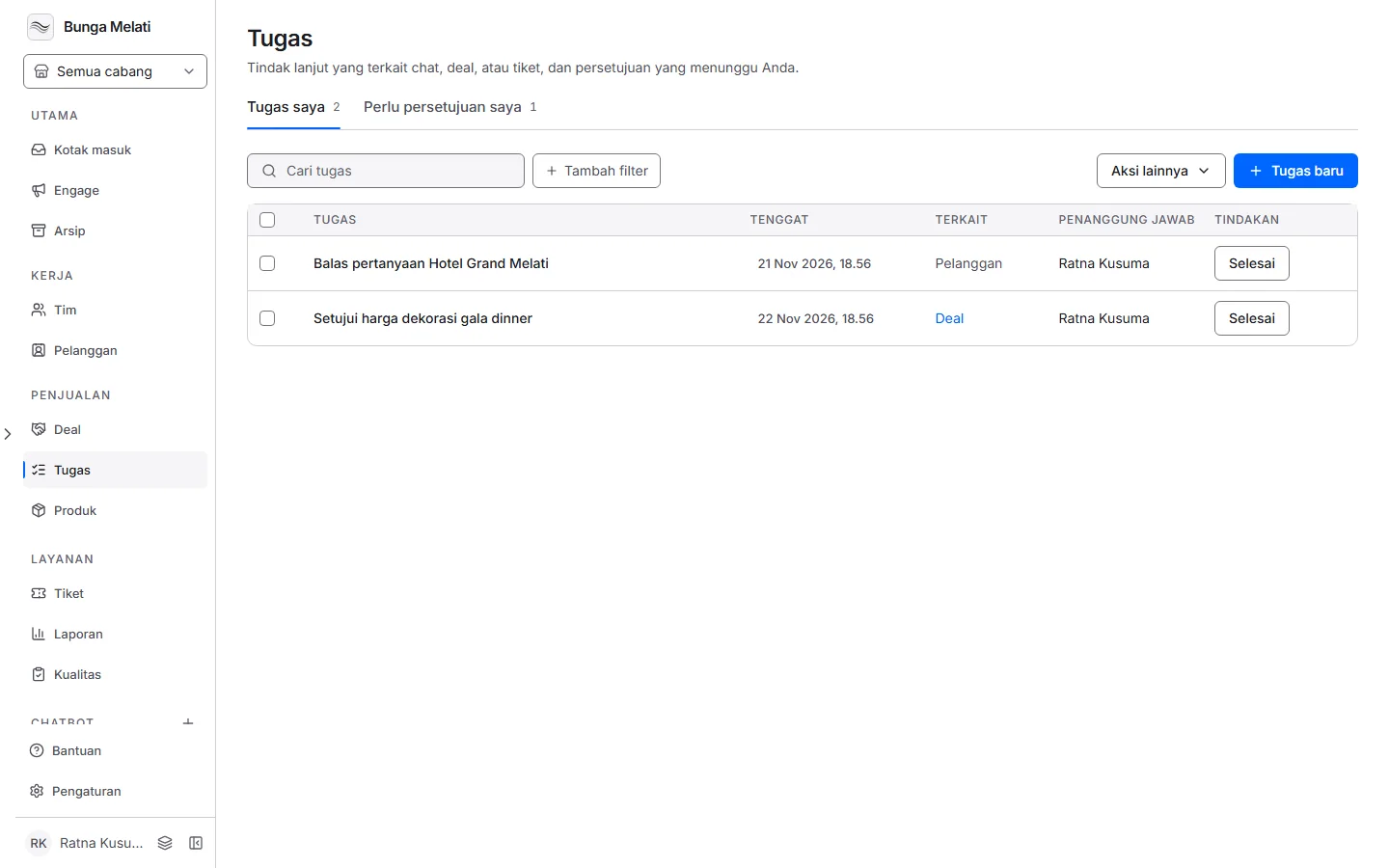
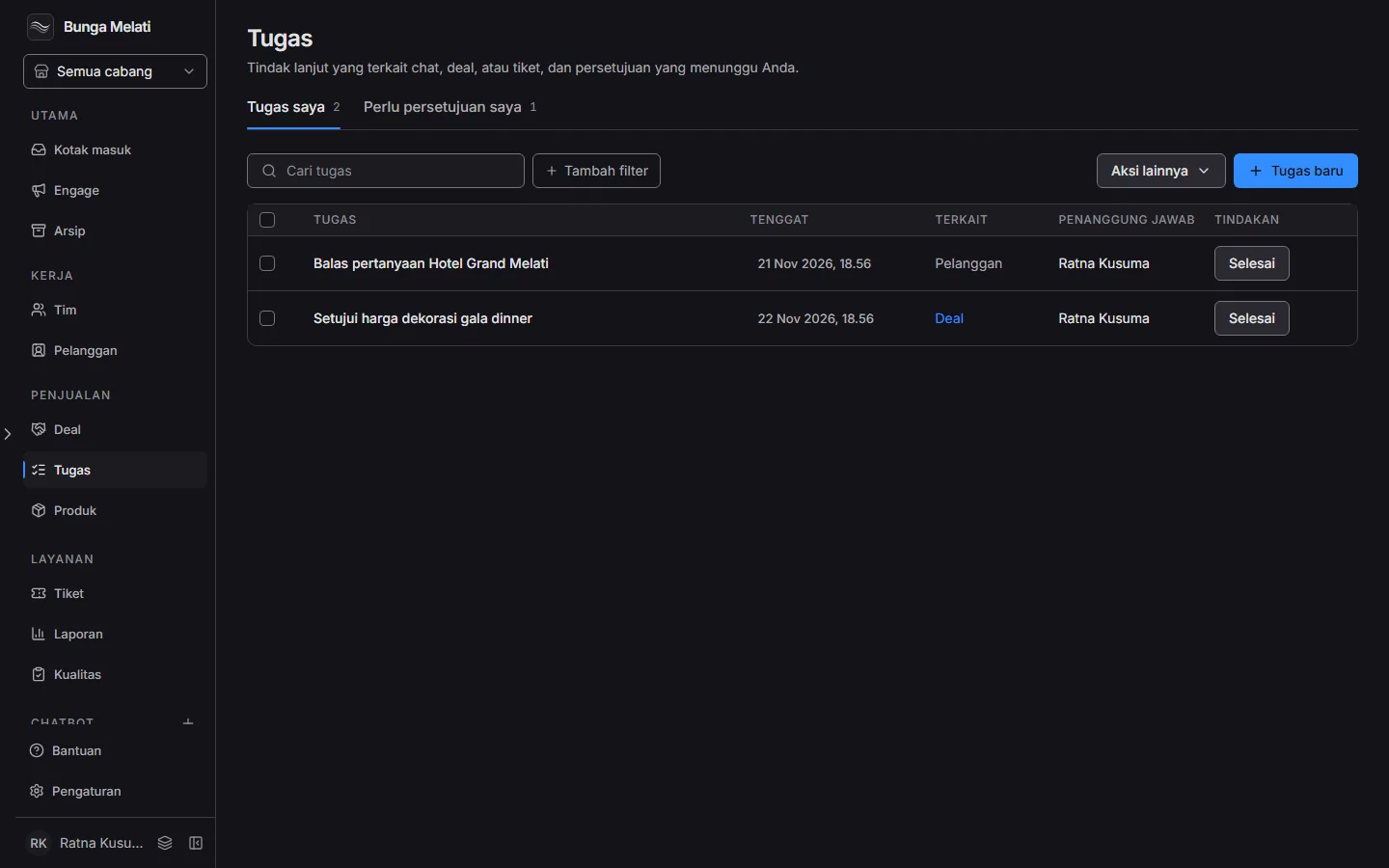
Each row has Task, Due, Linked to, Owner and Actions. Click Done to close a task, or Reopen to open it again. Click the row to edit it.
- Search tasks searches by title.
- Add filter narrows by Due (Due today or Overdue) and Linked to (Linked to a deal, Linked to a ticket or Linked to a chat).
- Tick several rows to Mark done or Reassign them at once. Wavely says how many tasks changed and how many were left as they were.
- The tab Needs my approval holds the approvals waiting on you, the same as on the Deals page.
Create a task
- Click New task, or start from a chat or a customer profile, as described below.
- Fill in Title, which is required, up to 200 characters.
- Pick a Due date and a Time. With no time, the task is due at 17:00.
- Under Linked to, pick the link if there is one.
- Pick an Owner. You can give the task to any active teammate, and it starts as yours.
- Click Create task, or Create and add another.
A task linked to a chat is created with Create task in the Create card of the customer panel in the Inbox. A task linked to a customer is created with Create task on the Tasks tab of the customer profile. Either one then shows on that profile's Tasks tab.
The Linked to column shows the link. Click Chat to open the conversation, Deal to open the deal and Ticket to open the ticket. A Customer link is text only.
Note: From the dashboard, the task panel only offers a link to the chat or customer you opened it from. A task made with New task has no link, and the dashboard has no button yet to create a task from a deal or a ticket.
Due dates and reminders
The Due column spells the due date out: Today, Tomorrow, Overdue with the time, or the number of days overdue. A task with no due date reads No date. A finished task reads Done.
Wavely also sends reminders to the owner, while the dashboard is open:
- One Due soon notice when 15 minutes remain.
- One Overdue notice when the task is an hour past its due time.
Each arrives within a minute of its moment, and the View tasks button opens the list. A task created already late only gets the overdue notice. Changing the due date or the owner resets its reminders.
Who sees what
Every role can create tasks for themselves or another active teammate, and can see their own. Only owners and admins can see other people's tasks: they get an Owner filter with Everyone or one teammate.
A task can be viewed, edited, completed, reassigned or deleted only by its owner, its creator, and owners and admins. Other agents do not see it at all.
Export
Owners and admins can export the tasks to a file. Open More actions, then Export all tasks, pick the format and the columns, and start the export. It runs in the background, so you can leave the page. The finished file is under More actions, Export history, and stays for 30 days.