AI assistant
Hand chats off to your team
Wavely's AI agent hands a chat to a person when your documents do not cover the question, and this guide shows how to set that up.
When the assistant hands off
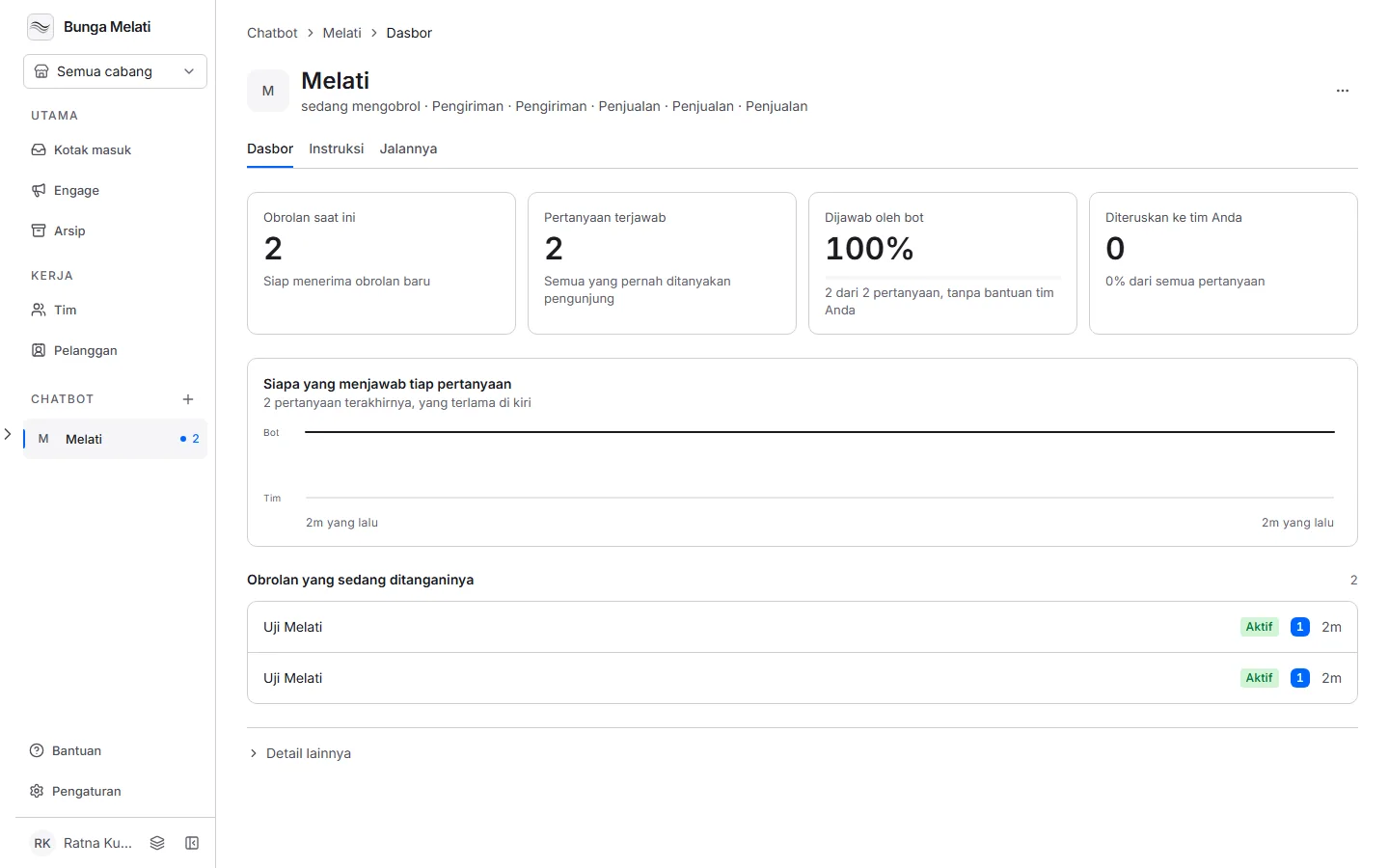
The assistant is not meant to answer everything. It brings in your team when its answer cannot be trusted. The Runs tab on the chat bot's page records the reason for each question:
- It was not sure enough of its answer.
- It could not find anything about the question in its documents.
- Its answer was not backed by its documents.
- It grew less sure with each reply.
- The conversation ran longer than it is allowed to handle alone.
- It handed the chat to a person, for example because the visitor asked or chose the Ask for a person menu option.
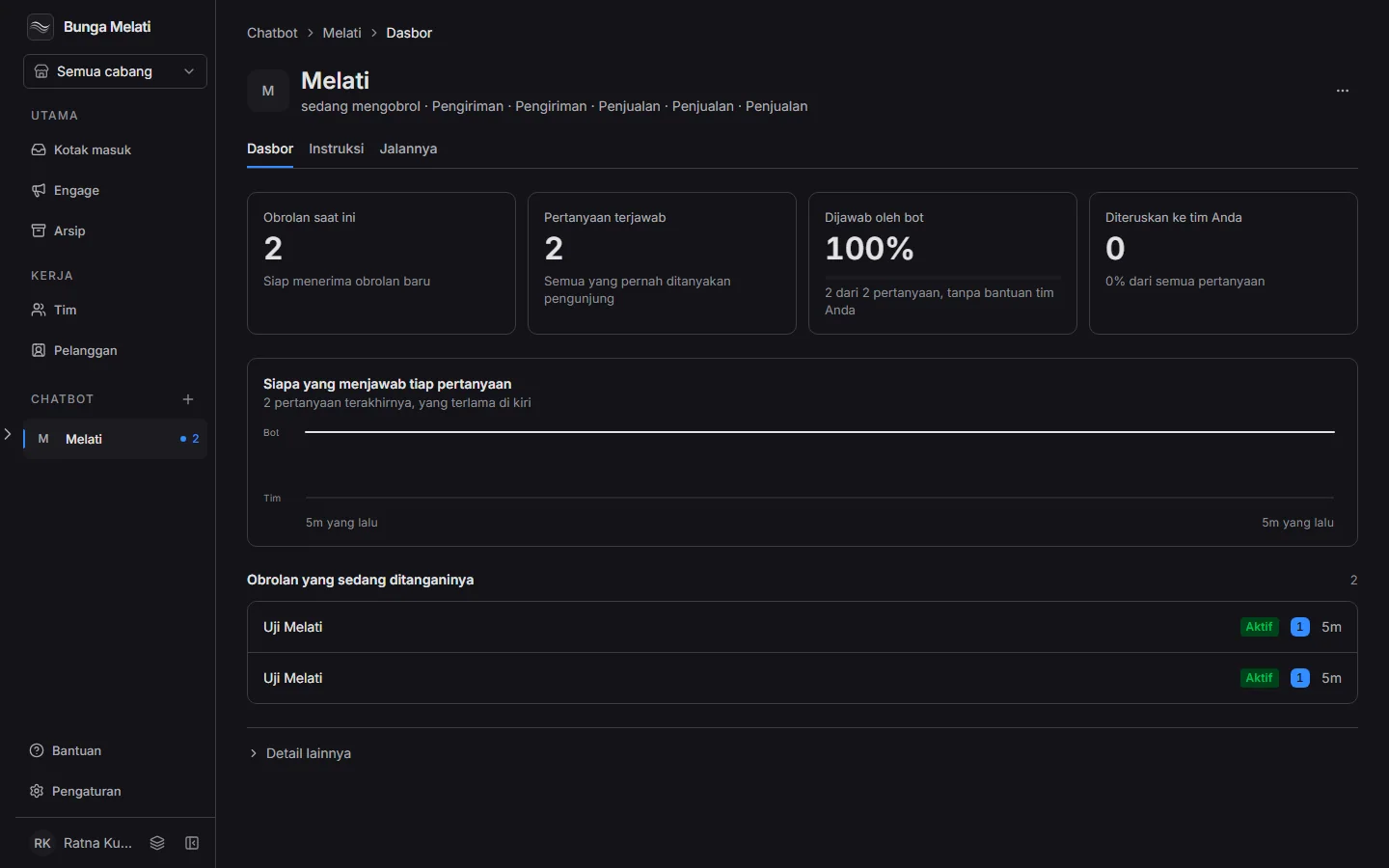
On the Dashboard tab, the confidence threshold is written on the confidence card: below that number, it brings in your team. A chat that was handed over is not given back to the assistant.
What the visitor sees
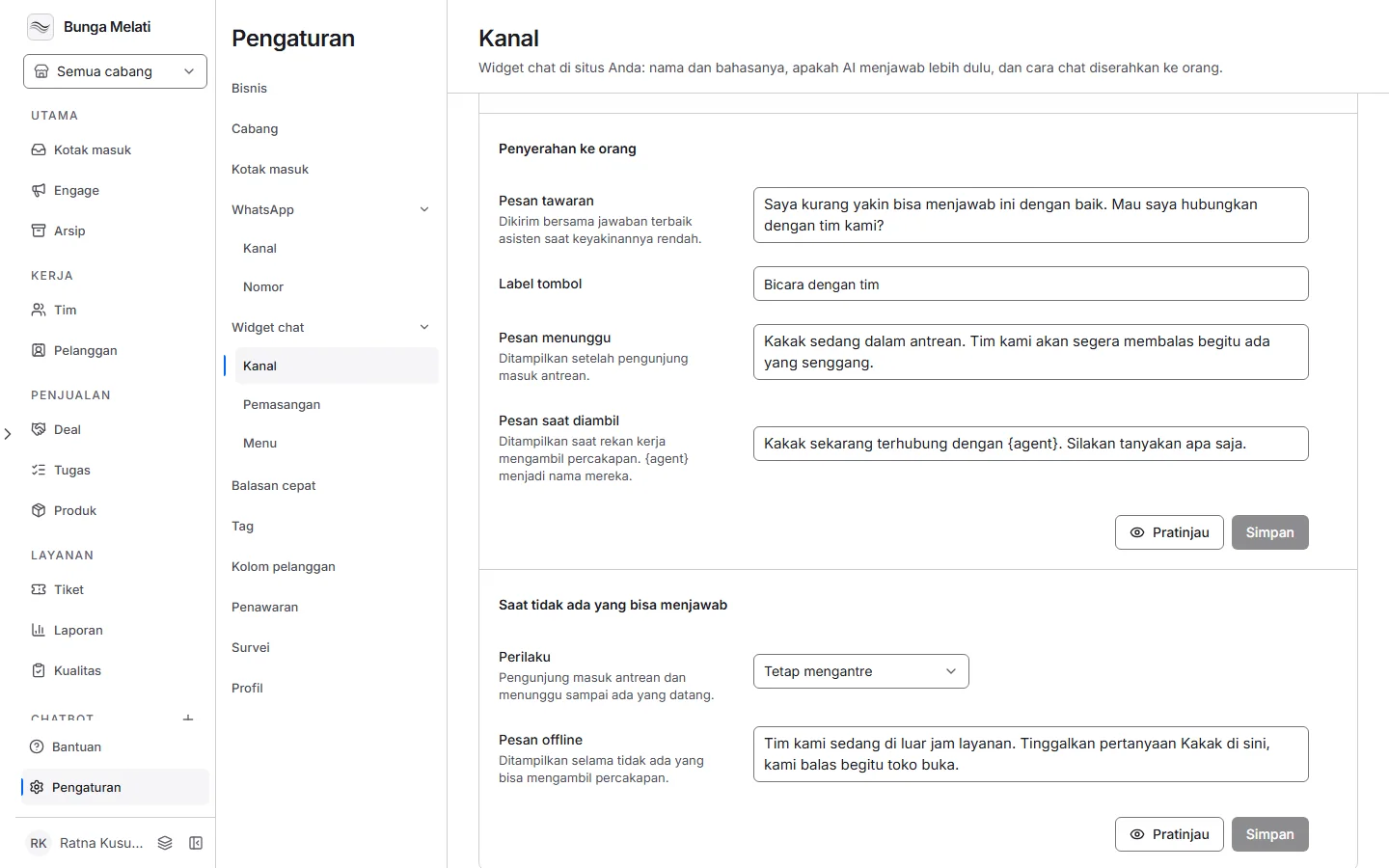
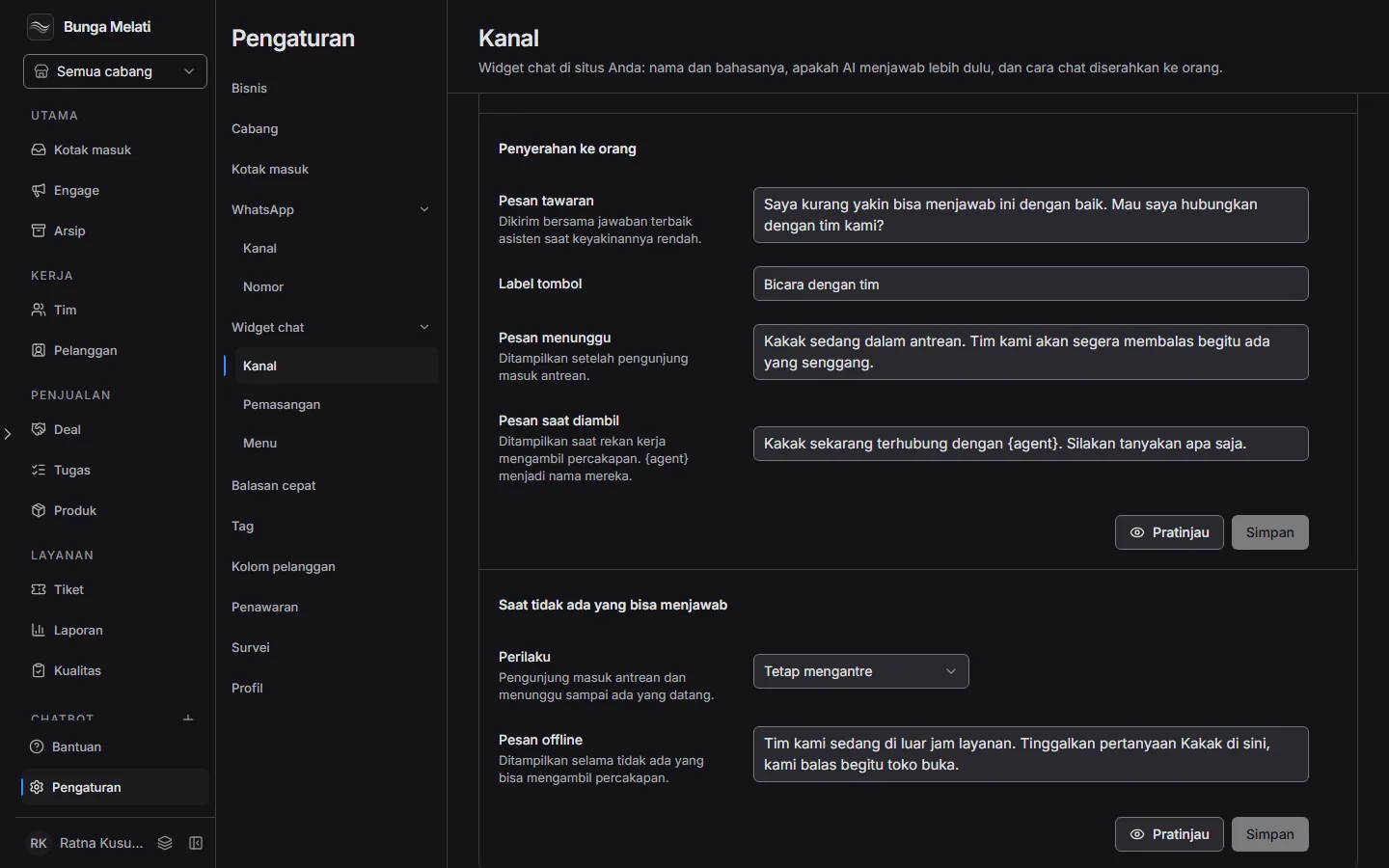
Open Settings, Chat widget, Channels, then the Handing over section. Here you write:
- Offer message: sent with the assistant's best answer when confidence runs low, with one button whose label you set in Button label.
- Waiting message: shown once the visitor is in line.
- Picked-up message: shown when a teammate takes the chat.
{agent}becomes that teammate's name.
A visitor who joins the line waits in that chat's team. Team members take the chat from Inbox or Traffic, where it shows as Queued.
When nobody is online
The When nobody can answer section sets what happens when nobody can pick up a chat. Pick one Behaviour:
- Keep queueing: visitors join the line and wait until someone arrives.
- Hide the button: the assistant stops offering a person and keeps answering.
- Show a notice instead: the assistant shows your Offline message and offers no handover.
Click Preview to see what the visitor sees, with or without someone online.
Note: The widget menu can also give visitors a direct way to a person. In Settings, Chat widget, Menu, choose the Ask for a person action on an option.