Service
Tickets and the SLA clock
Wavely tracks tickets on a board with an SLA clock on each card that runs, warns and pauses while you wait on the customer.
The tickets board
A ticket is work that outlives a chat: a complaint, a wrong delivery, a bill that needs checking. Open Service, then Tickets. Each stage of a pipeline is a column and each ticket is a card. Every agent can see and work tickets.
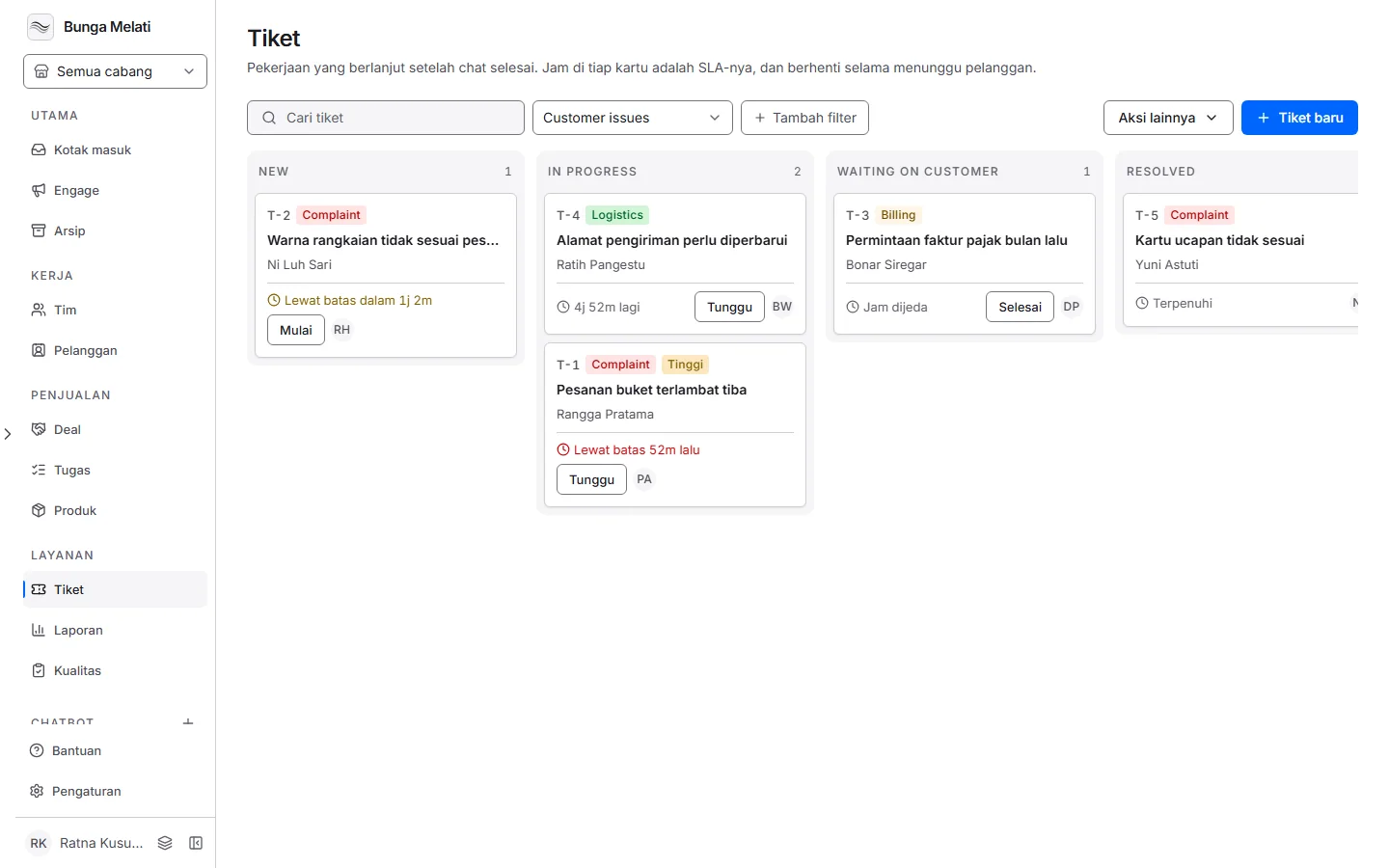
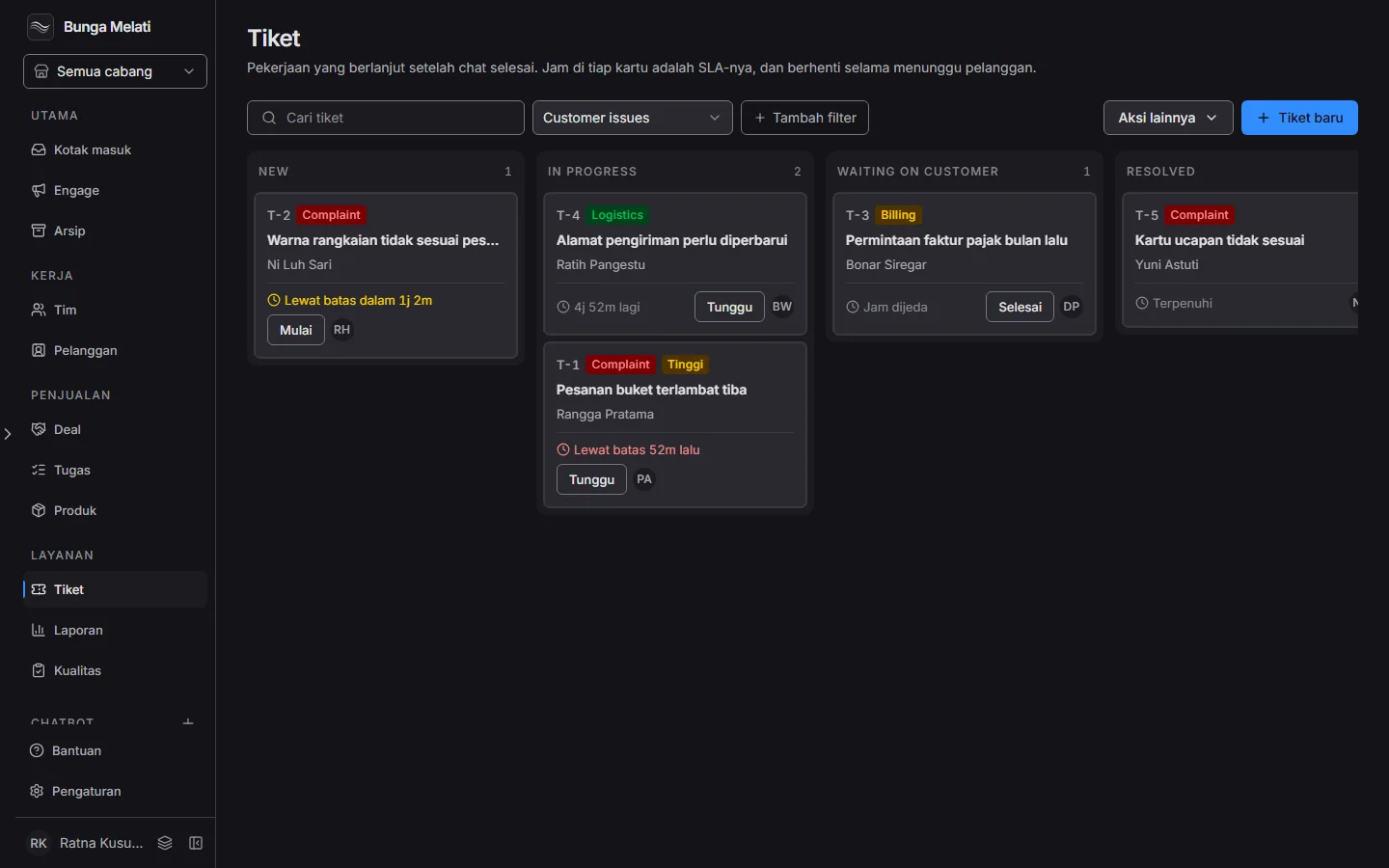
Above the board are a search box, the Ticket pipeline picker, and the filters SLA at risk, Unassigned and Priority. Each card shows the ticket number such as T-1042, the category, a High label when the priority is high, the subject, the customer's name, the SLA clock and the assignee.
To move a ticket, drag the card to another column, or click the button on it: Start, Wait or Resolve. The button's name follows the type of the next stage. If someone else already changed the same ticket, Wavely reloads the board and asks you to try again.
Creating a ticket
There are two ways.
- From the board, click New ticket.
- From a chat, open the details panel on the right of the conversation, find the Tickets card and click Create ticket. The customer and the chat are linked to the ticket right away.
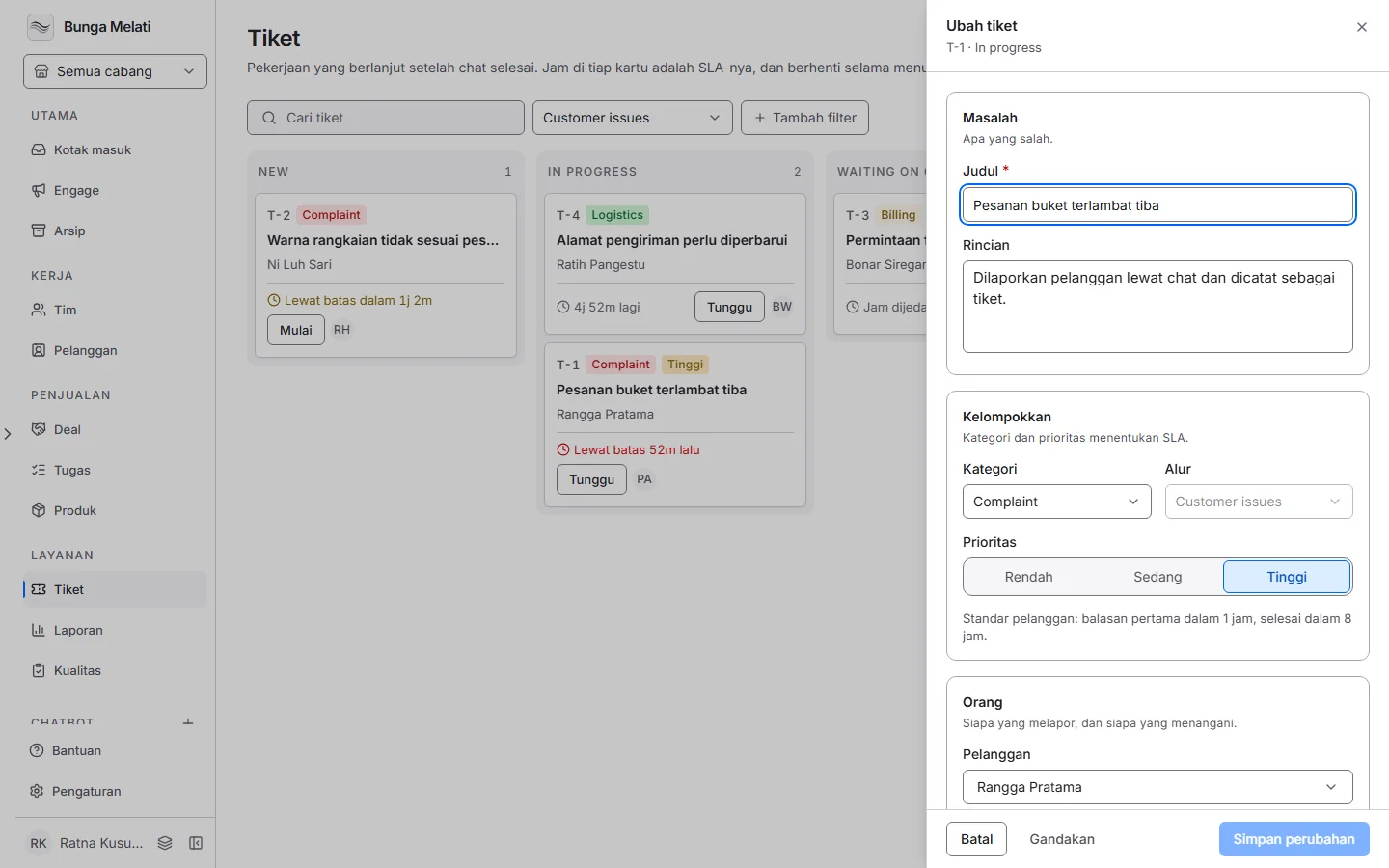
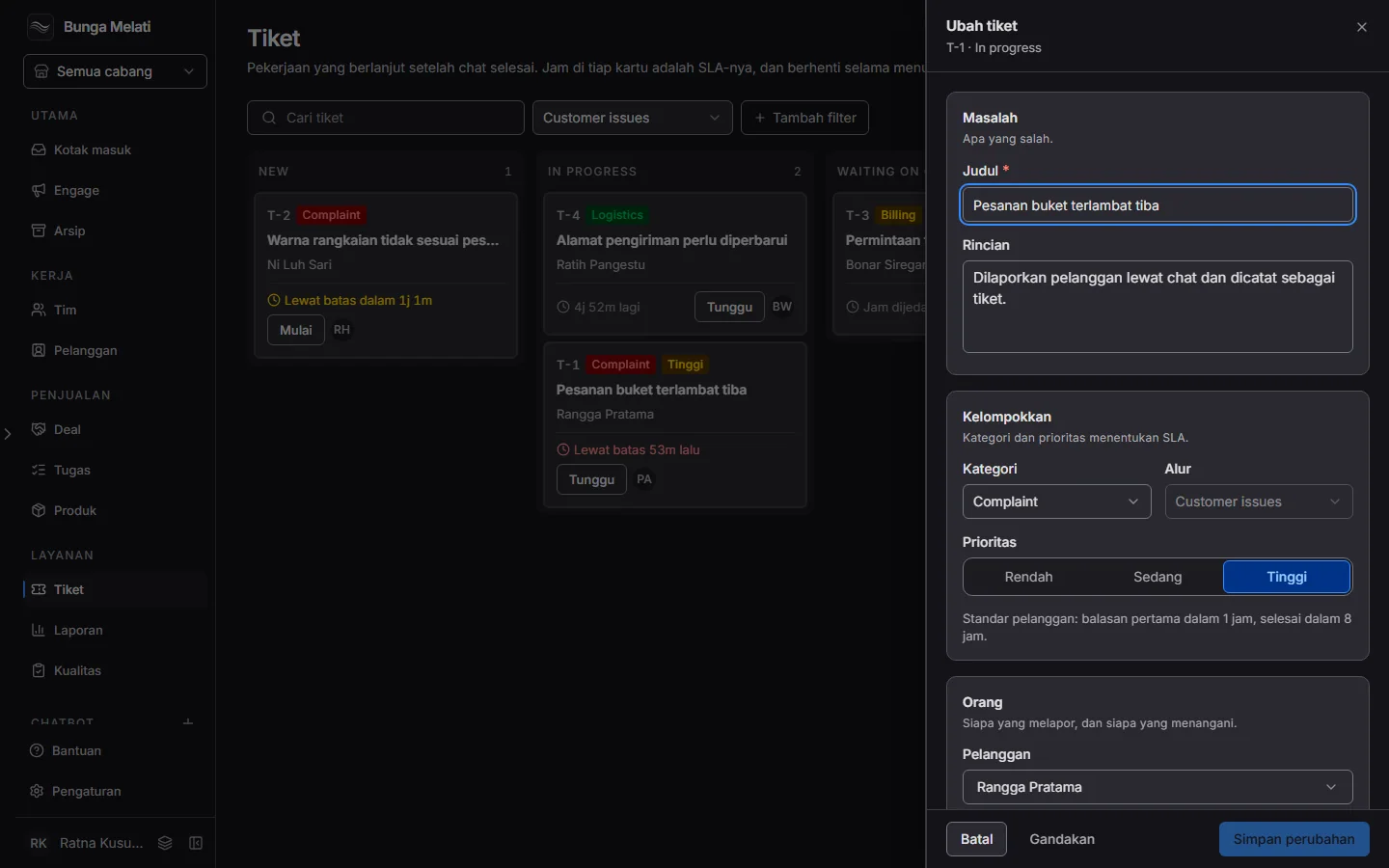
The panel holds:
- Problem: Subject is required, Details is optional.
- Sort it: Category, Pipeline and Priority (Low, Medium, High). Category and priority decide the SLA. The pipeline cannot change once the ticket exists.
- People: Customer and Assignee.
Click Create ticket, or Create and add another when more are waiting. On an existing ticket, Save changes keeps your edits and Duplicate copies the ticket into the first stage with no assignee.
Stages and categories
The first pipeline is called Customer issues, with the stages New, In progress, Waiting on customer and Resolved. The starting categories are Complaint, Logistics and Billing. Every stage has a type: Open, Waiting on customer or Resolved. The type is what drives the SLA clock.
Owners and admins can change all of it under More actions > Pipeline settings: add pipelines and stages, rename them, reorder them and manage categories. A stage that still holds tickets cannot be removed, and a pipeline always keeps at least one stage. Removing a category leaves its tickets with none. Agents do not see the More actions menu.
The SLA clock on a card
The clock on a card shows the deadline for the first reply, then the deadline for the fix once the first reply is met.
- 3h 10m left: the clock is running.
- Breaches in 22m: past the warning point, shown in yellow.
- Breached 15m ago: the deadline has passed, shown in red.
- Clock paused: the ticket is waiting on the customer.
- Met: the target was reached, or the ticket is resolved.
A ticket that no policy matches has no clock. When a clock is close to its deadline or past it, the assignee and the supervisor of the chat get a notice on whichever Wavely page they have open. It arrives once per clock.
SLA policies
Only owners and admins manage policies. Open More actions > SLA policies.
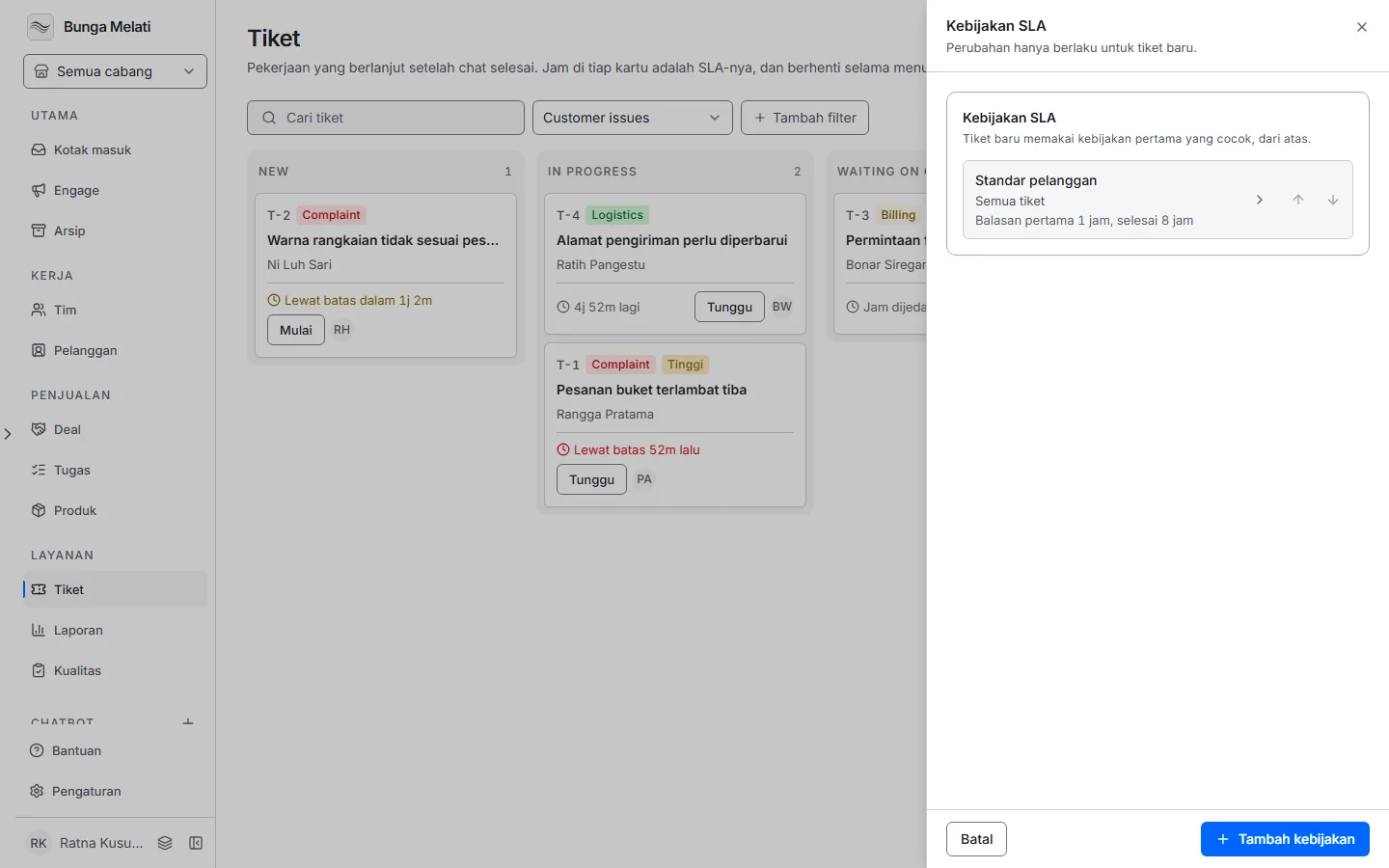
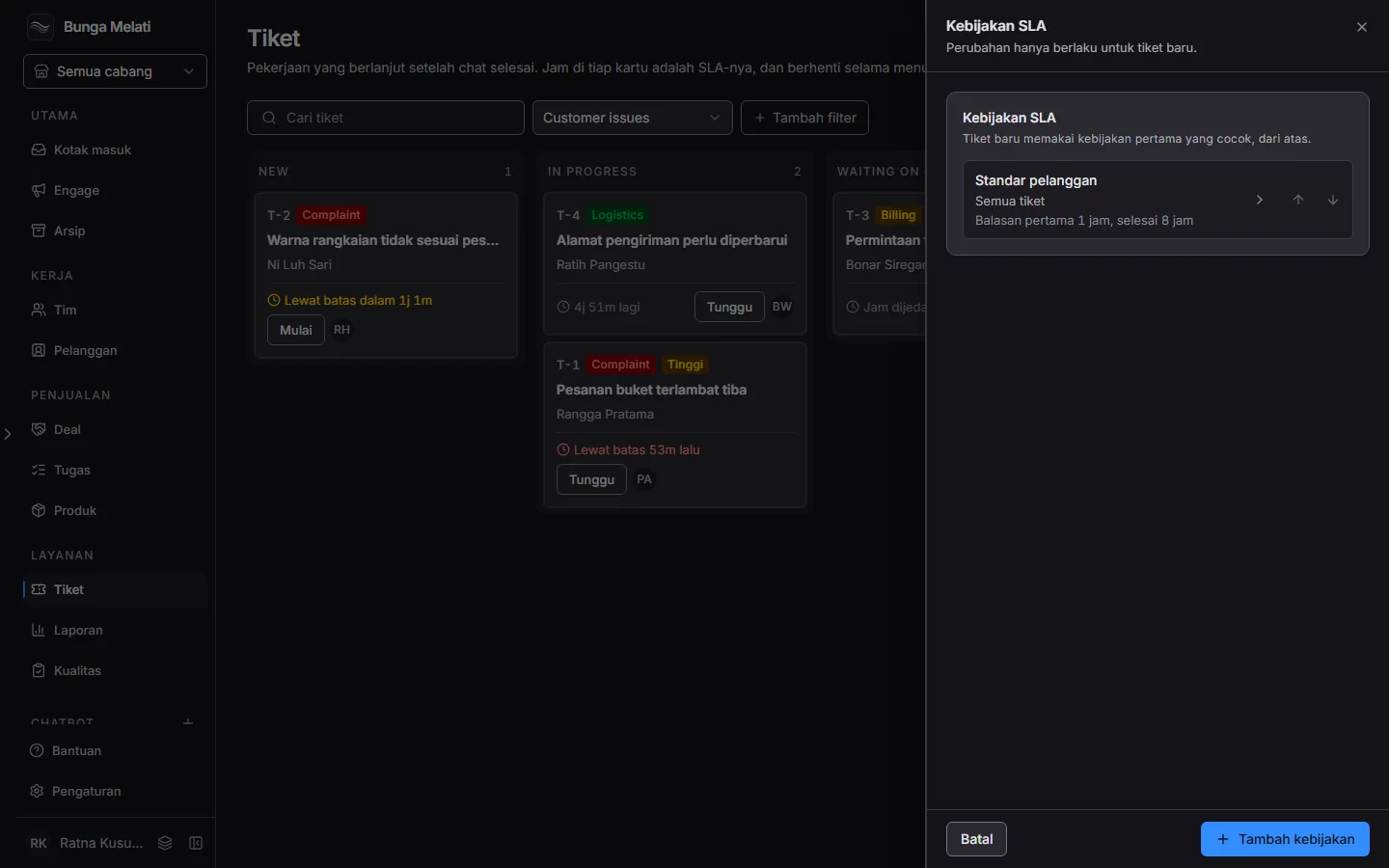
A new ticket takes the first policy that matches, from the top of the list. Set the order with the up and down buttons on each row. Click Add policy (up to 20) and fill in:
- Applies to: up to four conditions on Category, Priority or Stage. With no conditions the policy covers every ticket.
- Targets: First reply within and Fixed within, from 1 minute to 30 days.
- Clock runs: During branch opening hours or Around the clock. The first follows the opening hours and time zone of the branch of the ticket's chat, or the business's default branch when the ticket has no chat.
- Warn at: 50 to 99 percent of the time used.
Note: A policy is chosen once, when the ticket is created. Editing or deleting a policy does not change existing tickets, and changing a ticket's category or priority does not pick a new policy.
What pauses and resumes the clock
- Moving a ticket into a stage of type Waiting on customer pauses the clock.
- Moving it back into an Open stage resumes the clock. The remaining time is the same as when it paused.
- Leaving the first stage meets the first reply clock. A ticket has no message thread of its own, so the first move out of the starting stage counts as the first reply.
- Moving a ticket into a Resolved stage meets both clocks. Moving it out again restarts the fix clock only.
Export
Owners and admins can export the tickets to a file. Open More actions, then Export all tickets, pick the format and the columns, and start the export. It runs in the background, so you can leave the page. The finished file is under More actions, Export history, and stays for 30 days.