AI assistant
The assistant’s knowledge base
Wavely's AI agent answers from the documents you upload to its knowledge base. This guide shows how to upload and index them.
Add documents
A chat bot answers from your documents, not from guesses. If it has no documents, every question goes to your team.
- Open Chat bots, pick your chat bot, then the Instructions tab.
- Under Knowledge, click Upload a document.
- Choose a markdown file. The file must end in
.md. - Wait until its status changes to ready.
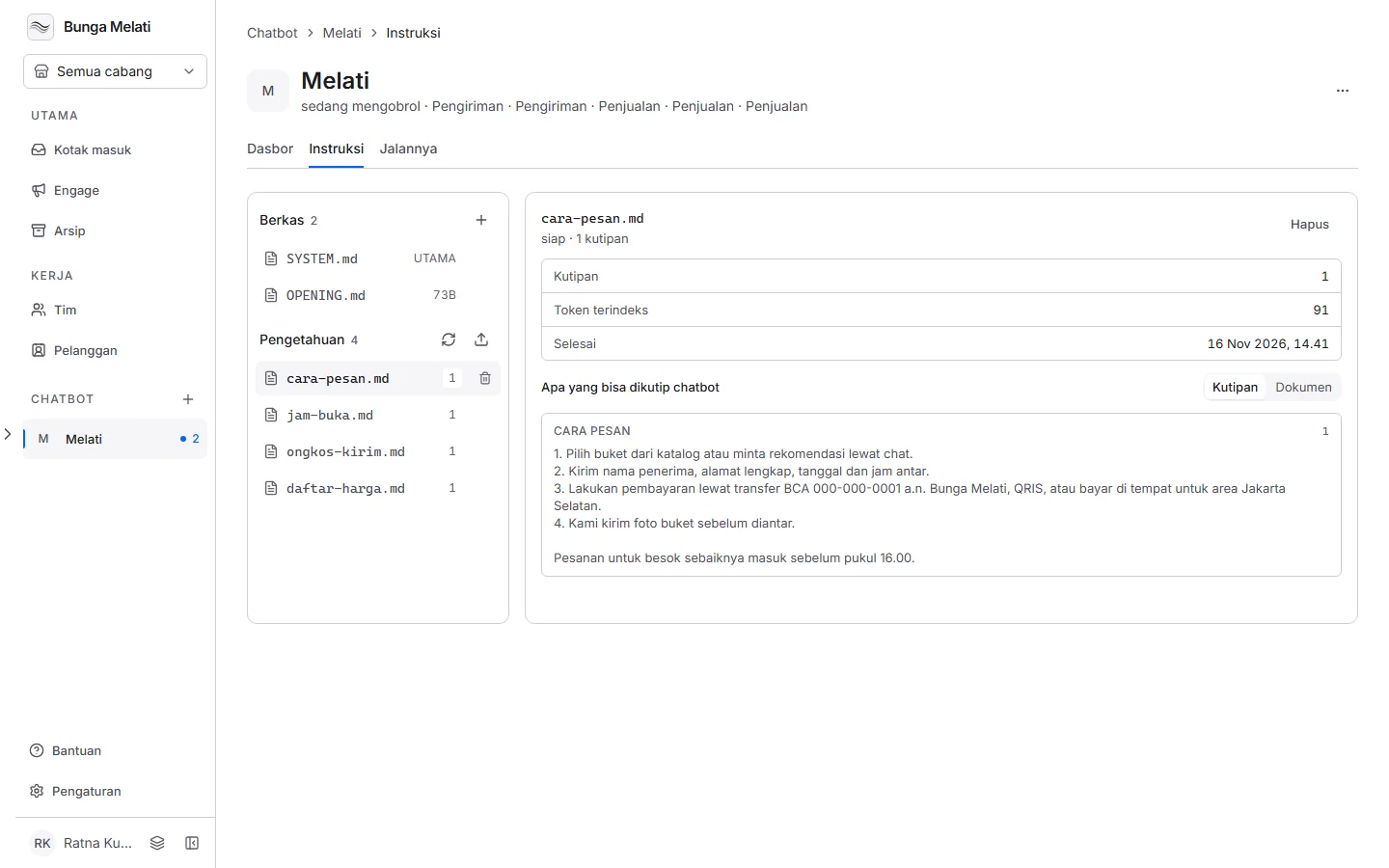
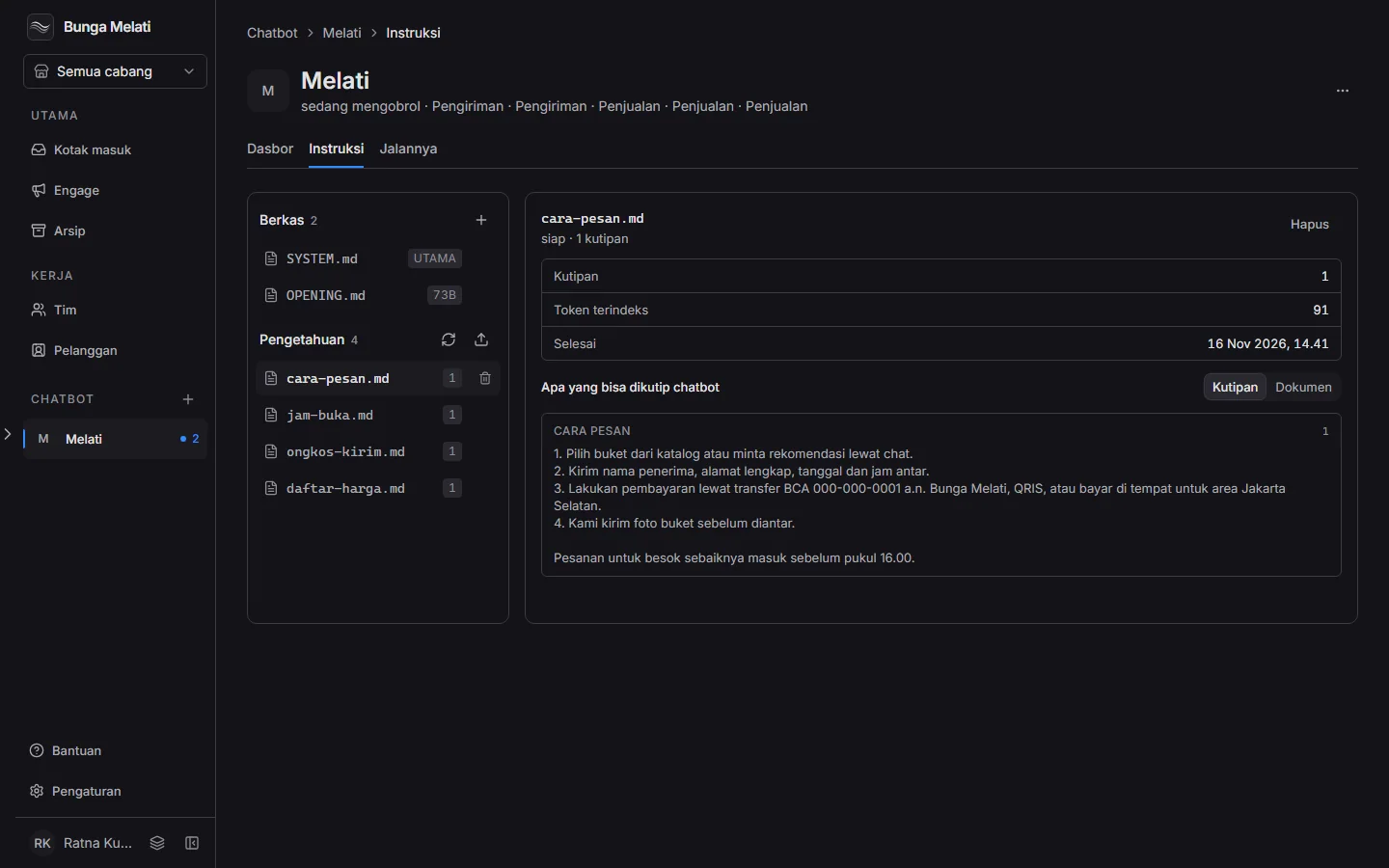
Write each document with a clear heading for every topic. Wavely splits it into excerpts, and those excerpts are what the chat bot can quote when it answers.
From upload to ready
The document list keeps itself up to date. One document moves through these states:
- waiting, then reading: Wavely reads the file and estimates its size.
- approve: the document waits for your approval. Click Approve to start indexing, or Cancel to stop it. Small documents are approved automatically.
- indexing: the excerpts are being stored so they can be searched. You see how many excerpts are indexed.
- ready: the chat bot can use it now.
- failed or stopped: something went wrong, or you cancelled it. Upload again after you fix the file.
Pick a document that is ready to see What the chat bot can quote. The Excerpts view shows pieces of text by heading, and the Document view shows the whole file.
Update and remove
To change a document, remove the old one and upload the new version. A removed document is no longer quoted.
If you want every document processed again, click Re-embed every document, then Re-index. Answers keep working from the old index until each document finishes. This is limited to three times an hour for one business.
Note: To learn which documents are missing, open the Runs tab. Questions that were handed to a person show what your documents do not cover yet.