Service
Reports and customer surveys
Wavely reports chat volume, reply times and the CSAT, CES or NPS ratings it asks for after a chat closes.
What Reports shows
Reports shows how your chats are going: volume, reply times and what customers say after a chat. Open Service, then Reports. Only owners and admins see it. The menu on the left holds Overview, Conversations, Agents, Tickets, Deals, Broadcasts, Surveys and Export history.
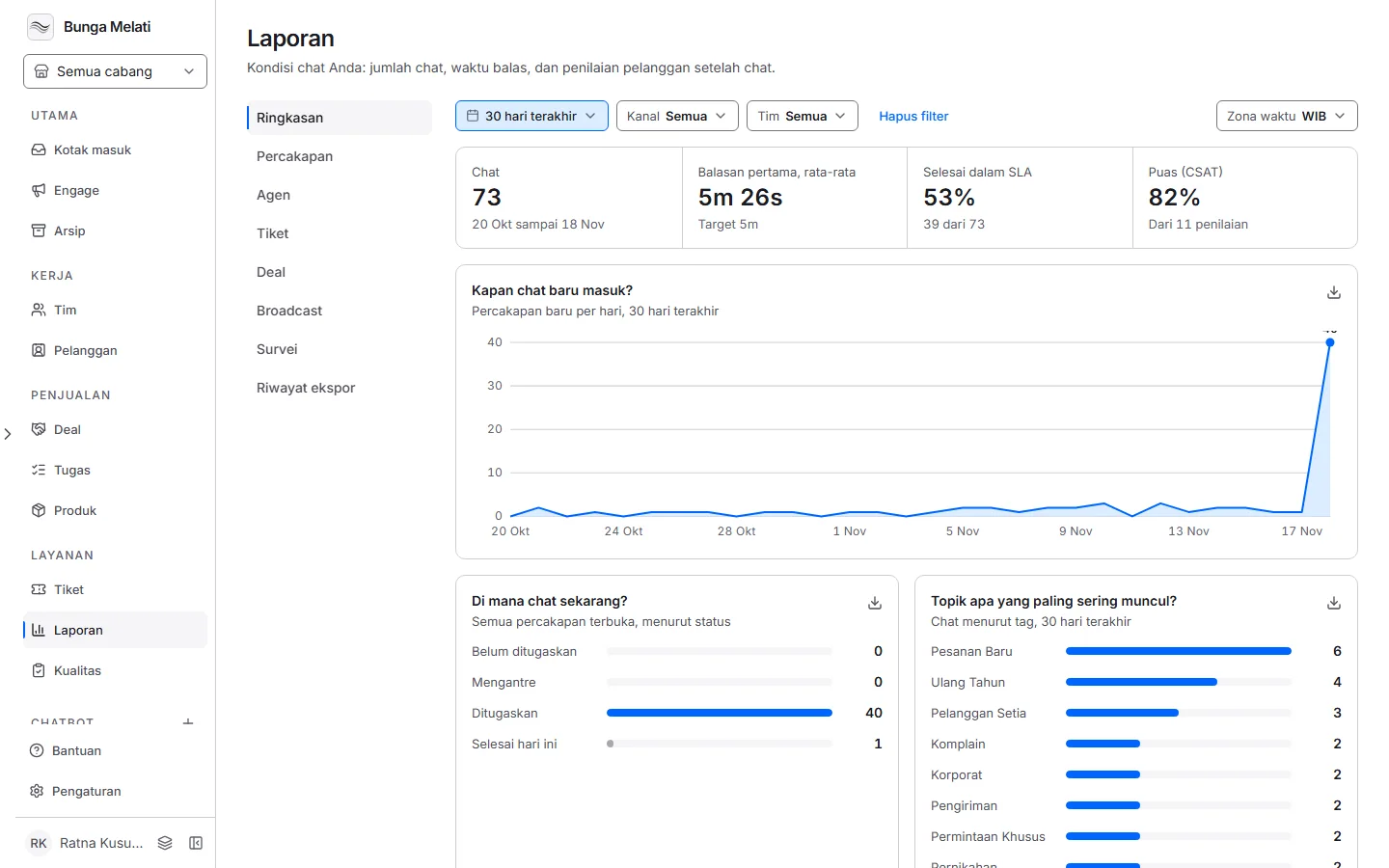
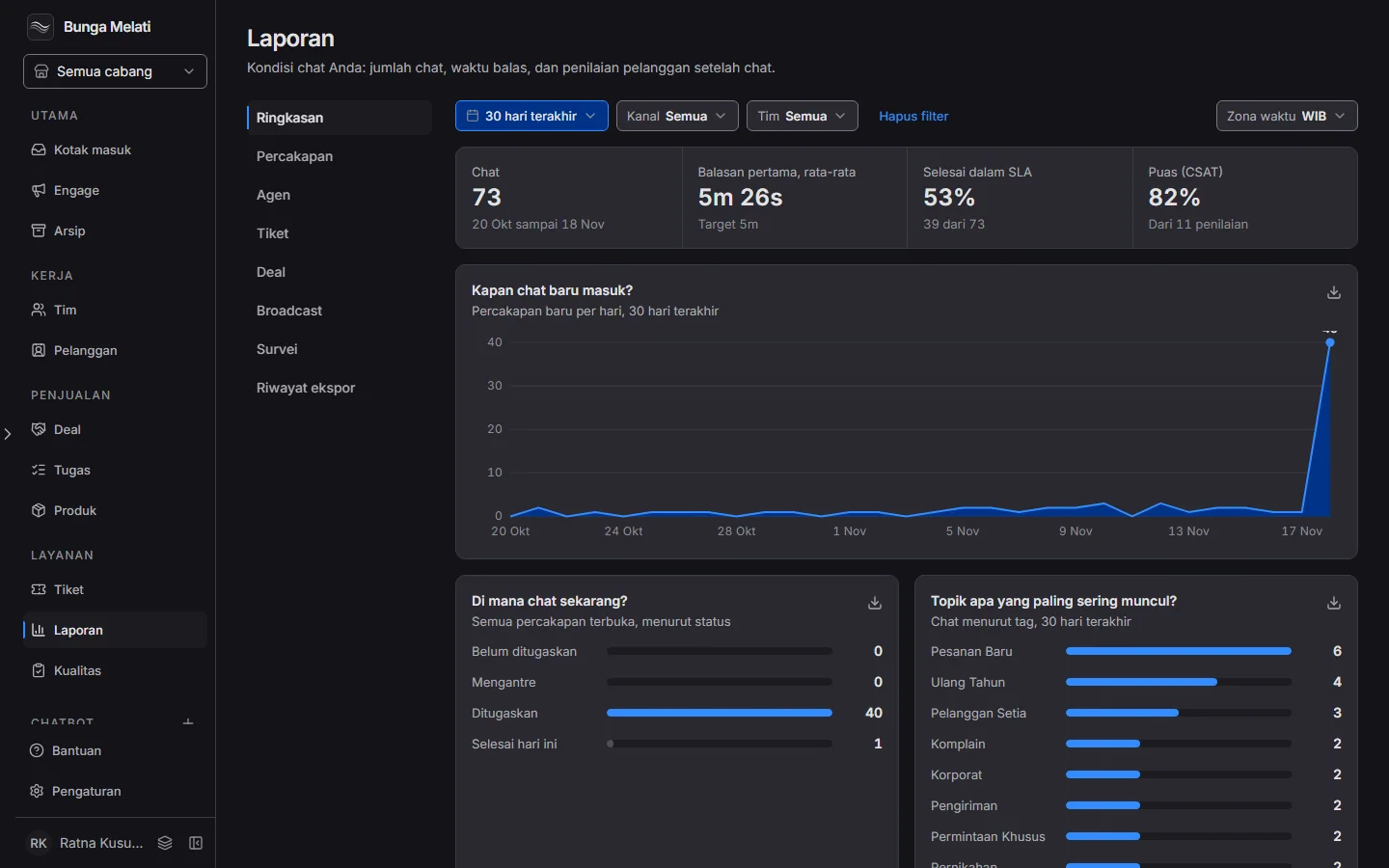
Filters
Four filters above the report apply to every section that shows numbers:
- Date range: Last 7 days, Last 30 days or This month.
- Channel: Every channel, Web chat or WhatsApp.
- Team: Every team or one team.
- Time zone: WIB, WITA or WIT. The zone sets where each day and week begins.
Your filter choice stays when you move between sections. One report covers at most 92 days. A figure with no data shows a dash, never 0.
Overview, Conversations and Agents
Overview shows four figures: Chats, First reply, average with its target (5 minutes), Closed within SLA (for example 39 of 73) and Satisfied (CSAT). The first reply is timed from when the chat was created to the first message from a human agent. An AI assistant's answer and a private note do not count. Chats opened by an agent or an app are left out.
Below are four cards: When do new chats arrive?, Where are chats right now?, Which topics come up most? and Who answered fastest?. Where are chats right now? shows the situation now, not over the period, so only the channel and team filters affect it. Conversations shows the first three cards, and Agents shows the agent table: chats, first reply, closed within SLA and CSAT.
Surveys after a chat
Wavely can ask customers to rate a chat once it closes. There are three kinds:
- CSAT: how satisfied the customer was, from 1 to 5.
- CES: how easy it was to get the issue resolved, from 1 (very hard) to 5 (very easy).
- NPS: how likely the customer is to recommend you, from 0 to 10.
WhatsApp customers get a message in the closed chat with your intro text and the question. They answer with a number, optionally followed by a comment, such as 4 fast. Web chat customers see a rating card in the widget. Other channels are not surveyed yet. The first valid answer settles the survey, and a survey expires 24 hours after it is sent.
When a customer gives a low score (NPS 0 to 6, CSAT 1 or 2), Wavely creates a task for the agent who handled the chat, due in 24 hours and linked to the chat. A chat with no human agent gets no task.
Switching surveys on
Surveys are off by default. Only owners and admins can switch them on.
- Open Settings, then Surveys.
- Under Survey after a chat, pick CSAT, CES or NPS. Off stops surveys.
- Under Message, write the Intro text (up to 500 characters).
- Under Send the survey, choose when it goes out after the chat closes: Right away, 1 minute, 5 minutes, 15 minutes, 1 hour or 1 day.
- Click Save changes.
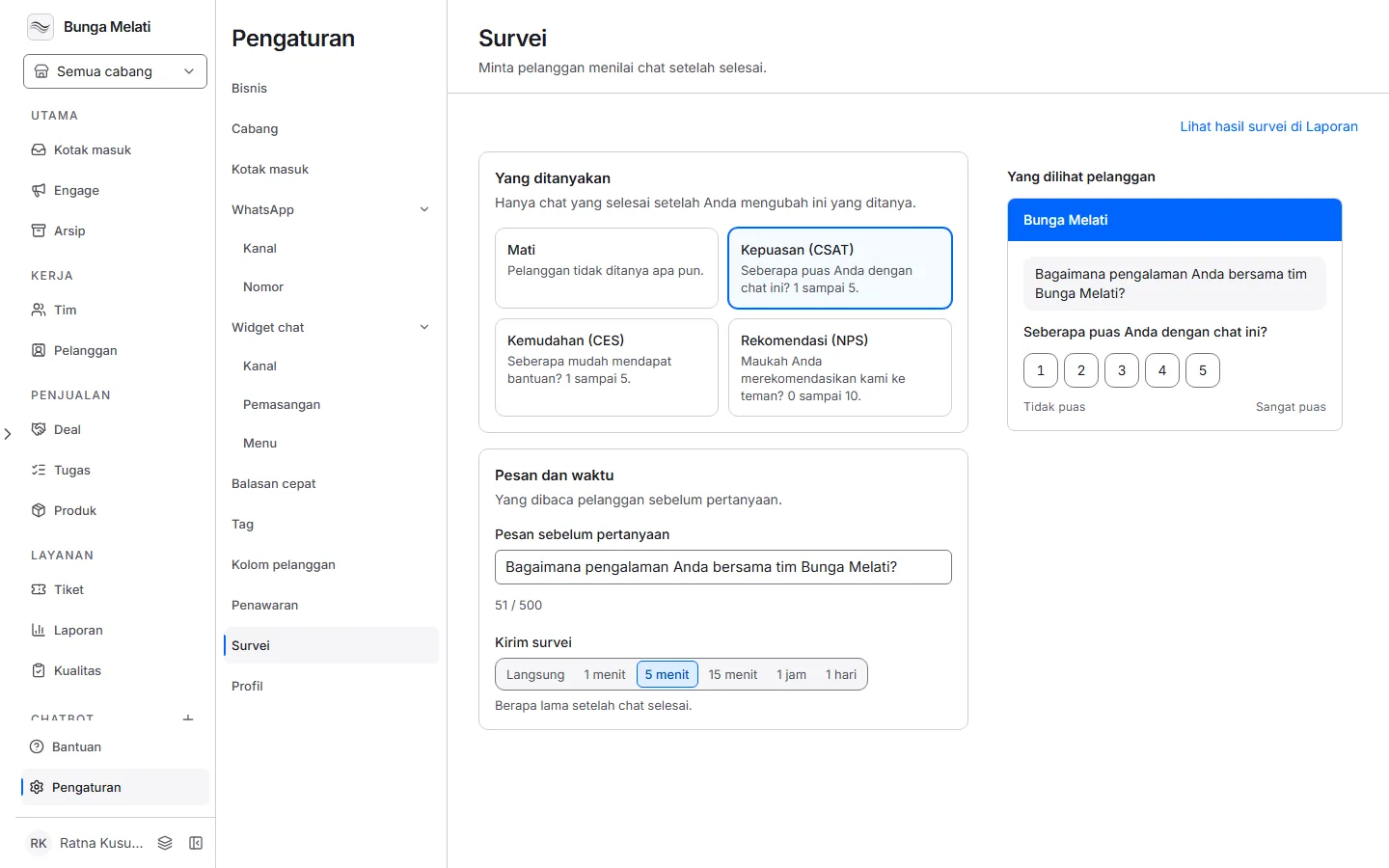
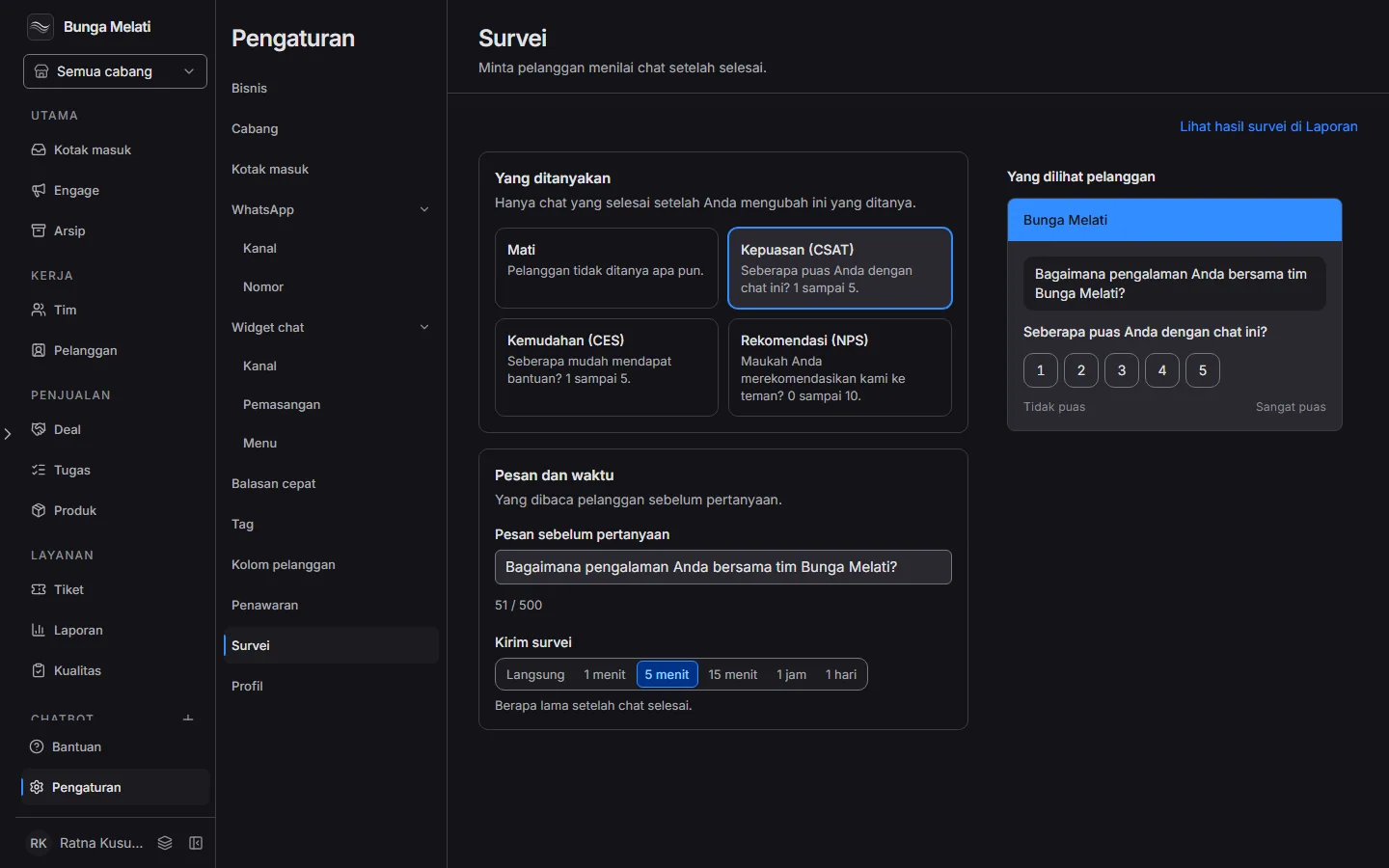
Note: Only chats that close after you switch surveys on are asked, and each chat is surveyed once. Changing the survey type starts the count again.
The Surveys report
The Surveys section of Reports has three cards: How satisfied were customers after a chat? (the share of ratings of 4 or 5, per week), Would they recommend you? and Which chats were rated lowest?.
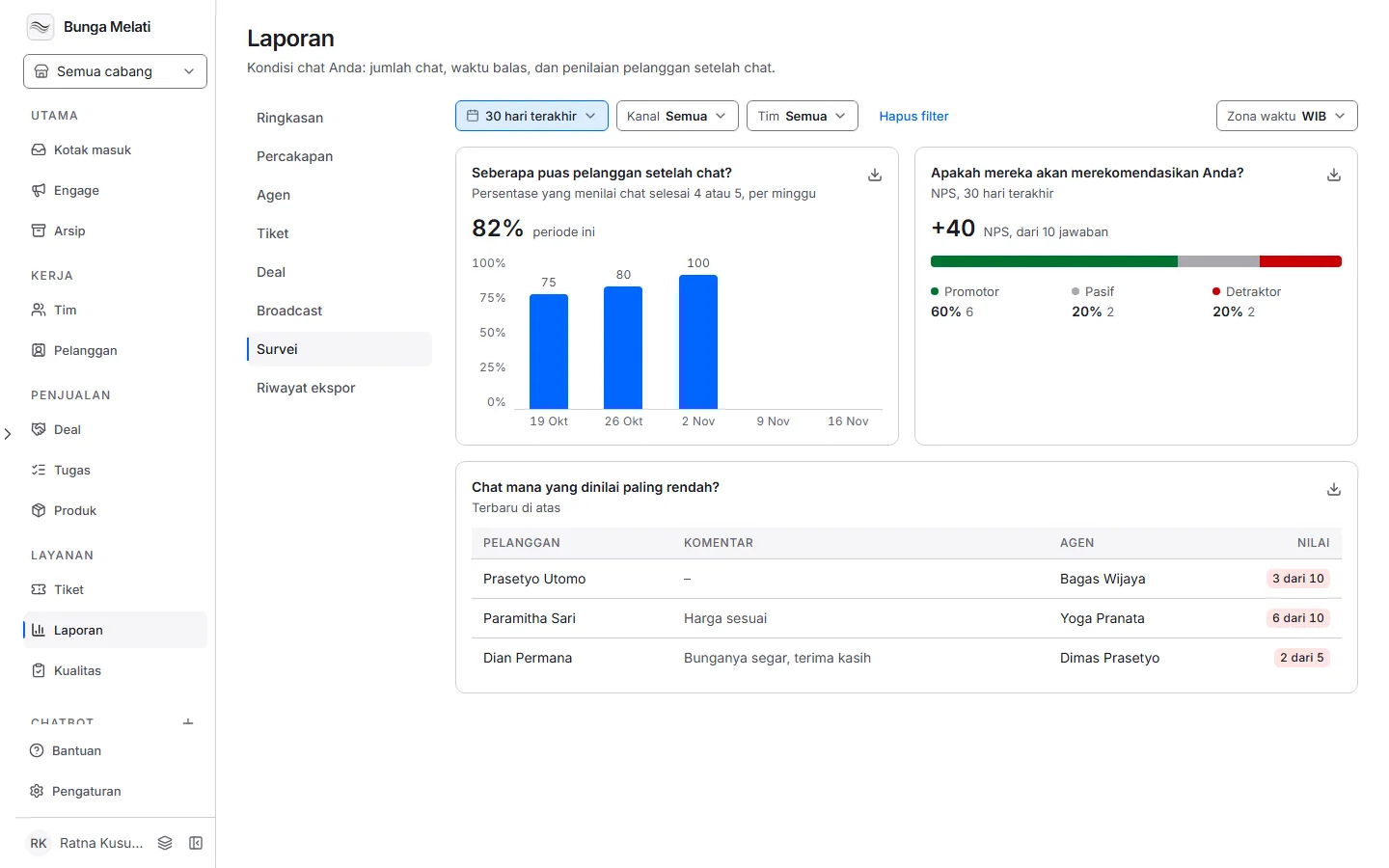
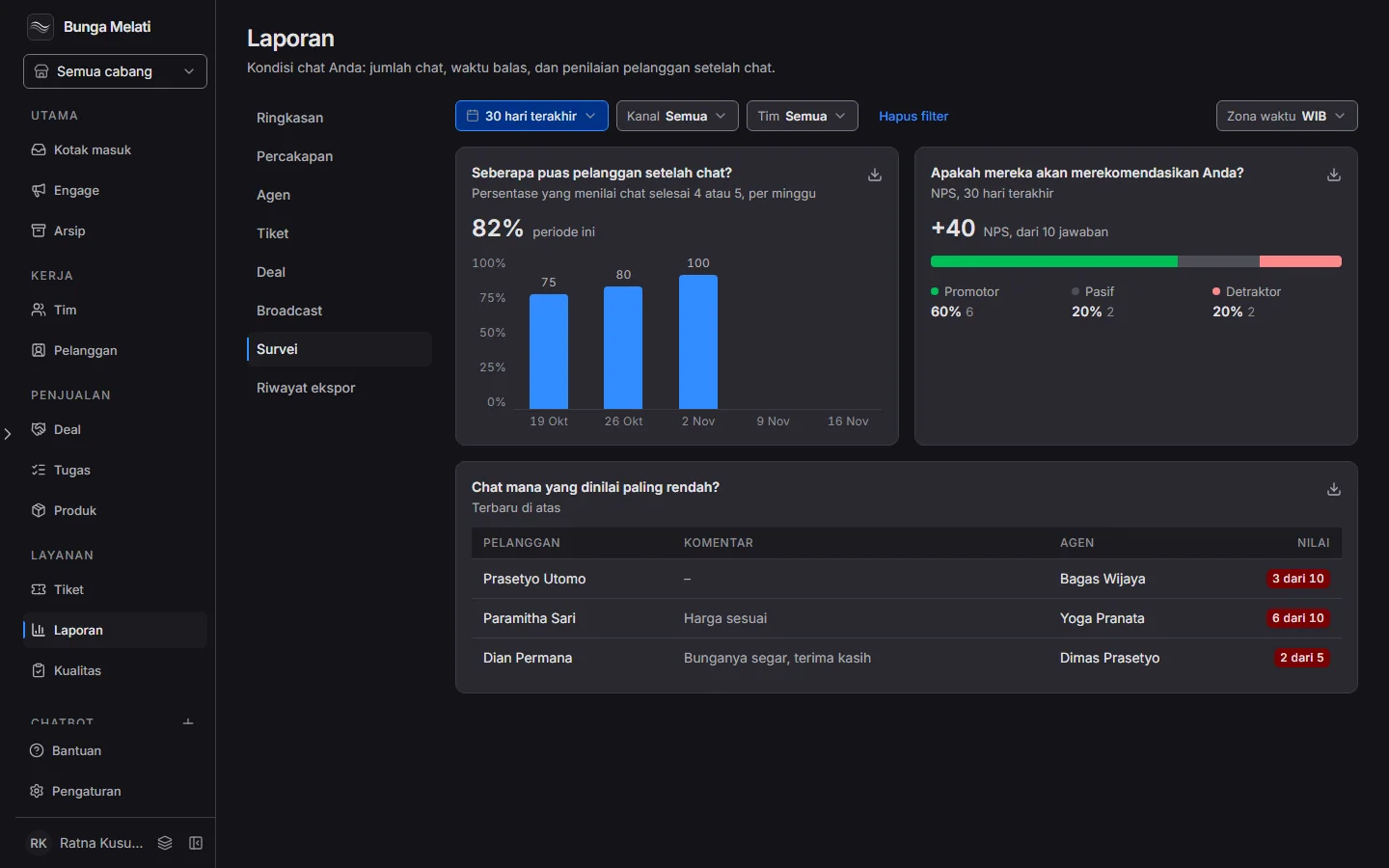
The NPS score is the share of Promoters (9 and 10) minus the share of Detractors (0 to 6), and Passives are 7 and 8. The CSAT percentage counts CSAT answers only. CES answers have no card of their own, but they show in the lowest ratings table when the score is 1 or 2. That table lists the 20 most recent low ratings with the comment and the agent.
Not live yet
The Tickets, Deals and Broadcasts sections of Reports are not active yet. Their pages only say the report comes with that feature and show no numbers. Meanwhile each broadcast has its own report on the Broadcasts tab, and tickets and deals can be exported.
Exports
Every card has a download icon that saves its figures as a CSV, with the filters you have set. Export history lists the exports of every team member, with the status Queued, Running, Completed or Failed. Click Download on a finished file, or Try again on a failed one. Files are kept for 30 days.