Website
Install the widget on your website
You add live chat to your website by pasting one Wavely script, and visitors can start chatting right away.
Copy and paste the snippet
- Open Settings, then Chat widget and Install.
- Under Embed snippet, click Copy.
- Paste the snippet before the closing body tag on every page that should show the chat.
- Load your page. The chat button appears in the corner.
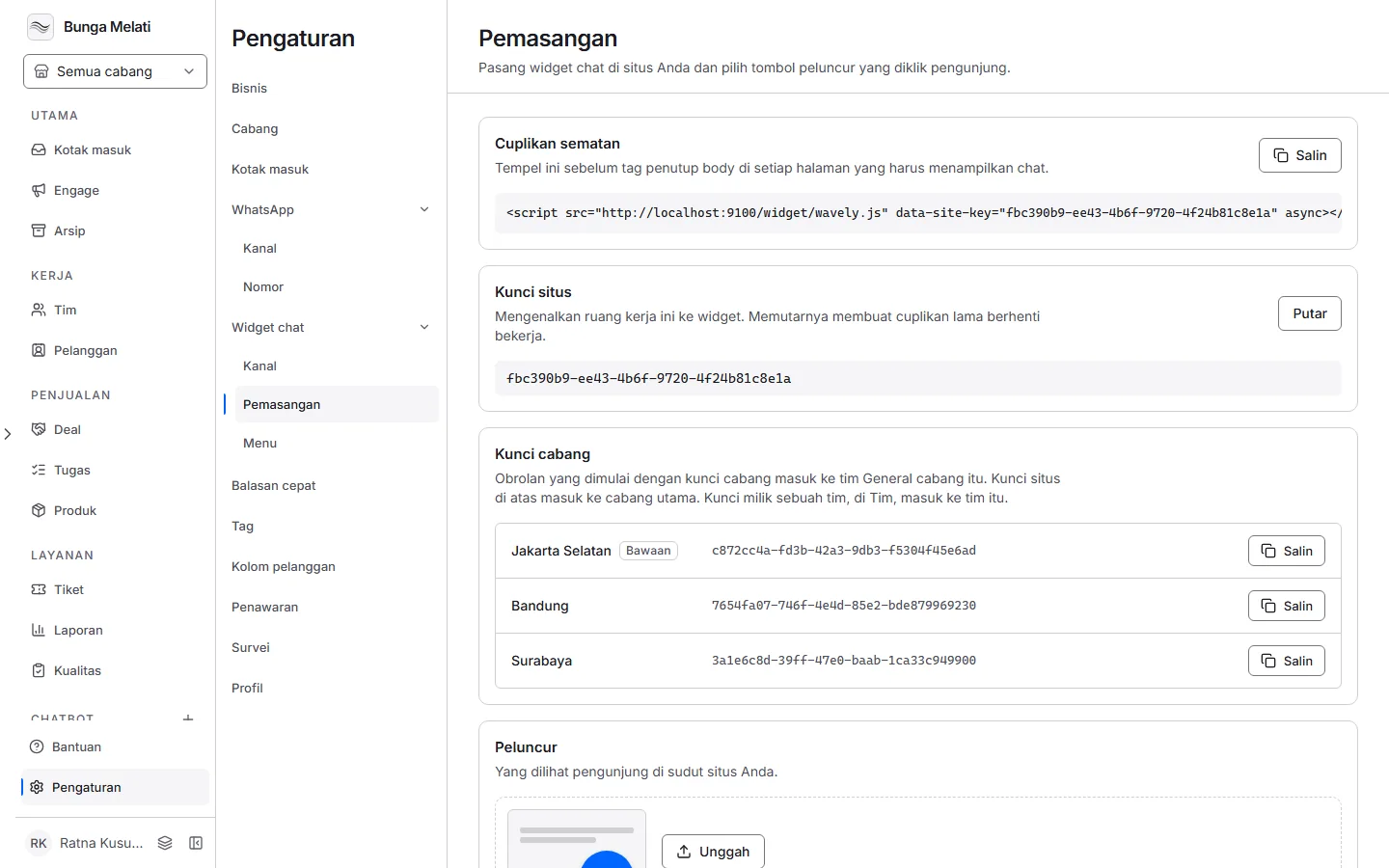
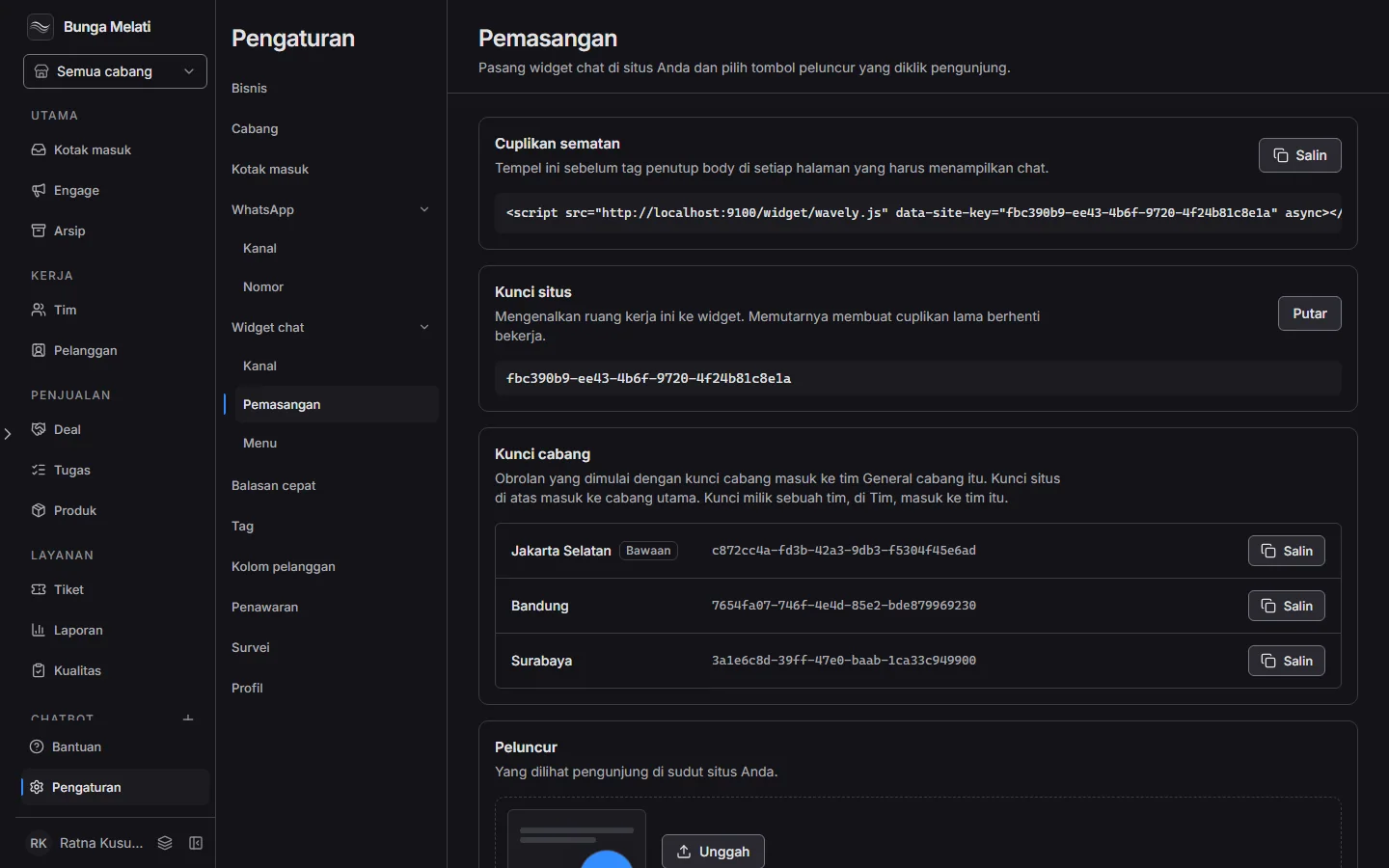
The snippet is one script line: a script tag that loads the widget and carries your site key in its data-site-key attribute. Copy it from the screen rather than retyping it. The widget is drawn apart from your page, so your site's CSS does not change it.
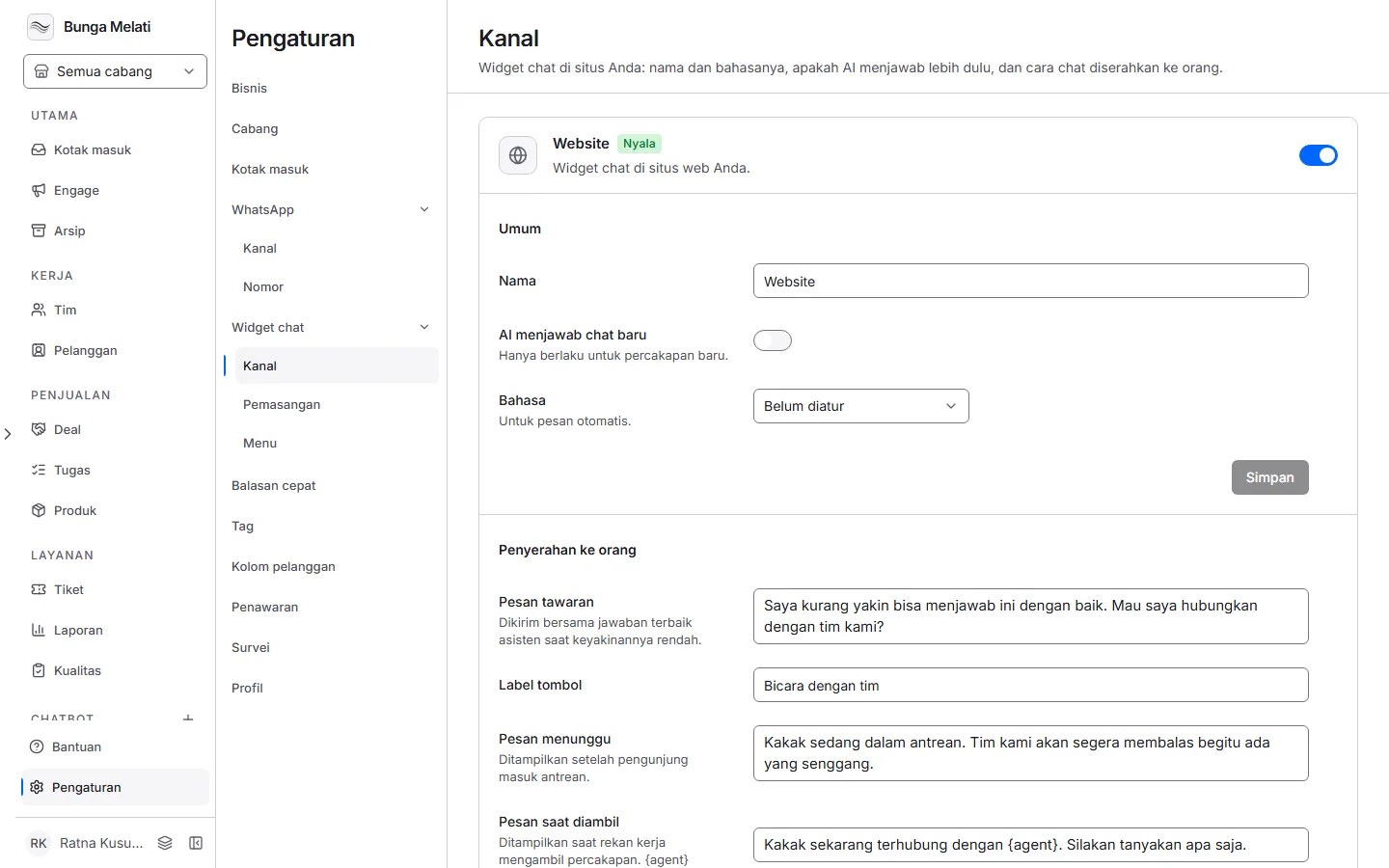
Note: If the chat does not appear, check the Receive website chats switch under Settings, Chat widget, Channels. While it is off, the widget takes no chats.
Site key and branch keys
The Site key identifies your workspace to the widget. Chats that arrive through this key go to the default branch.
The Branch keys section gives one key per branch. A chat started with a branch key lands in that branch's General team. A team also has a key of its own: in Team, open the team's menu and choose Copy embed key. Chats from that key land in that team.
Rotate key makes a new key. The old snippet stops working at once, and visitors cannot chat until each page uses the new snippet. Rotate only when the old key leaked or is no longer in use.
Launcher and visitor data
Under Launcher, you can change the image on the button visitors see. The image fills the round button edge to edge with no frame, so a square image works best. If you remove the image, the widget goes back to its default Wavely mark.
When WhatsApp is on under Channels and a number is connected, the widget shows your business's WhatsApp number next to web chat: a first-time visitor picks Chat here or Chat on WhatsApp before anything else, and WhatsApp opens your connected number. With no working number, visitors go straight to web chat. After a chat ends, Start a new chat offers the same two options, and the arrow at the top left goes back one step, so a visitor who picked web chat can still switch to WhatsApp.
If your site already knows who the visitor is, pass it with Wavely.identify:
Wavely.identify({ name: "Sari", email: "[email protected]", custom: { plan: "Pro" } })
custom must be a JSON object, at most 8 KB. Its contents show in the visitor panel when an agent opens the chat, and update without a reload.