Start
Get started in an afternoon
To start with Wavely, sign in with a Biwara account, connect a WhatsApp number or install the widget, and answer your first chat.
Sign in with a Biwara account
Open Wavely and choose Sign in to Wavely. You sign in through your Biwara account. The email on that account must be verified in Biwara Accounts. If it is not, Wavely asks you to verify it first, then sign in again.
If you do not have a business in Wavely yet, the Set up your business page asks for its name and a logo (optional). If a teammate invited you to their business, sign in with the email they invited. The free plan does not ask for a credit card.
Get to know the sidebar
The menu on the left has four groups: Main (Inbox, Engage, Archive), Work (Team, Customers), Sales (Deals, Tasks, Products) and Service (Tickets, Reports, Quality). Help and Settings are at the bottom.
Put the widget on your website
- Open Settings > Chat widget > Install.
- Choose Copy to copy the snippet.
- Paste it before the closing body tag on every page that should show the chat.
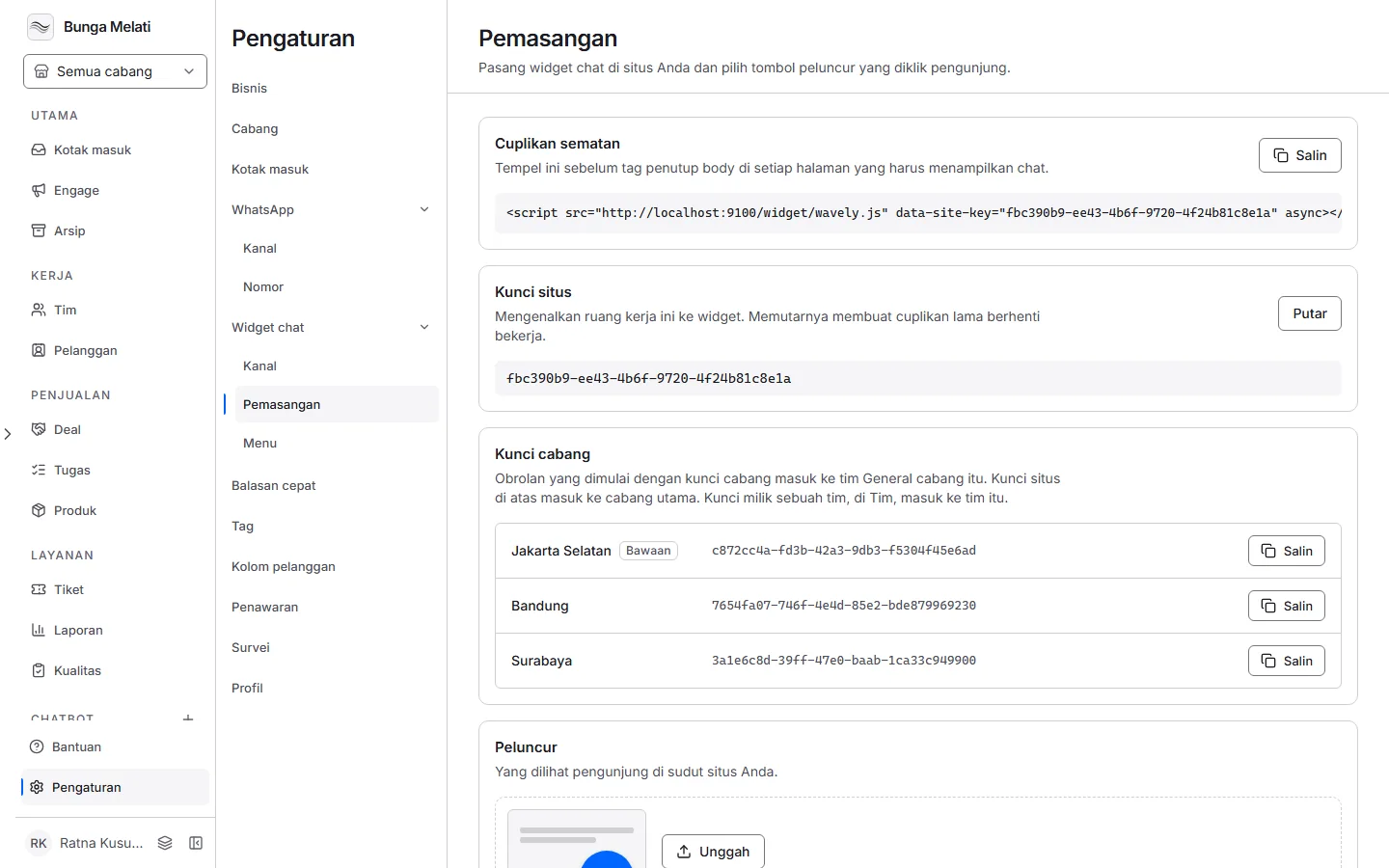
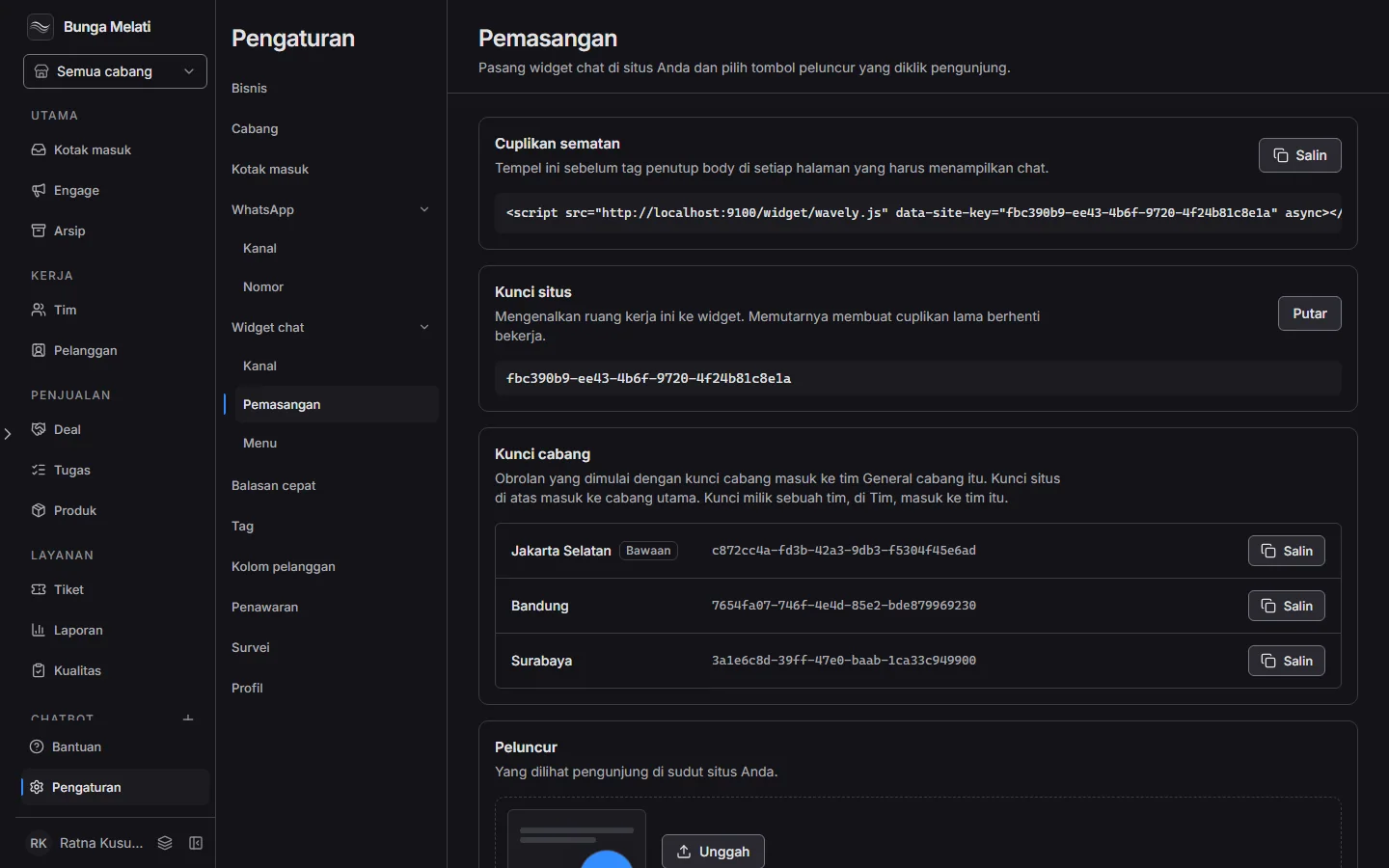
The full steps are on the Install the widget page.
Answer your first chat
- Open your website and send one message from the widget, so you know how it feels from the visitor's side.
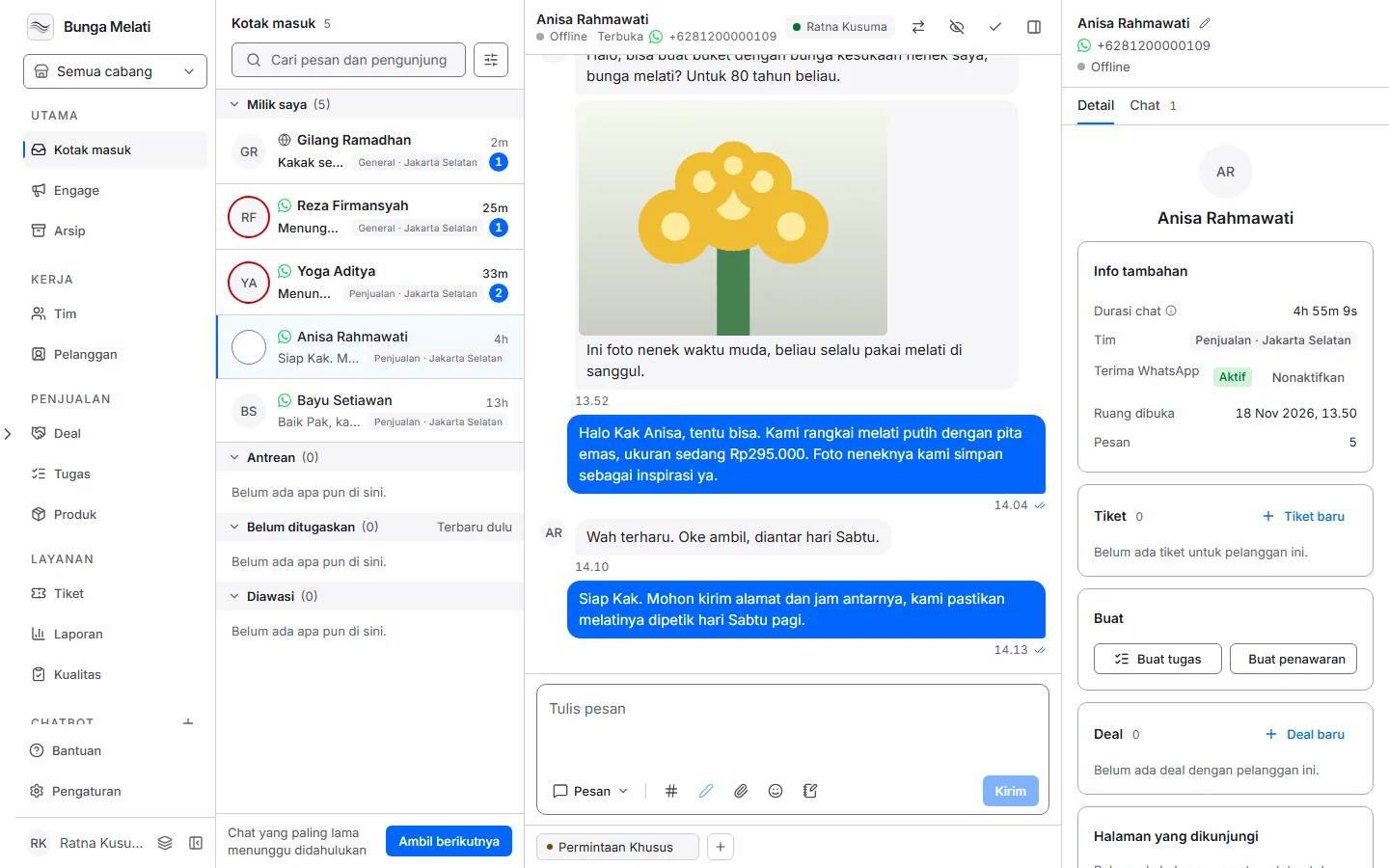
- Open Inbox. The new chat appears in the list.
- Select the chat. If the reply bar says the chat is waiting in the queue or nobody is handling it, choose Assign to me.
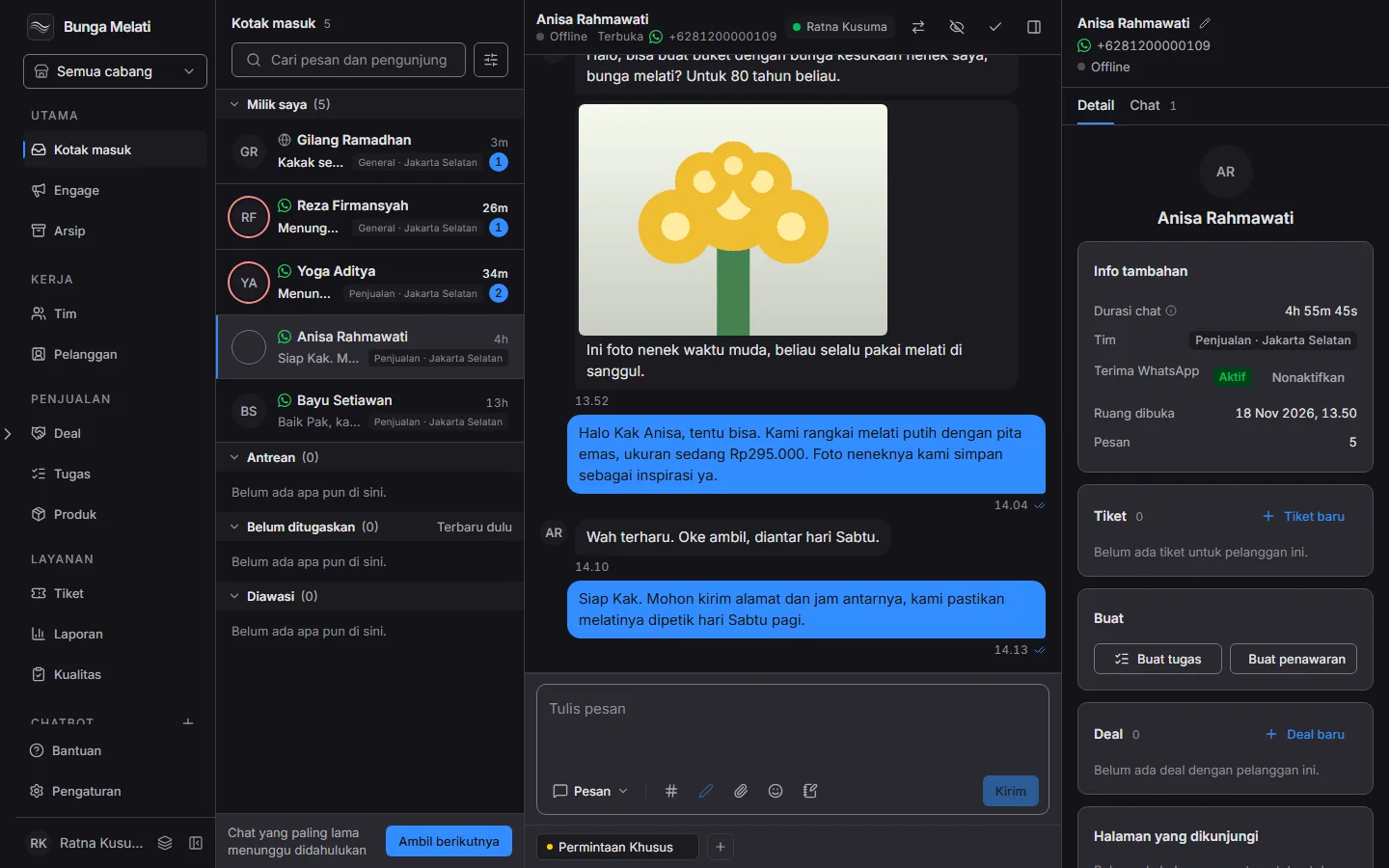
- Write your reply, then choose Send.
After that
- Invite teammates: open Team, click New member, then fill in the panel that opens.
- Connect a WhatsApp number. See the Connect a WhatsApp number page.
- Save the replies you use often under Settings > Canned responses.
- Each main page opens a short tour the first time you visit it. Play it again any time from Help in the sidebar, just above Settings, then choose Play this page's tour. The same menu lists the keyboard shortcuts and opens this documentation.