Start
Create and manage a business
To manage a business in Wavely, name your first business, choose how to start from Toko Laundry, change the name and logo, then hide or delete a business.
Create your first business
The first time you sign in with a Biwara account, you land straight on the Set up your business page. Your first business is free: one business with one branch and one WhatsApp number, with no credit card.
- Type the business name. Customers see this name in the chat window.
- If you have one, choose a logo (PNG, JPEG or WebP, 5 MB at most) and fit it in the Fit your logo window. You can skip the logo.
- Choose Start free.
On the right of the page a sample chat window changes as you type. Wavely sets up one branch, a General team and the chat widget, then you land in Inbox. If the logo fails to upload, the business is still created and you can upload the logo again under Settings > Business.
If your team already uses Wavely, don't create a new business. Ask its owner to invite your email, then open the invitation link in that email.
Add another business
One account can run several businesses, each with its own inbox and team. Press + under the list of businesses in the left rail (on a phone, at the end of the row of businesses at the top) to open the New business window.
- Type the Business name.
- If you have one, drag a logo onto the logo box or choose its file (PNG, JPEG or WebP, 5 MB at most), then fit it in the Fit your logo window. After that you can adjust, replace or remove it. You can skip the logo.
- Under Copy settings from, leave Start empty, or choose a business where you are an owner or admin. Four options then appear, all ticked. Untick any you don't need:
- Canned responses, with their shortcuts
- Tags
- Service hours and queue messages
- Conversation settings
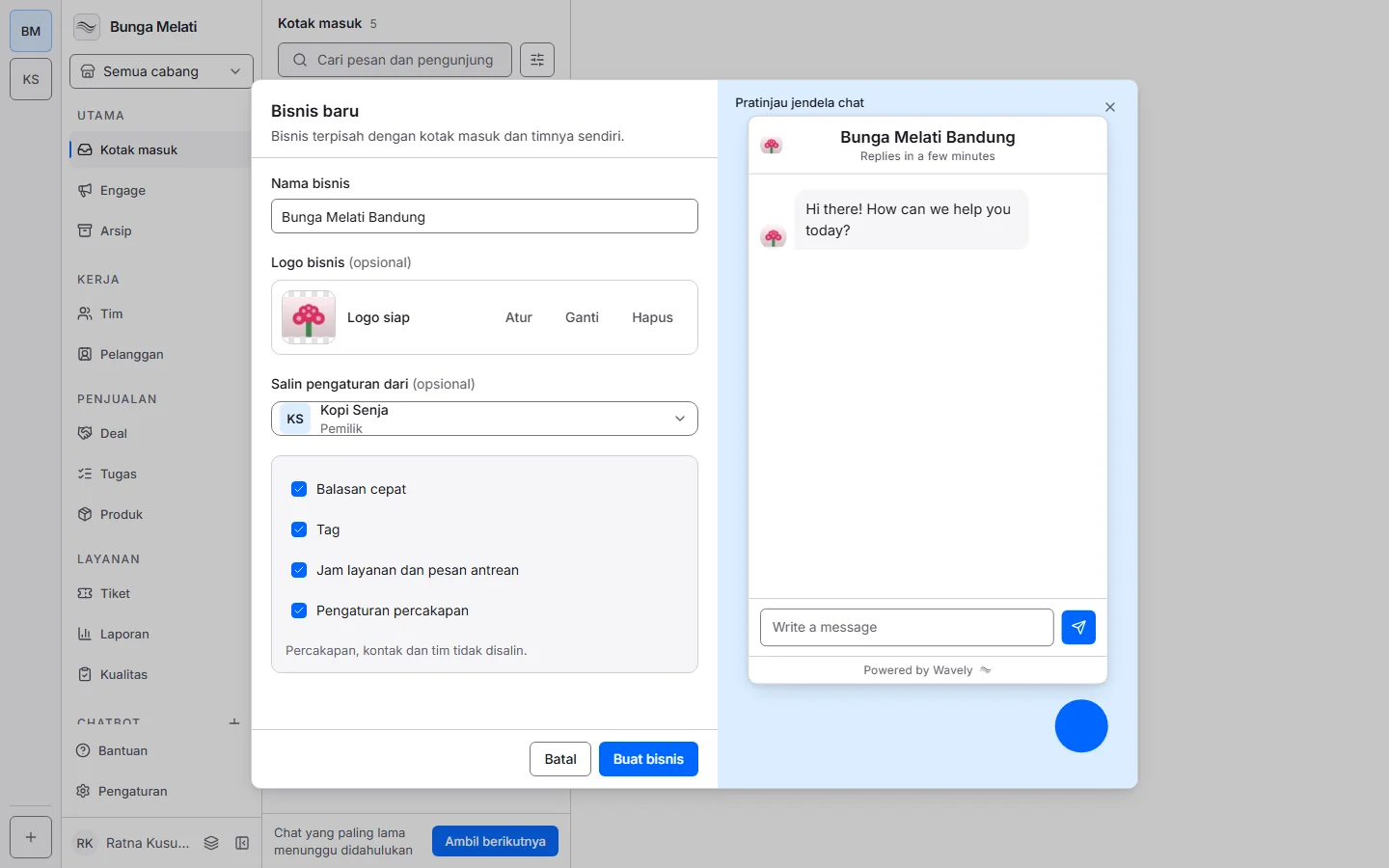
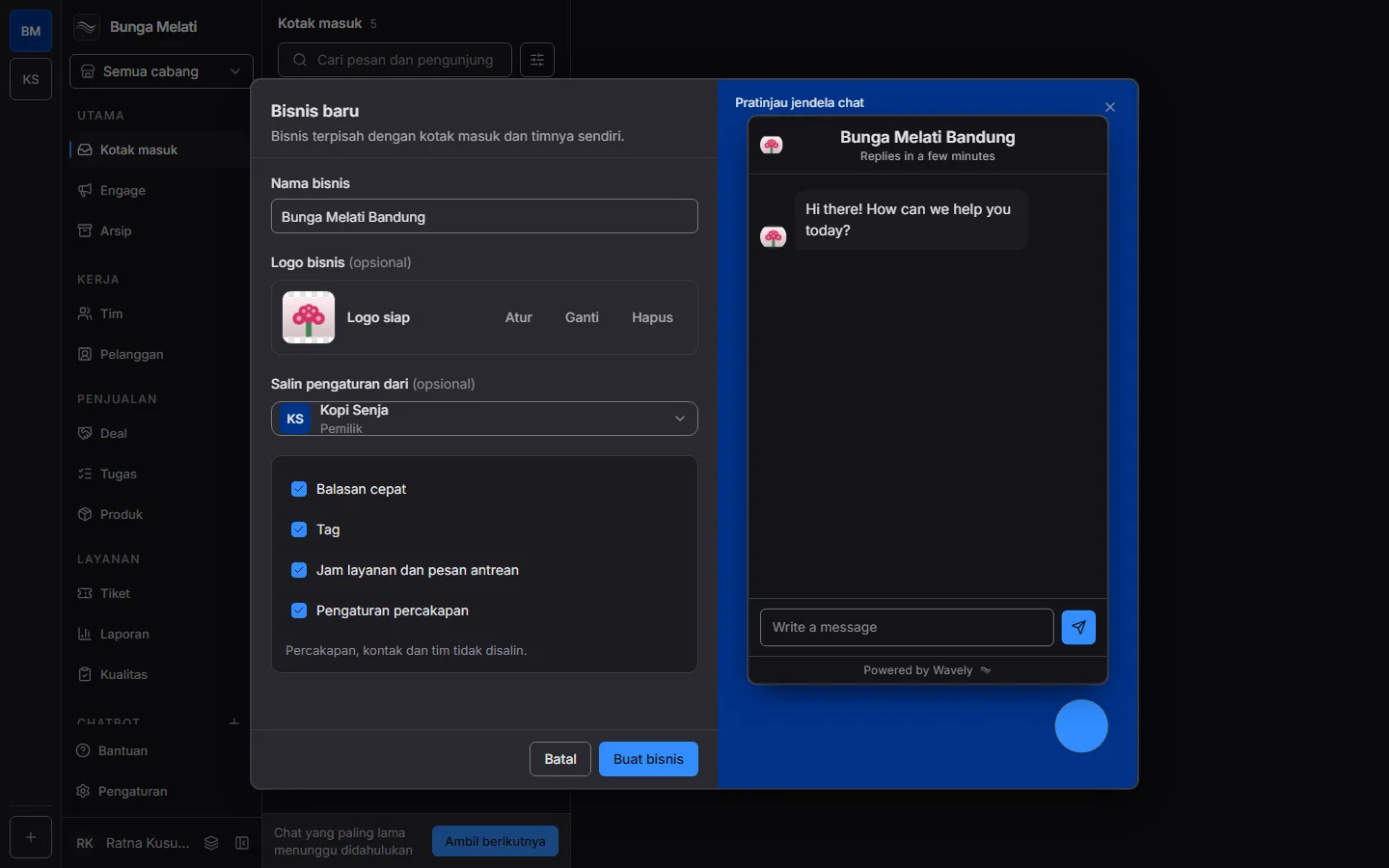
- Choose Create business.
On the right of the window a sample chat window changes as you type. Once the business is created you move straight into it. The copy is made once, and after that the two businesses stand on their own: changing one does not change the other. Canned responses kept for particular teams go to the General team in the new business.
Conversations, contacts and the team are never copied, and neither are WhatsApp numbers or the assistant. If the logo fails to save, the business is still created and you can add the logo under Settings > Business.
The Free plan covers one business, so on that plan + is replaced by a link to the sales team. A business managed by a connected app shows no +: create the new business in that app, and Wavely adds it too.
Fit your logo
The Fit your logo window opens whenever you choose a logo image: on the Set up your business page, in the New business window and under Settings > Business. Whatever sits inside the white square becomes your logo.
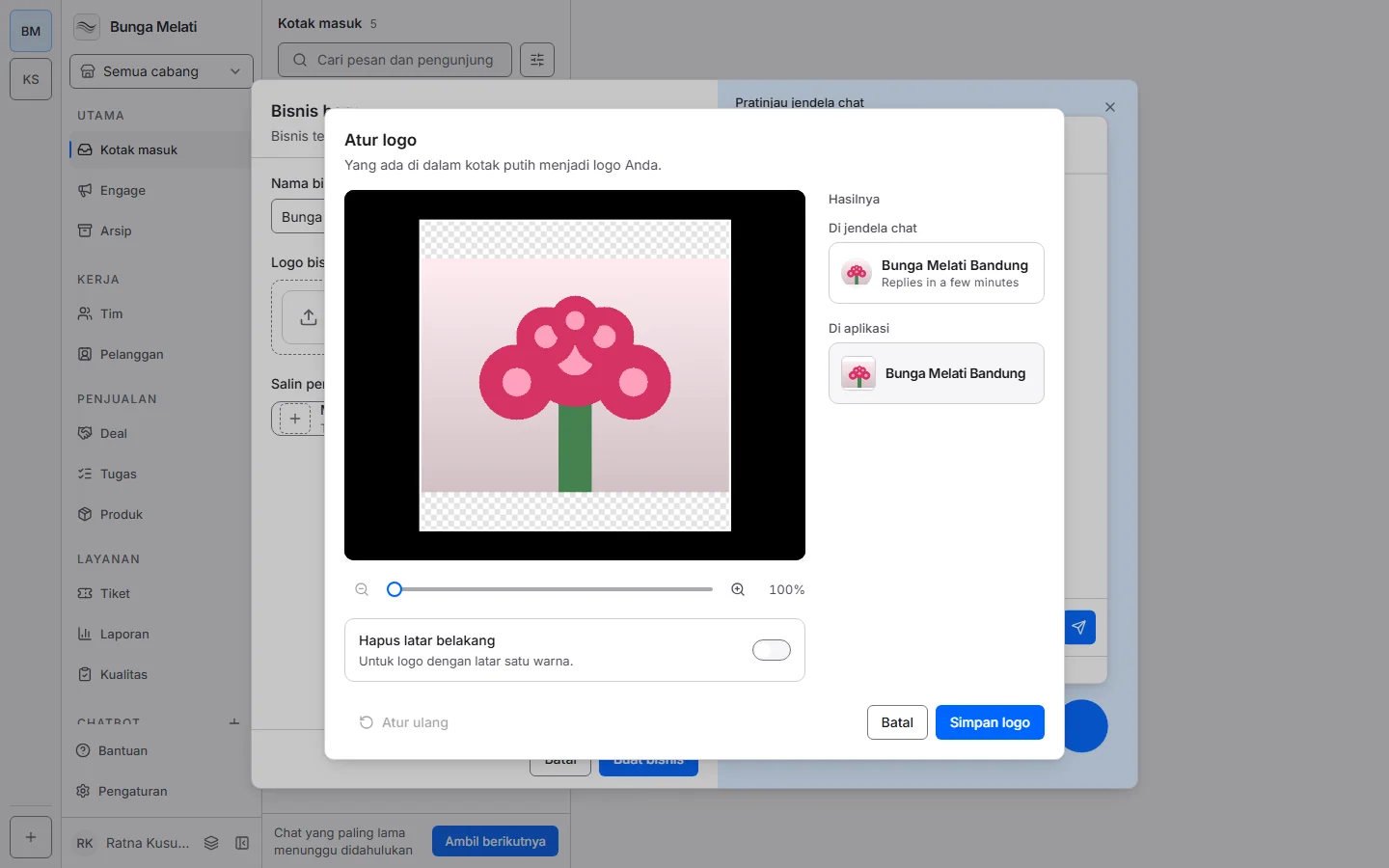
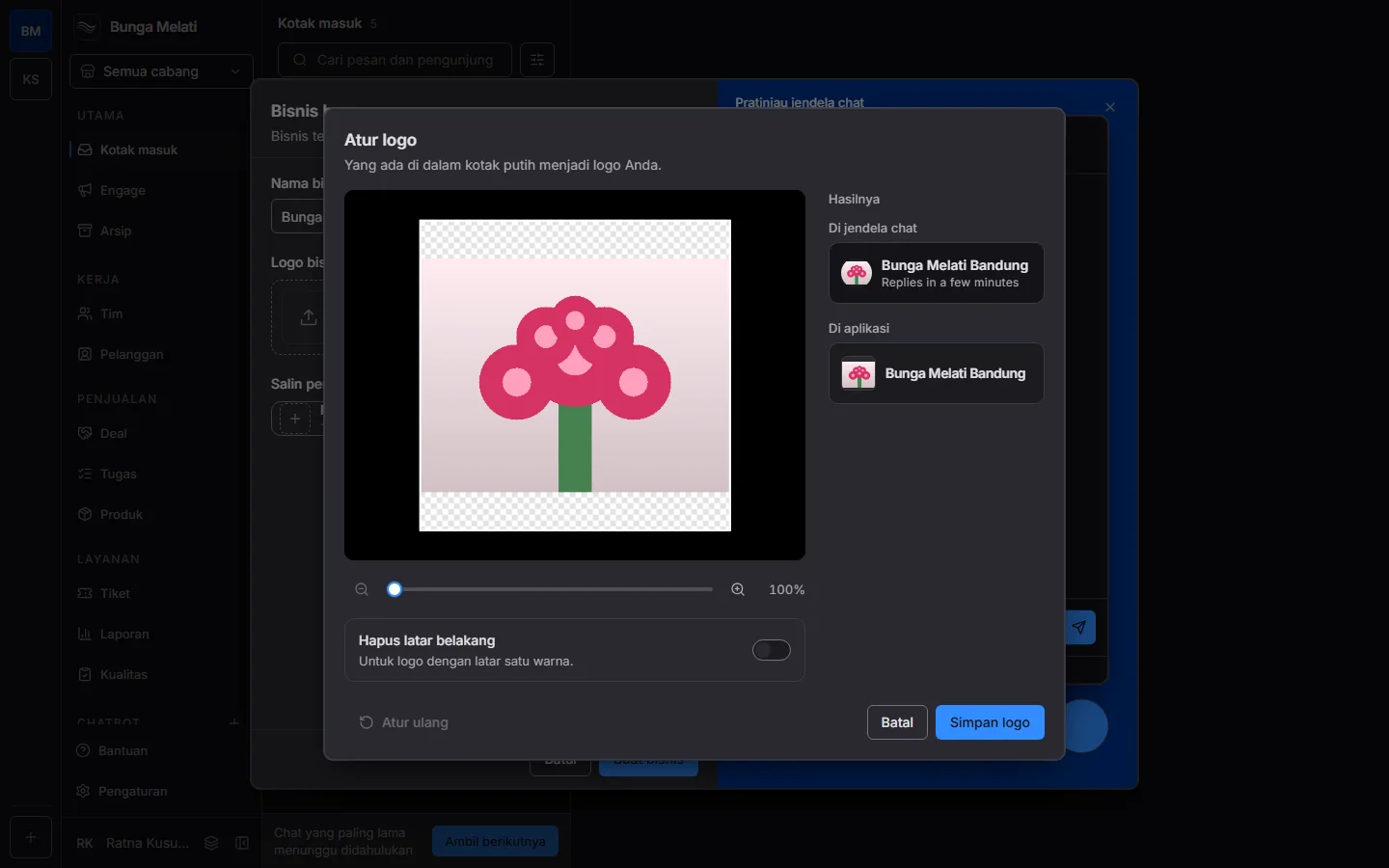
- The zoom starts at 100%, with the whole logo inside the square and the rest of the square transparent. Zoom in up to 400% with the slider or the magnifier buttons at either end.
- Move the image by dragging it. When the image area is selected, the arrow keys move it too, and the plus and minus keys zoom in and out.
- Turn on Remove background for a logo on a single-colour background, such as a logo on white. If the background is not one colour, Wavely says it can't be removed automatically and the image stays as it was.
- Reset goes back to 100% in the middle of the square.
- Result shows the logo in two places: In the chat window, round in the widget header with the business name and Online, and In the app, as the tile in the business rail.
- Choose Save logo.
Choose how to start if your business lives in a connected app
If you own a business managed by an app connected to Wavely, Wavely asks Where do you want to start? when you sign in:
- Sync the data from that app: branches, teams and WhatsApp numbers come along. Change it in one app and the other follows. Your businesses are listed inside this choice; untick any you don't want yet. Under each name, choose the branch count to see which branches come with it. A business always brings all its branches. The button names what you pick, such as Sync 2 businesses, 5 branches.
- Create a new business in Wavely: start empty. The business in that app stays separate and can be synced any time.
- Decide later: nothing changes. You see a screen that offers the two choices again, and Wavely asks again the next time you sign in.
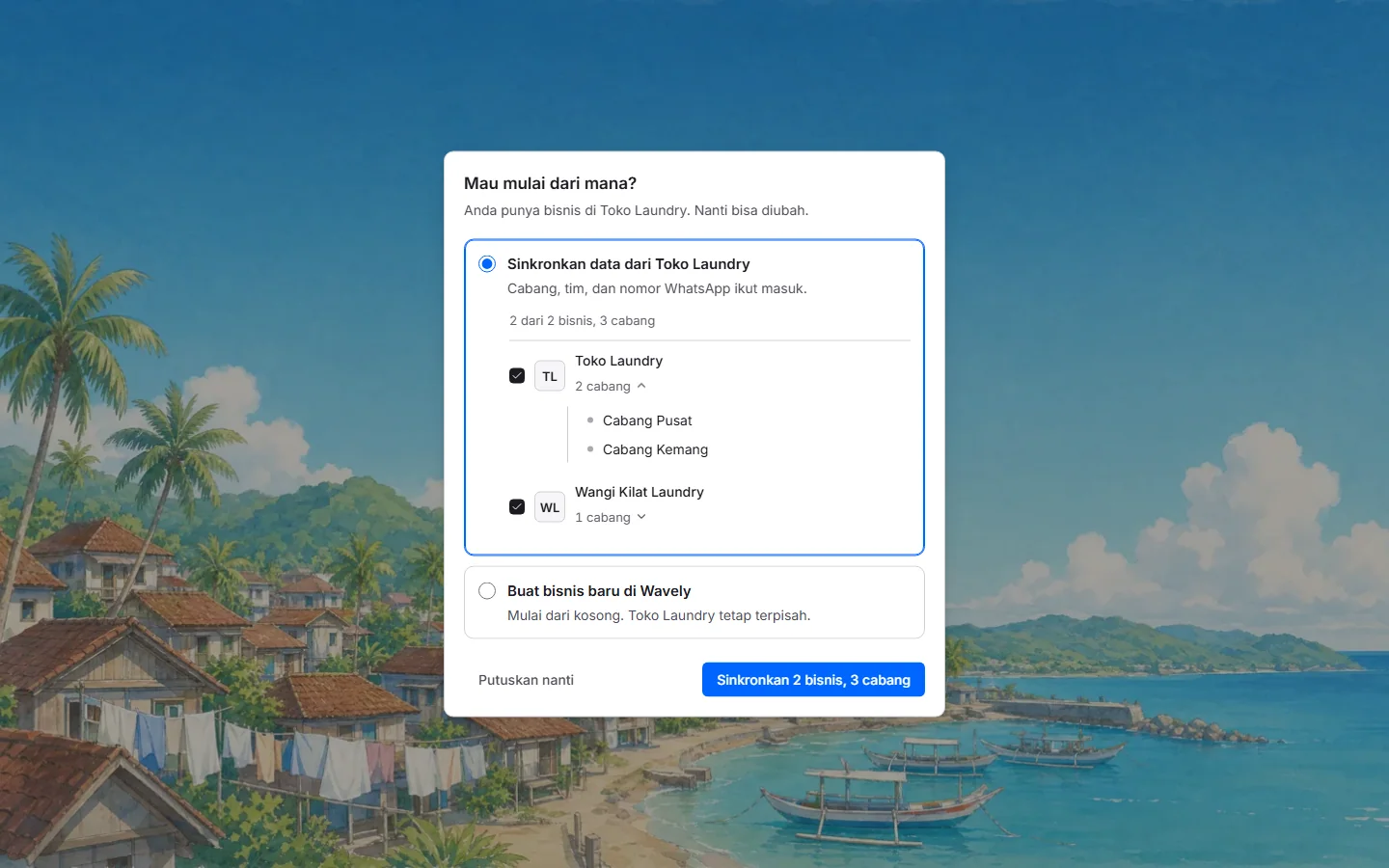
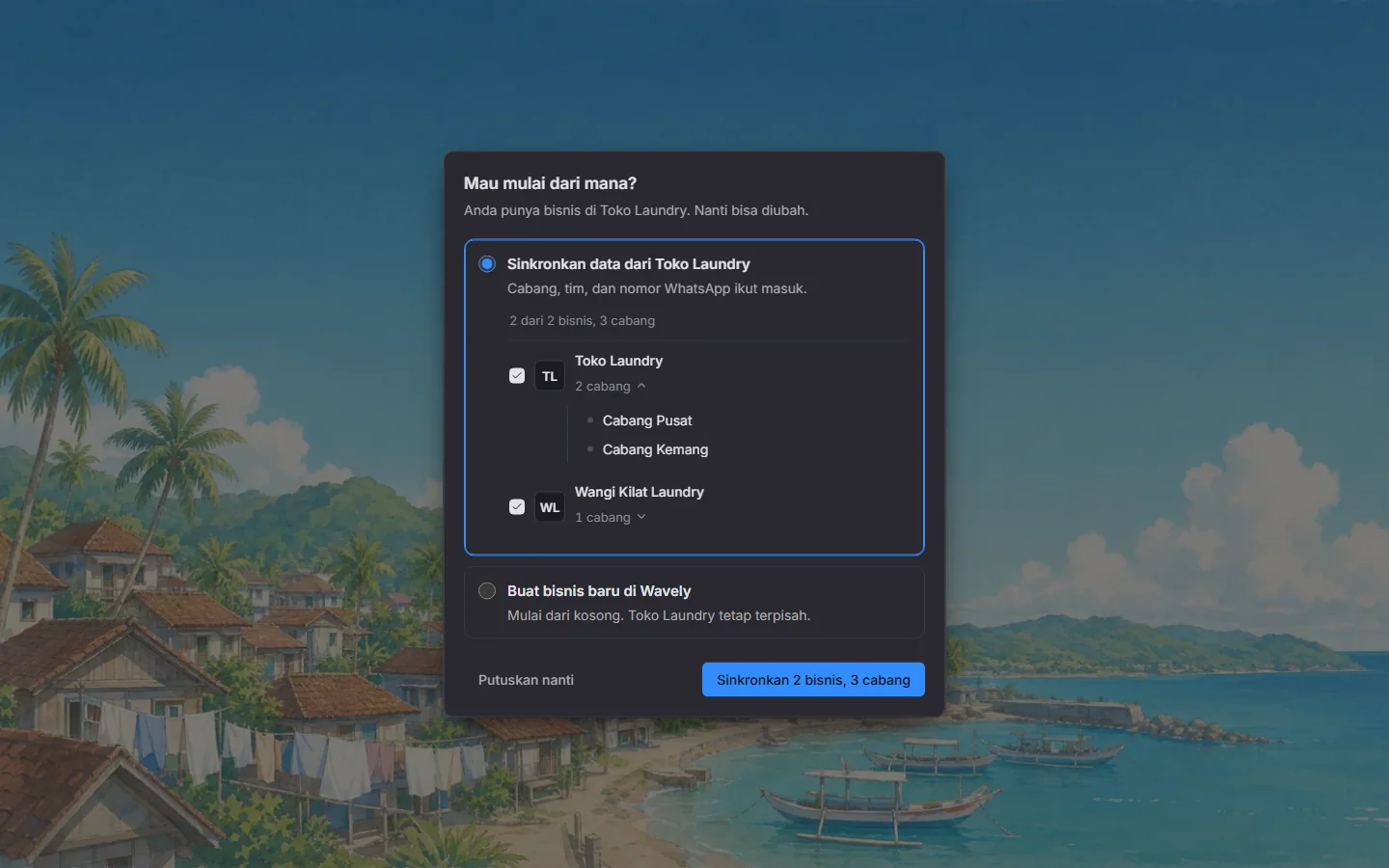
Pressing Esc is the same as Decide later.
Change the name and logo
Open Settings > Business. Owners and admins can change the logo and the name, then choose Save. For a synced business, the name you save also changes in that app, and the other way round. If your business is synced, the top of the page names the app and links to it.
Hide a synced business
In Settings > Business, choose Hide on the Hide from Wavely card. The business stays out of Wavely until you choose it again when you sign in. Wavely signs you out right away. That app keeps working as usual.
Delete a business
Owners can delete a business from Settings > Business. Type the business name to continue.
- An ordinary business: choose Delete business. All its chats and contacts are deleted too. If you have another business, you move to it. If this was your last one, you go back to the step that creates a business, or to the sign-in screen with a message that the business was deleted if your account uses a password.
- A synced business: choose Delete from Wavely. The chats and WhatsApp numbers in Wavely are deleted too, but the business in that app stays and is told that Wavely has let go of it.