Inbox
Canned replies with #
A canned reply in Wavely is an answer you save once and call up with # in the message box whenever you reply.
Save a reply
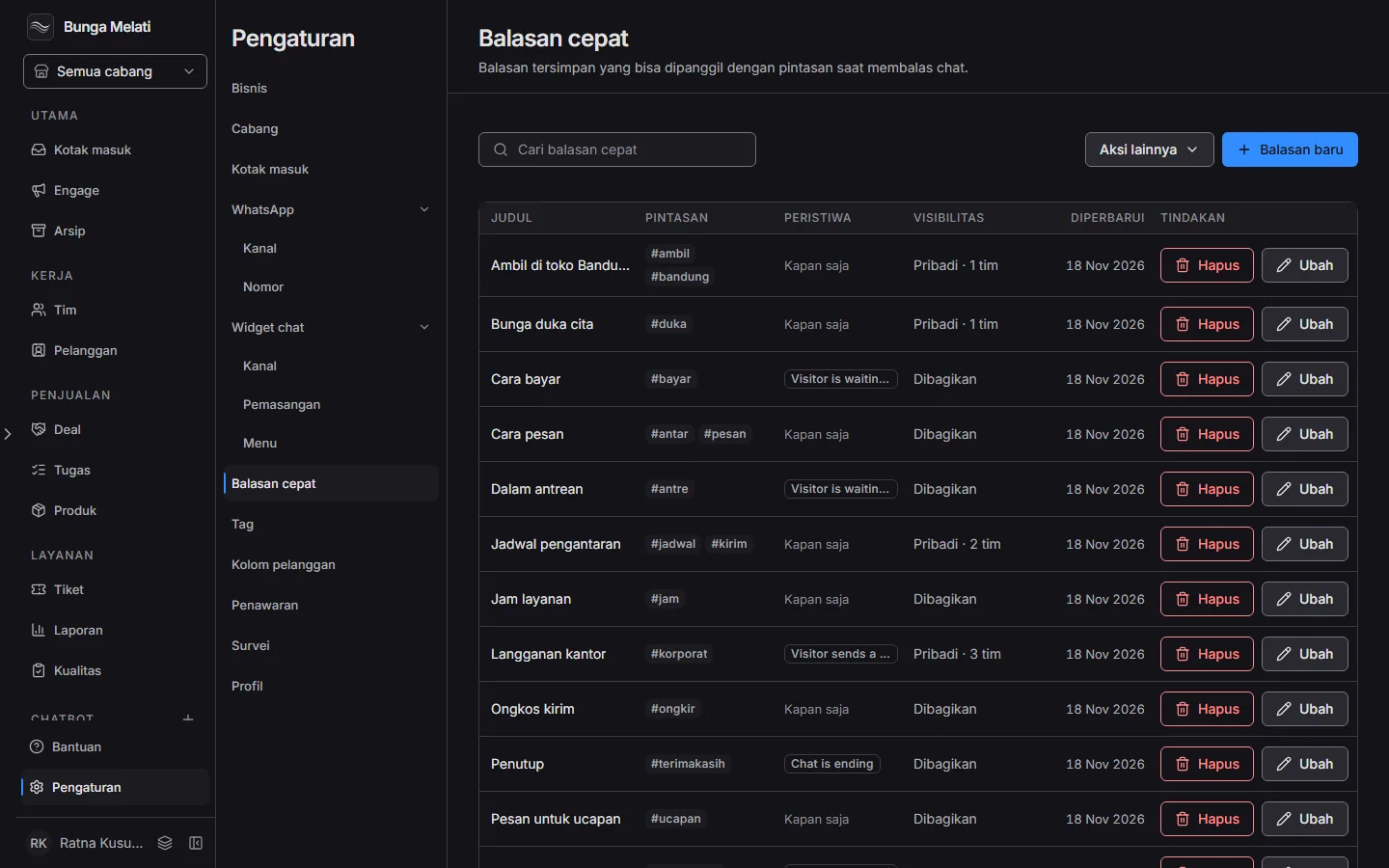
Open Settings > Canned responses. The page lists the replies with Title, Shortcut, Events, Visibility and the Updated date. Click New response. The New response window opens, not a side panel. Fill in:
- Title: the reply's name in your list.
- Response text: the text that goes into the message box. The buttons below it, such as
{{customer}}, insert data into the text. - Shortcut: the word you type to call the reply. Use lowercase letters, numbers, dots, underscores, or dashes, at most 32 characters.
- Suggest this response when: the events that make the message box offer this reply by itself. Leave Any time if you do not need it. Manage events above the list edits the list of events.
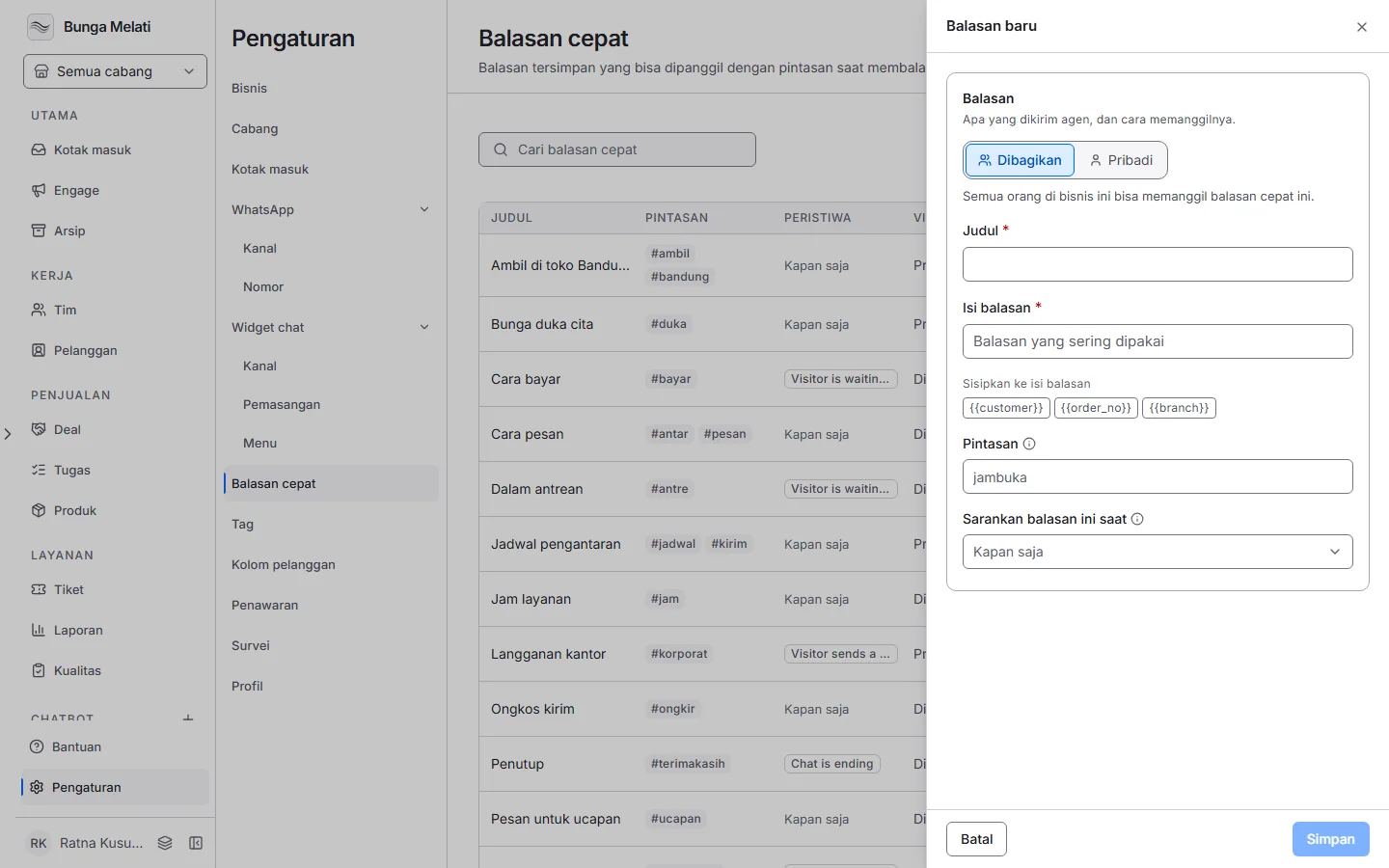
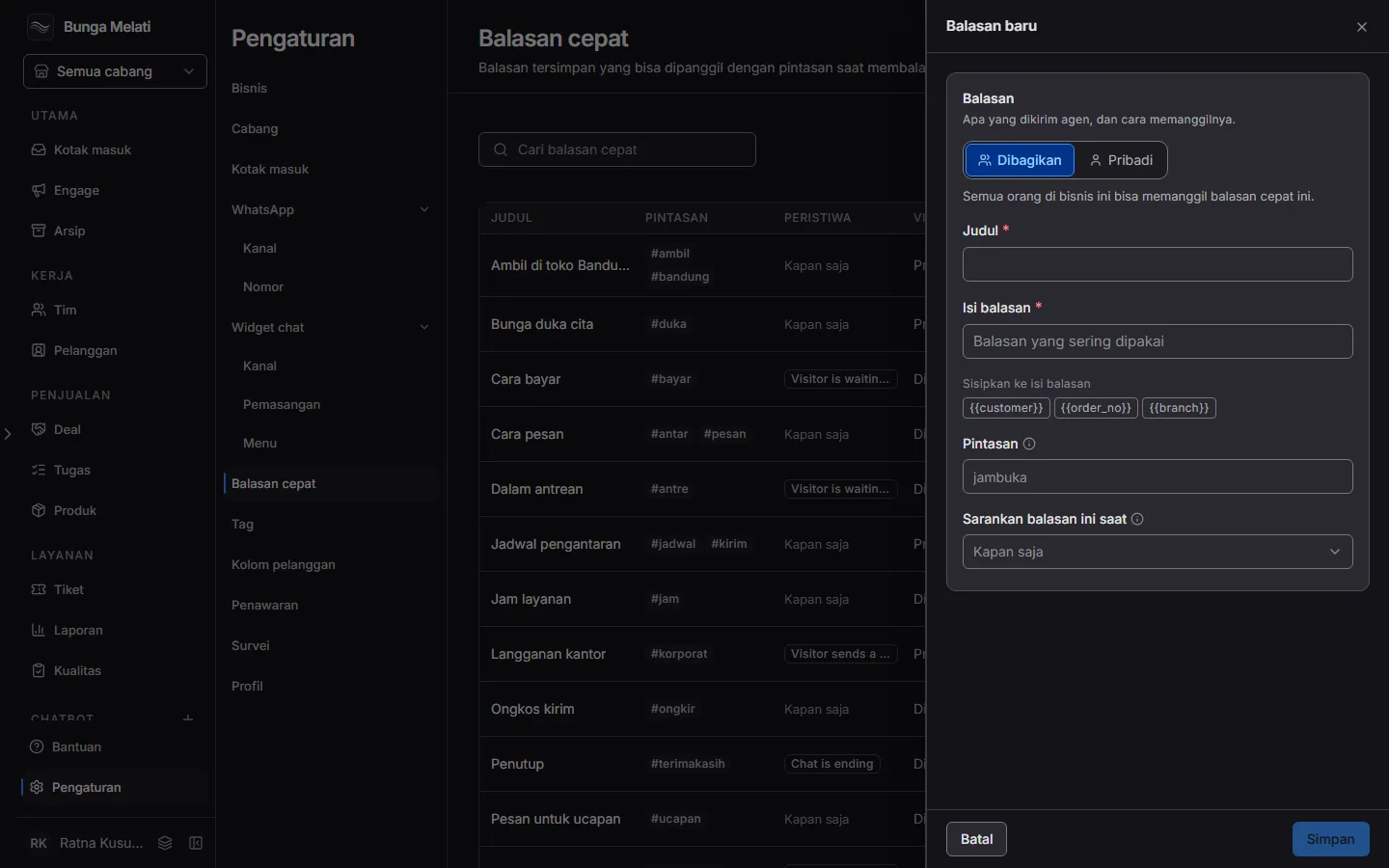
Each shortcut can belong to only one reply across the whole business. Then choose Save.
Only owners and admins can create or edit canned responses. Agents use them when they reply. In the list, Edit opens a reply and Delete removes it.
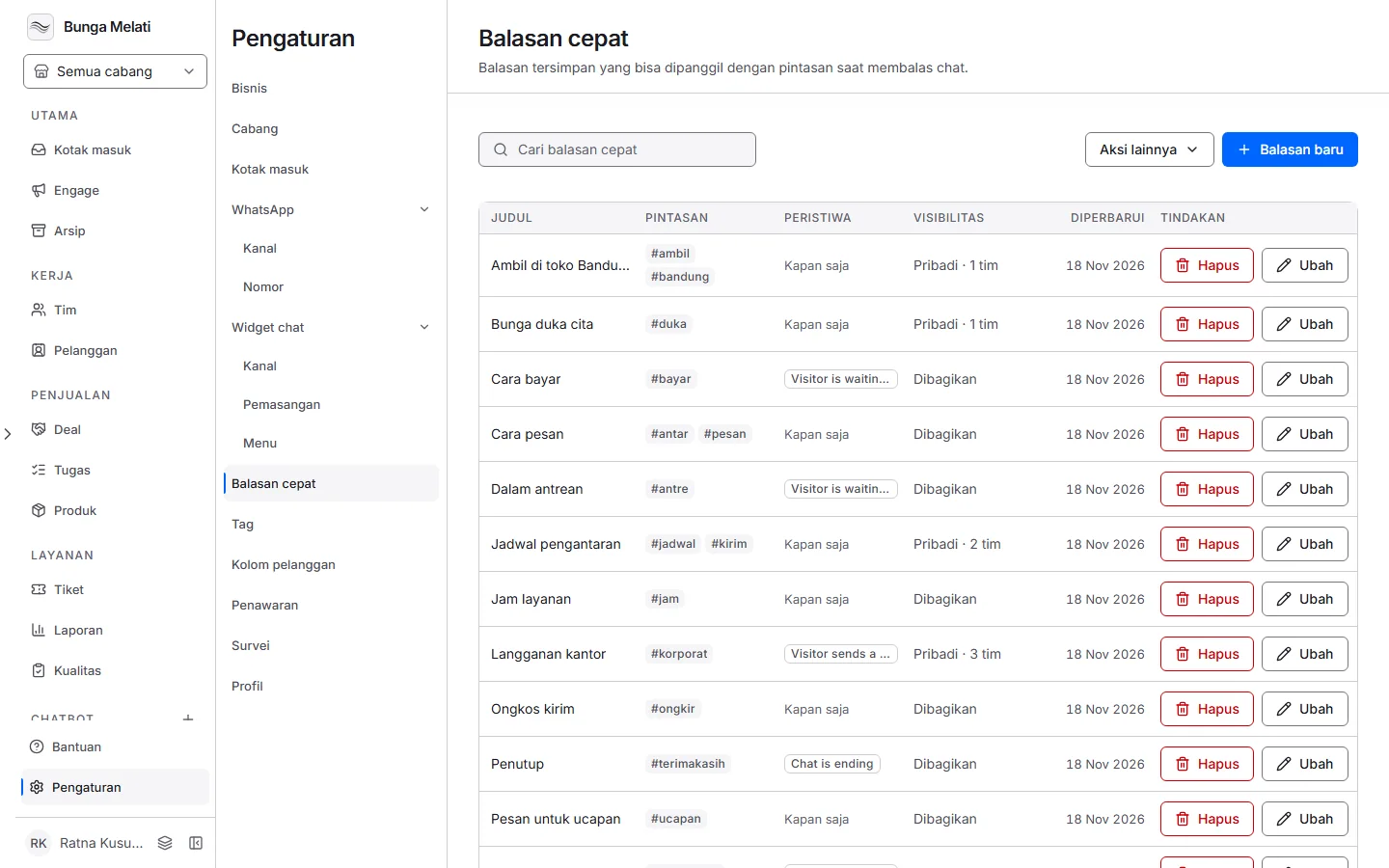
Call it with
In the message box of a chat, type # followed by a few letters of the shortcut. Wavely shows the matching replies. Pick one and its text goes into the message box. You can still change it before you choose Send.
The hash is used because the slash (/) is already the search shortcut.
Who can use it
The choice at the top of the window decides who sees a reply in the message box:
- Shared: everyone in this business.
- Private: only agents in the teams you pick.
A Private reply with no team cannot be called by anyone. The list flags it with a warning, so pick at least one team.