AI assistant
Create an AI assistant
You turn on Wavely's free AI agent by creating a chat bot, naming it, choosing the teams it serves and setting how it speaks.
Create a chat bot
The AI assistant in Wavely is called a chat bot. It answers visitors from the documents you give it, in the teams you choose. Owners and admins can create one.
- Open Chat bots in the side menu and click New chat bot.
- Fill in Name. Visitors see this name above its replies, for example "Support assistant".
- Pick the teams it serves. The default team is already selected.
- Click Create chat bot.
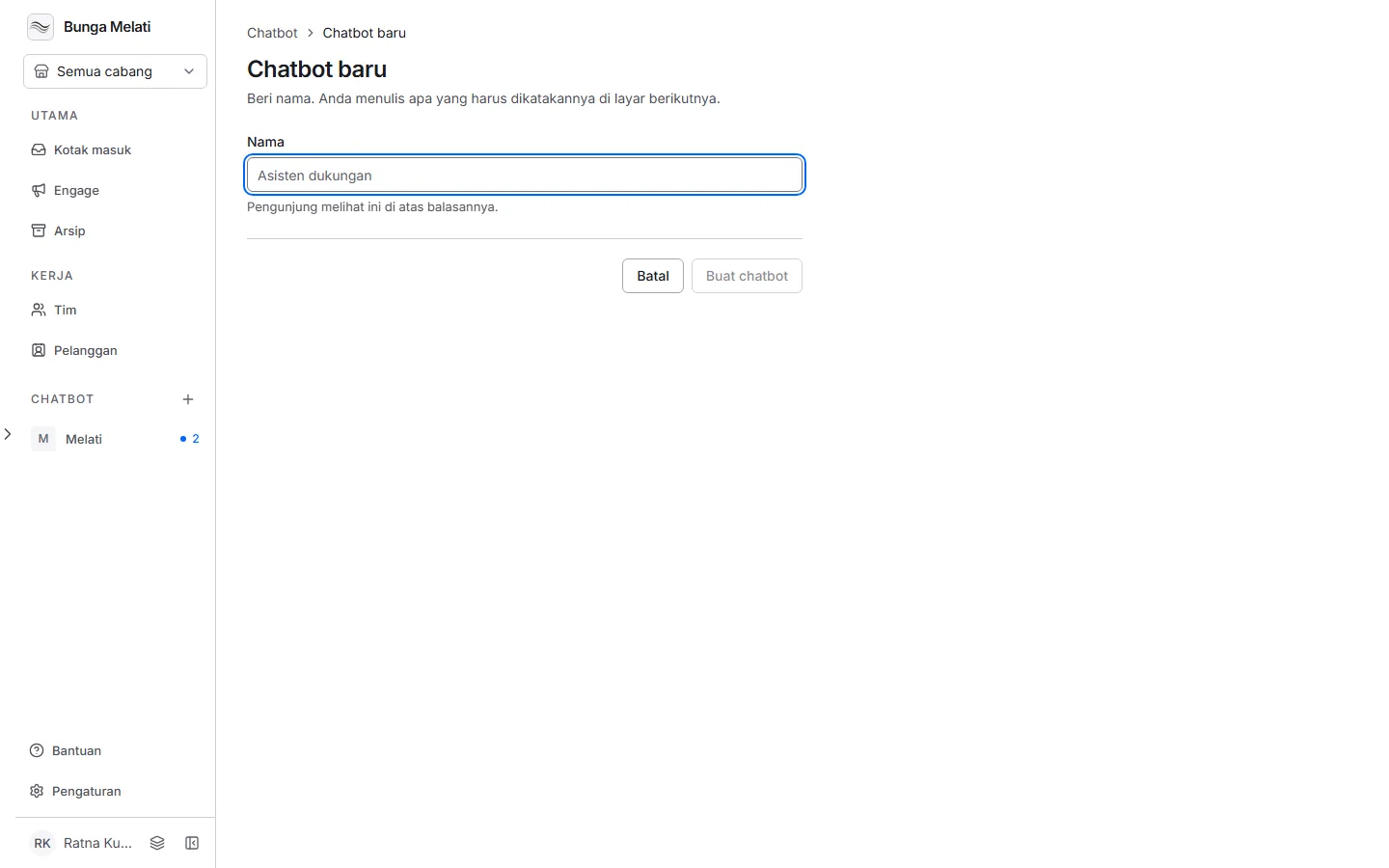
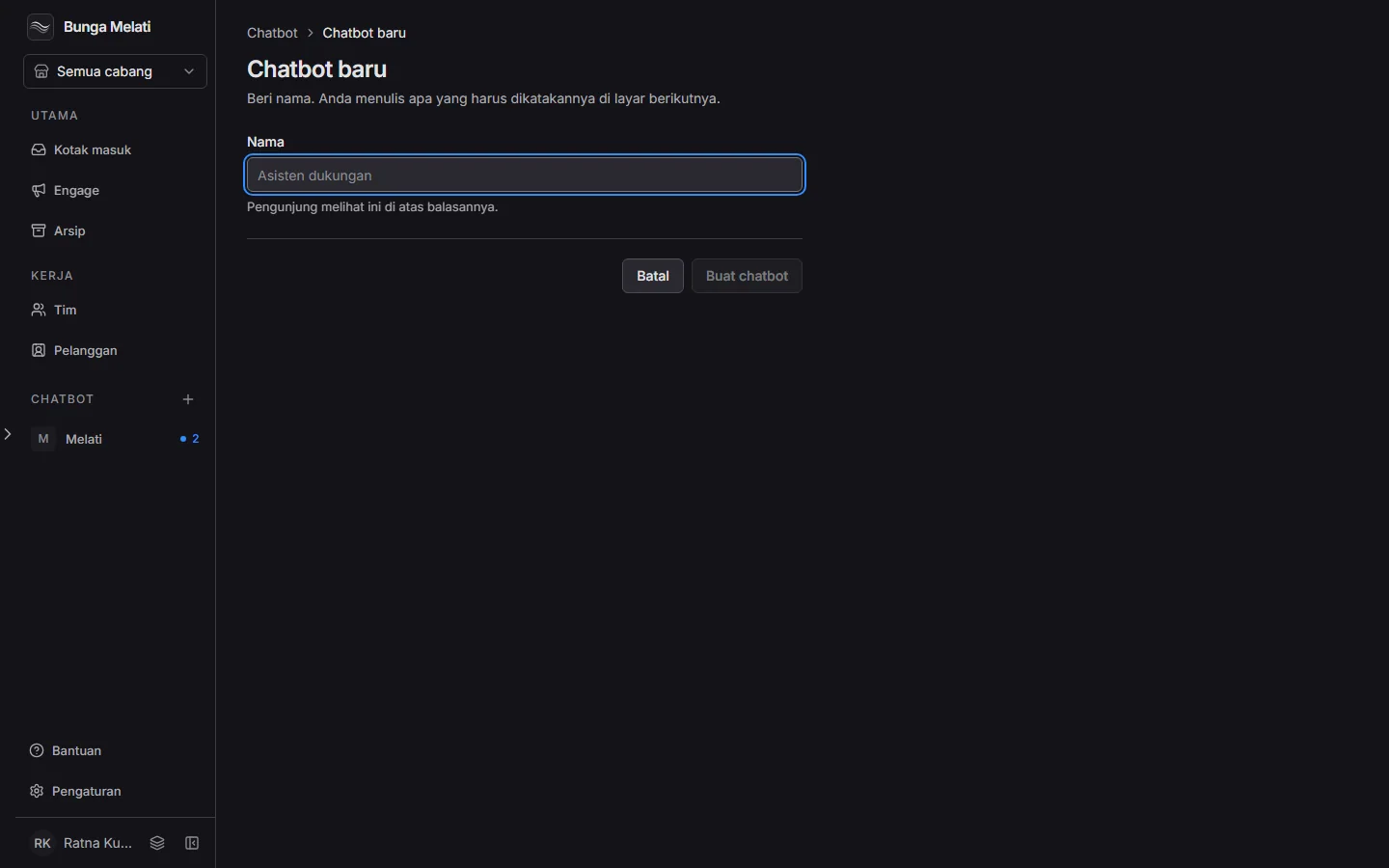
A chat bot only takes chats from the teams you give it. With no team, no chat reaches it.
Set how it speaks
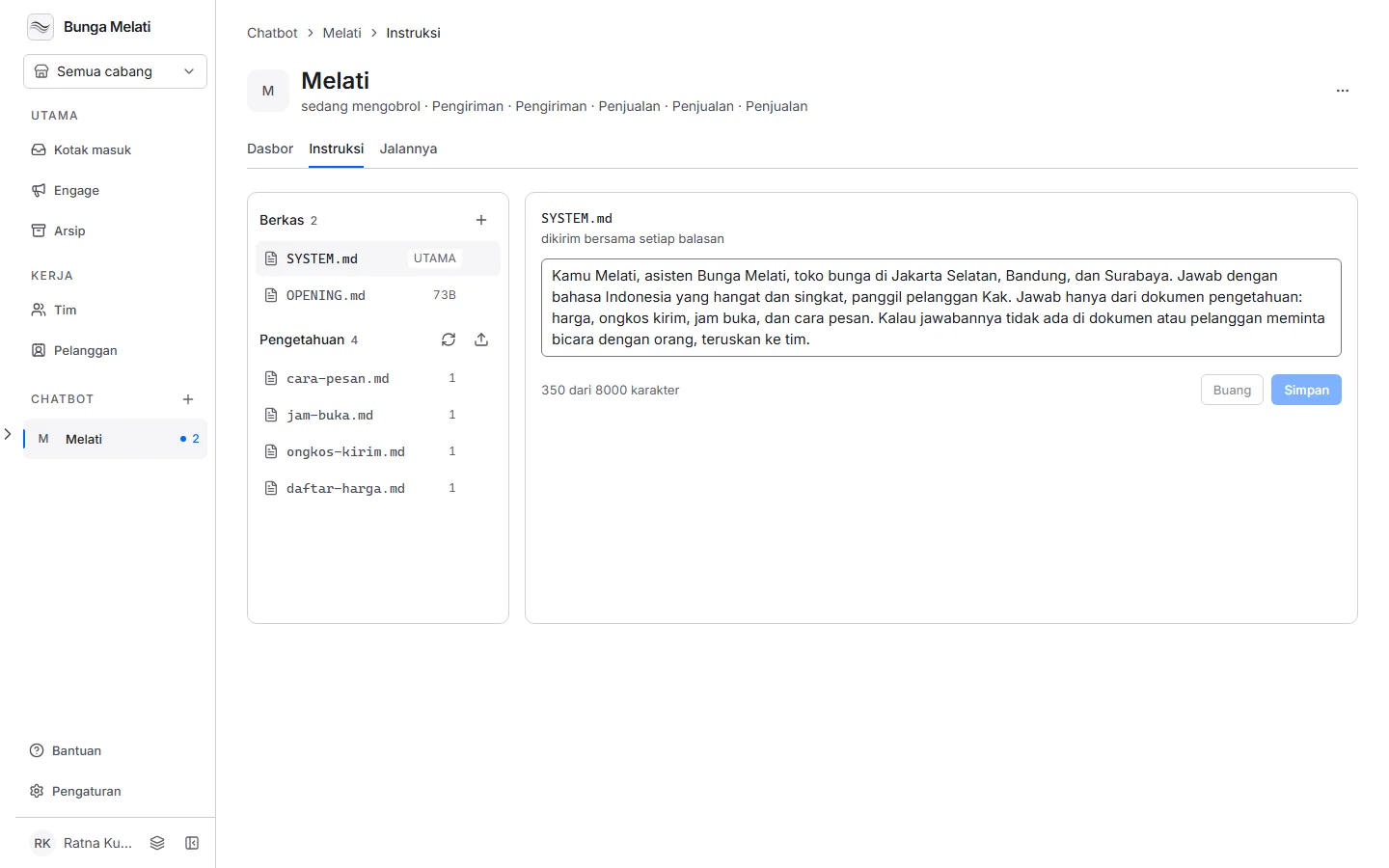
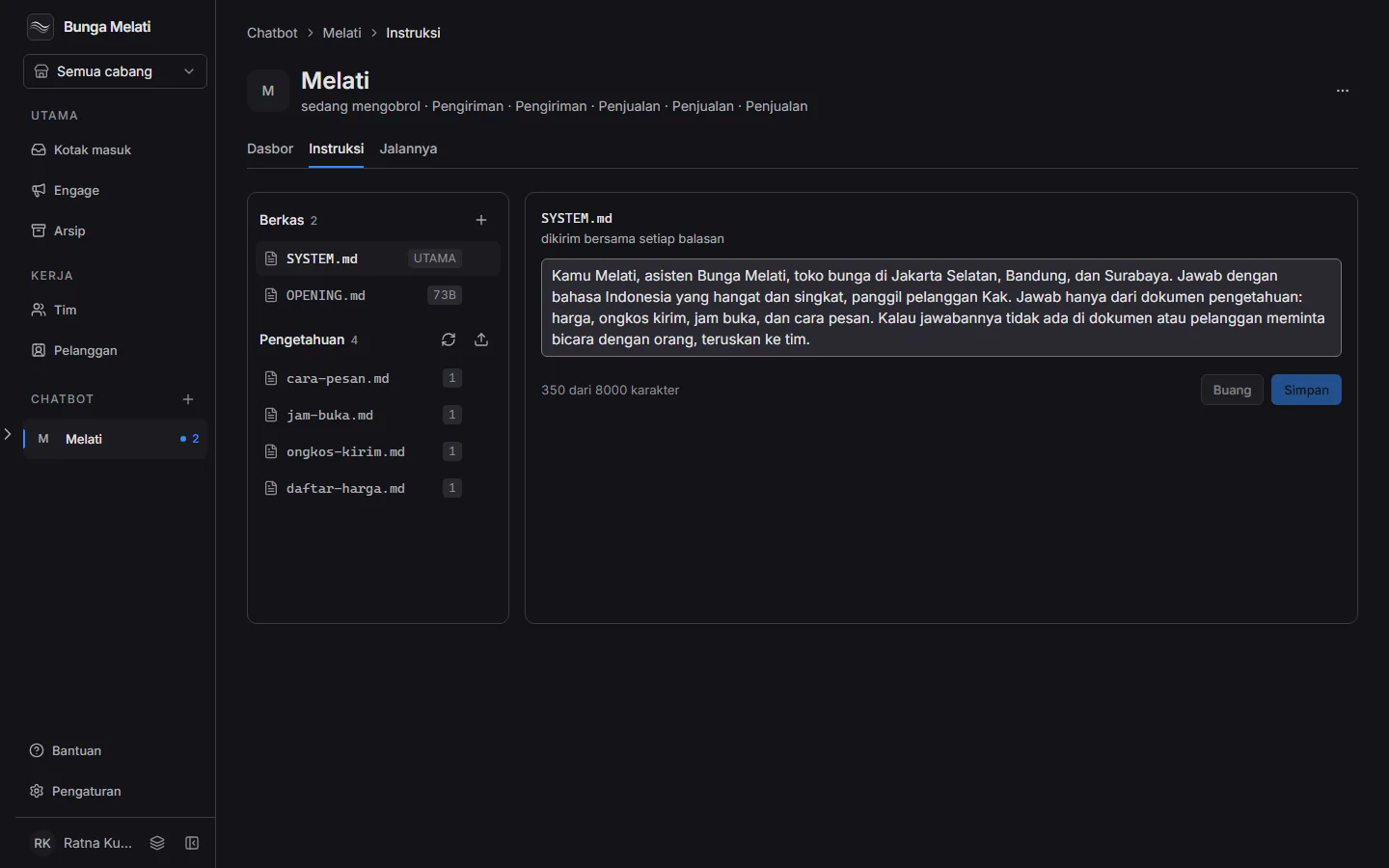
After you create it, you land on the Instructions tab. Under Files, instructions are markdown files ending in .md:
- The file marked ENTRY is sent with every reply. Write who it is, its tone and what it must not answer.
- The opening file is sent when it picks up a quiet conversation.
- Any other file is added after the entry file.
Each file holds up to 8,000 characters. Once saved, the next reply uses it. The Knowledge section on the same tab holds the documents answers come from, covered on the Knowledge base page.
Turn it on for the widget
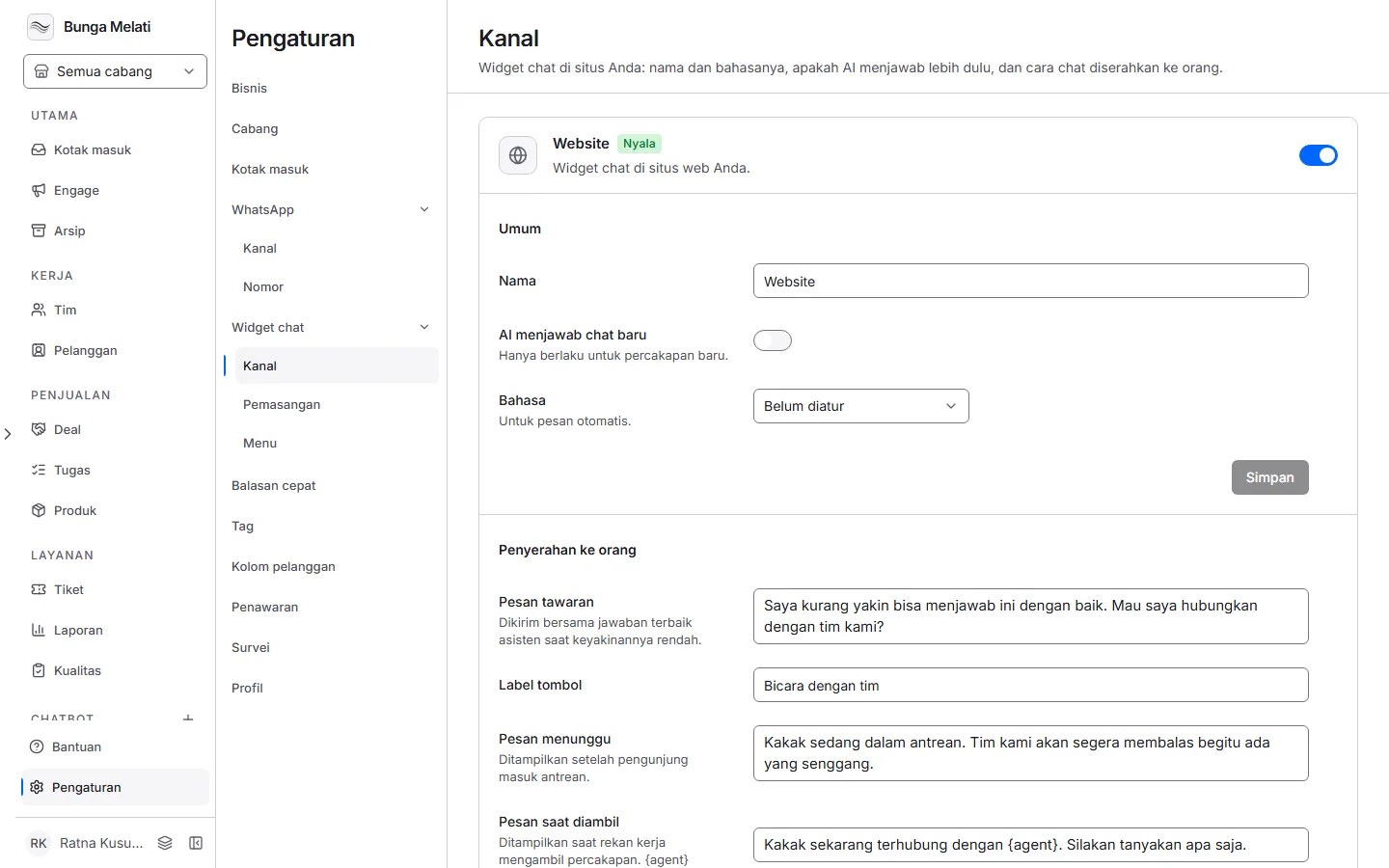
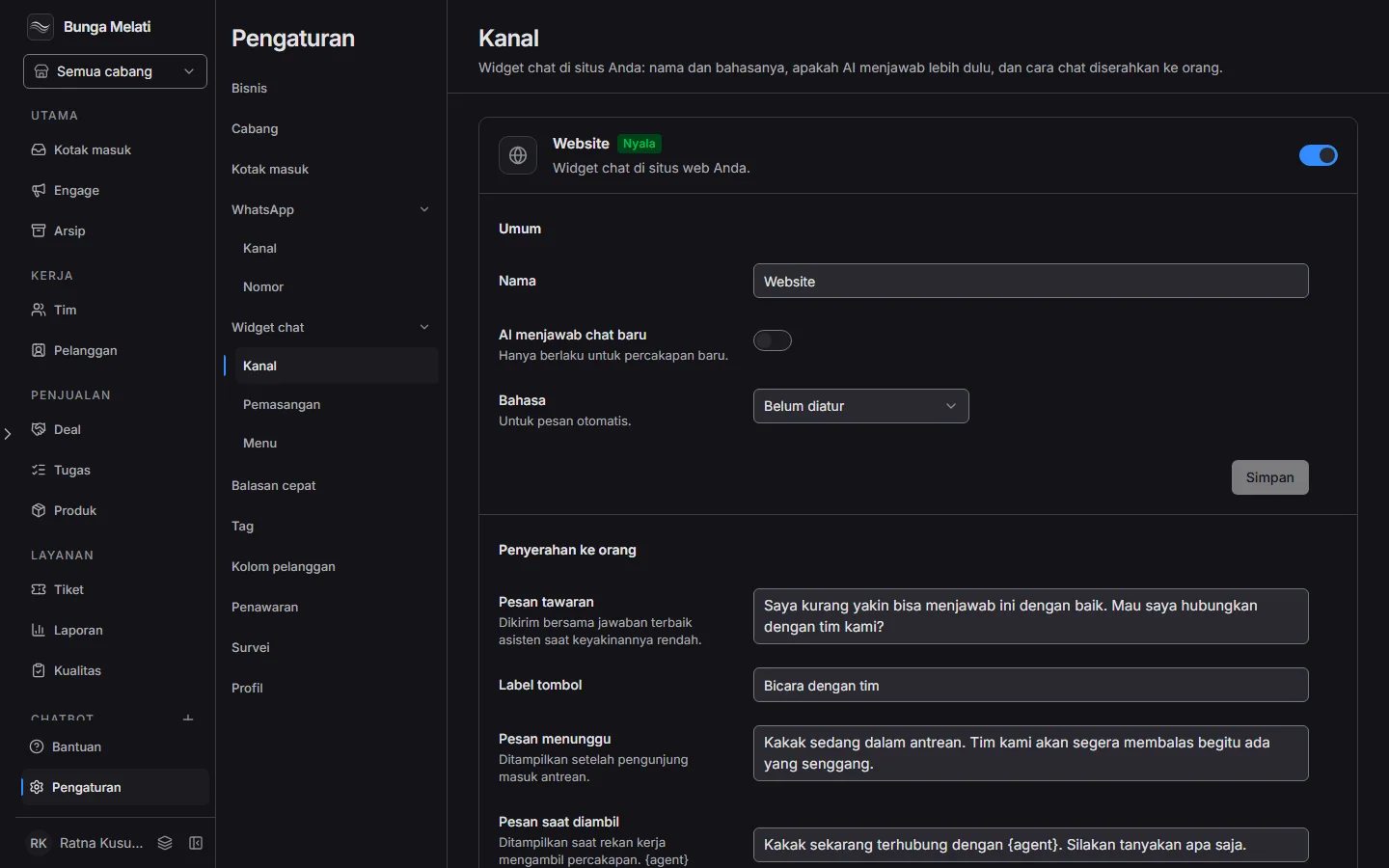
Open Settings, Chat widget, Channels. Under General, switch on AI answers new chats. This applies to new conversations only. The language for automatic messages is set in the language field of the same section.
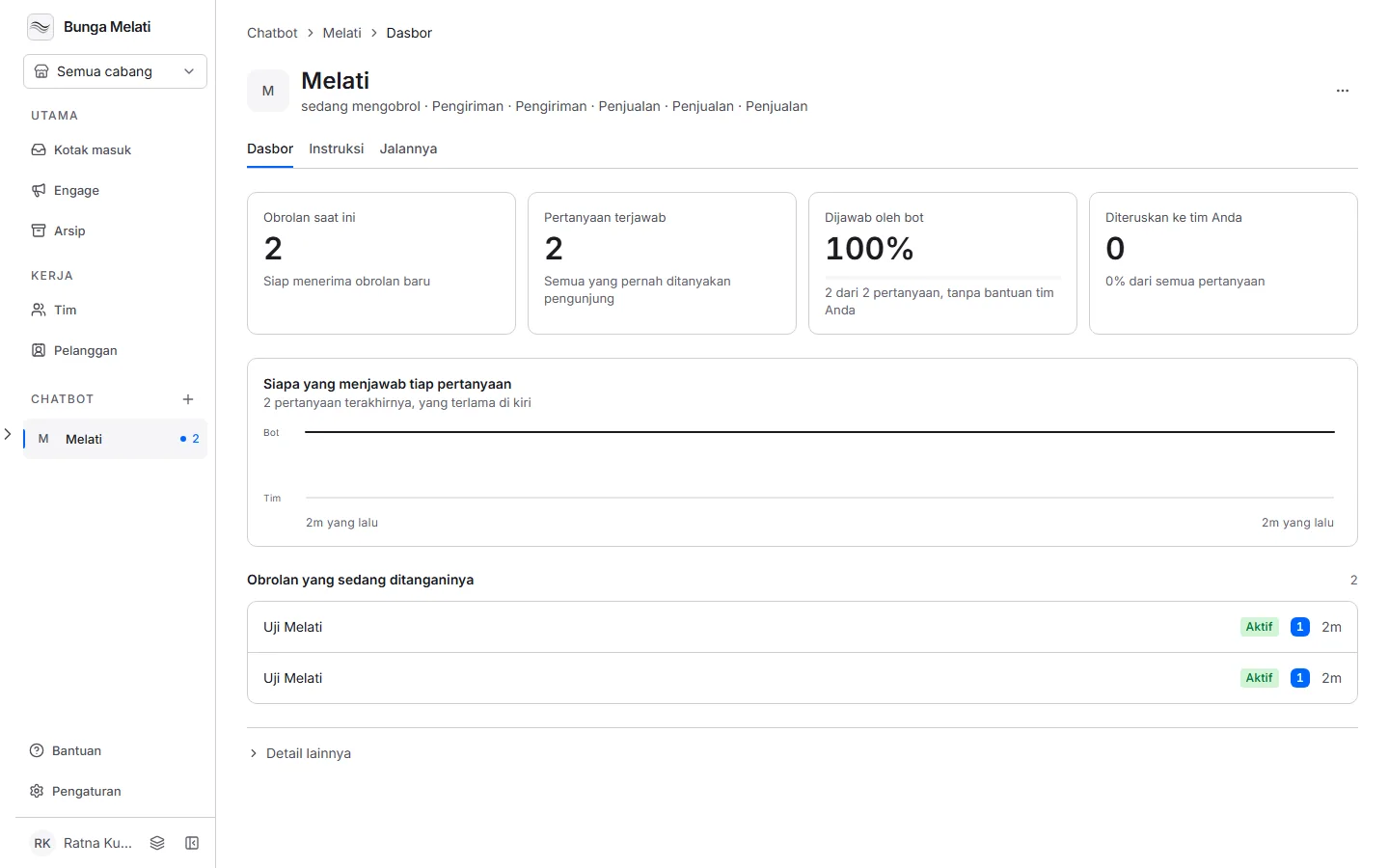
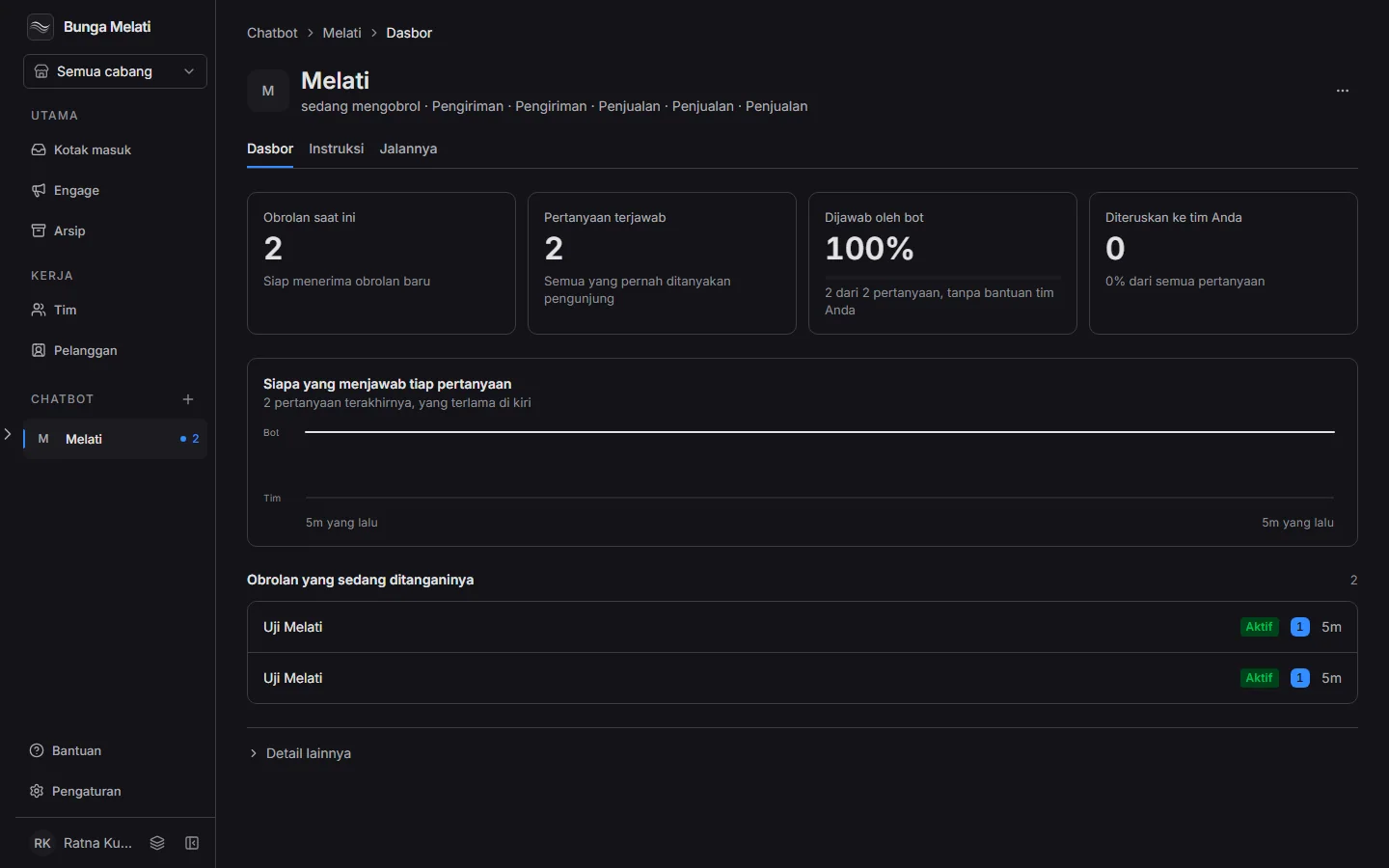
To watch how it does, open the chat bot. The Dashboard tab shows how many questions it answered and how many it passed to your team. The Runs tab records every question, the answer and the sources it used. You can filter and search the list, and export it with Export to Excel.
Note: The AI agent is free on the free plan.
To stop a chat bot, remove it from its page. It stops answering and leaves every team. Its old replies stay in their conversations.